
Sales SOP: nine steps to turn leads into buyers
How to read the lights on the Sales SOP page, create a full set of drafts in one click, have AI write each step and your daily social post, and deliver a gift in a LINE chat after asking a few questions. One screenshot per step.
Getting leads is not hard. Turning them into buyers is. The Sales SOP page breaks this into nine steps. Each step has a light that the system calculates from the real data on your site, so there is nothing to tick off by hand. Every plan can see this page; steps your plan does not include show a lock and tell you which plan has them.
1. Sign in: the progress card is on your Dashboard
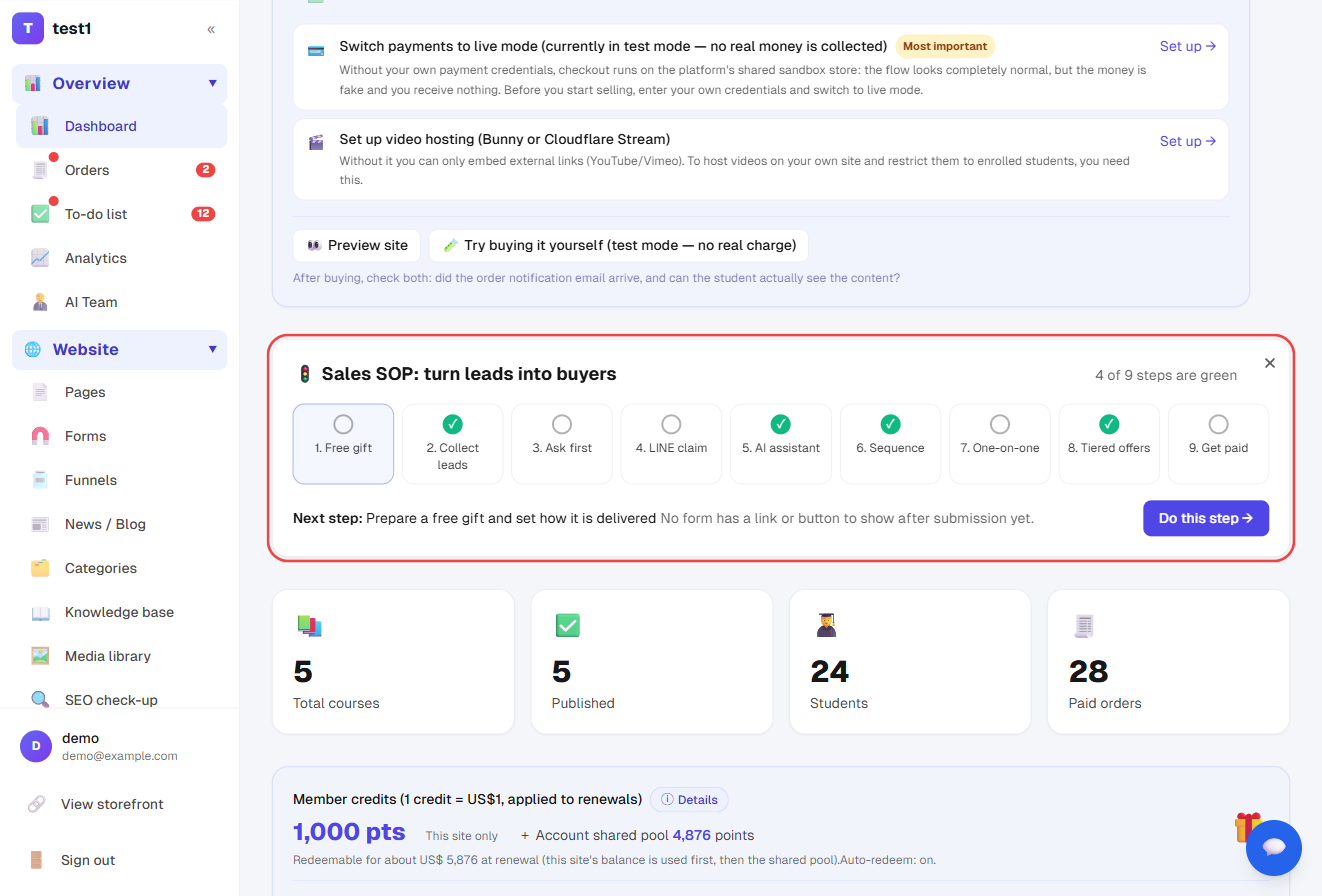
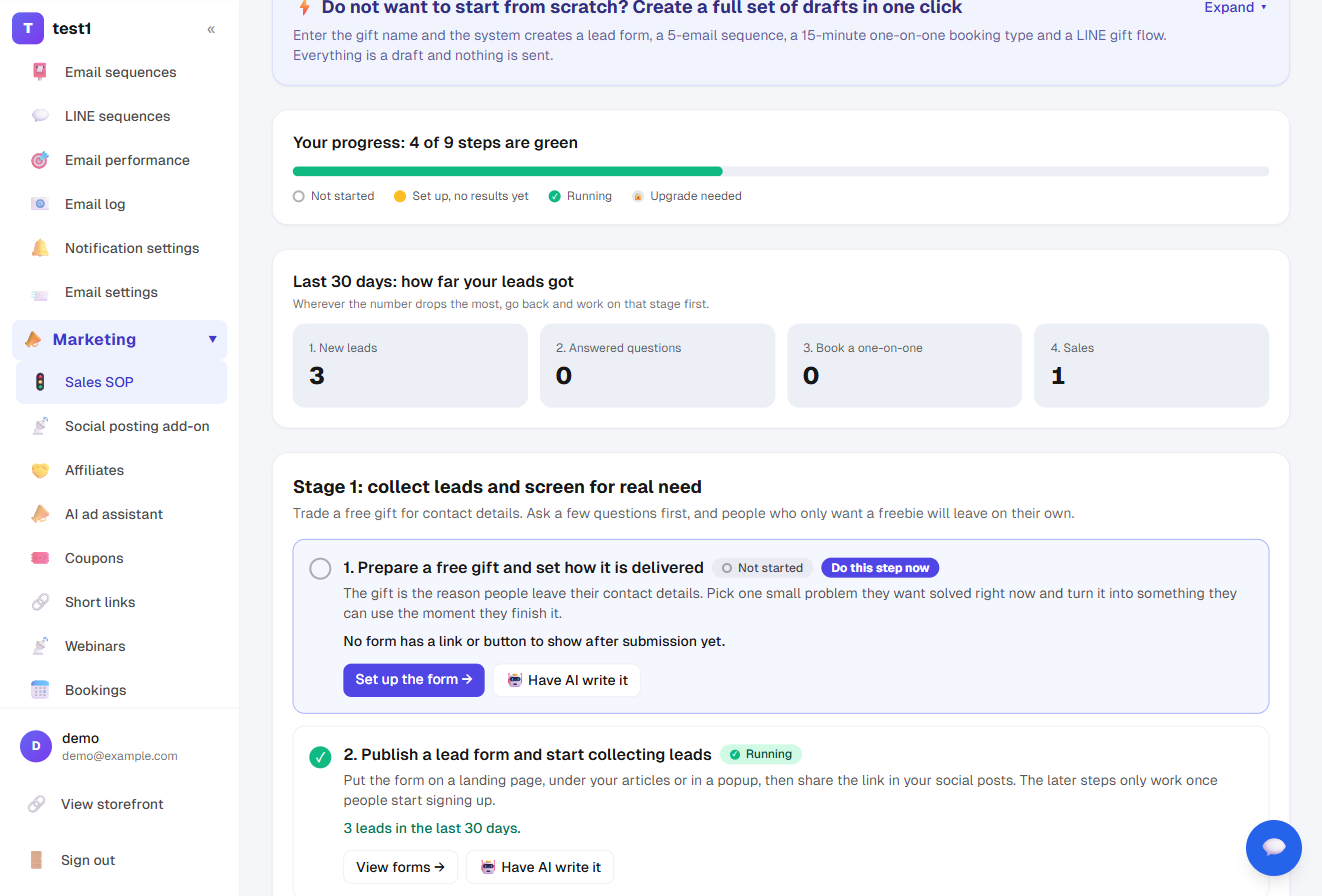
Every time you sign in, the Dashboard shows a Sales SOP card: nine lights, how many are green, and what to do next. Click Do this step to jump straight to it. The × in the corner hides the card until your next sign-in.
2. Open Marketing → Sales SOP
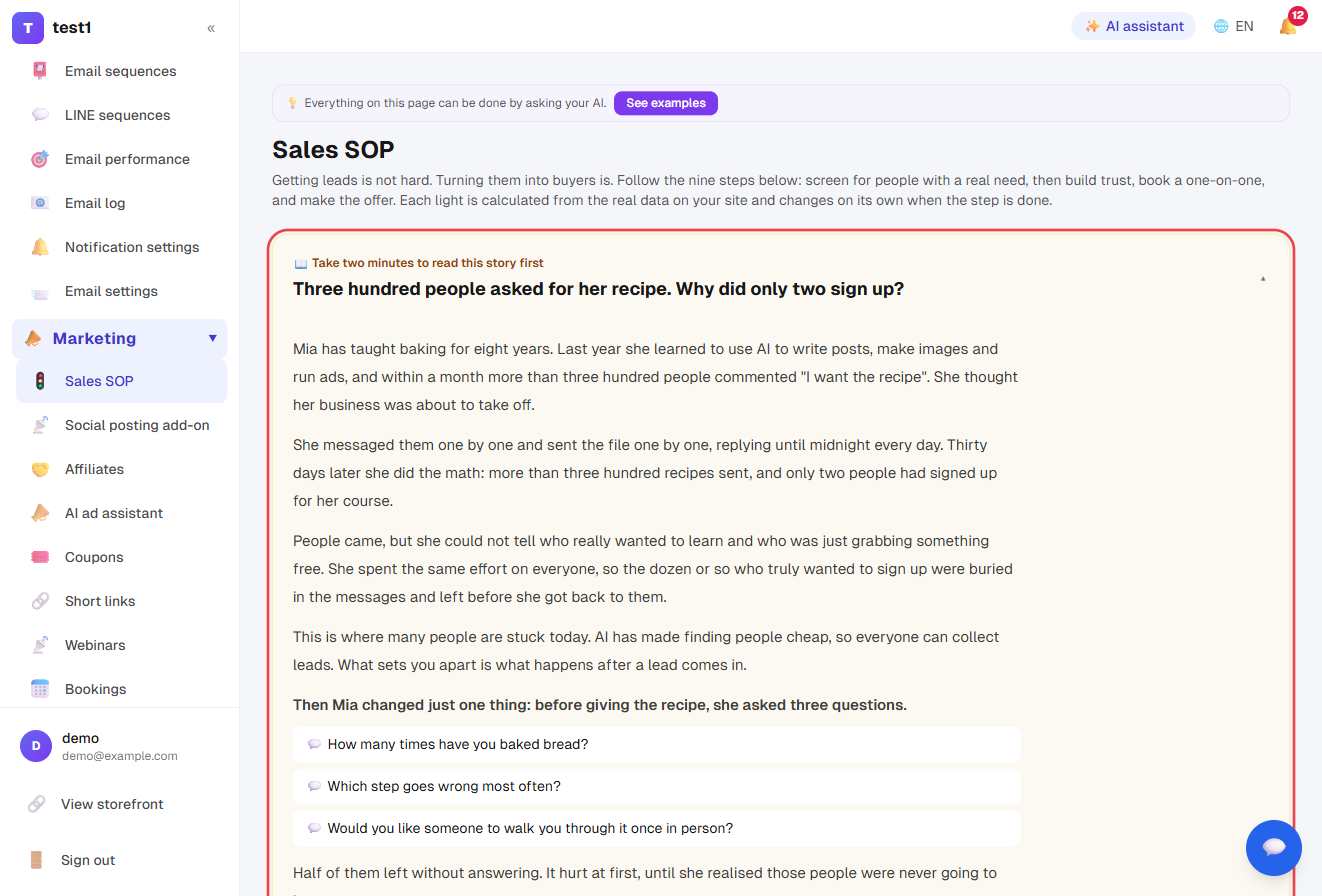
The page starts with a two-minute story about why these nine steps matter. It is expanded while fewer than half of your lights are green, and collapses to one line after that. Click the title to open it again.
3. Skip the blank page: create a full set of drafts
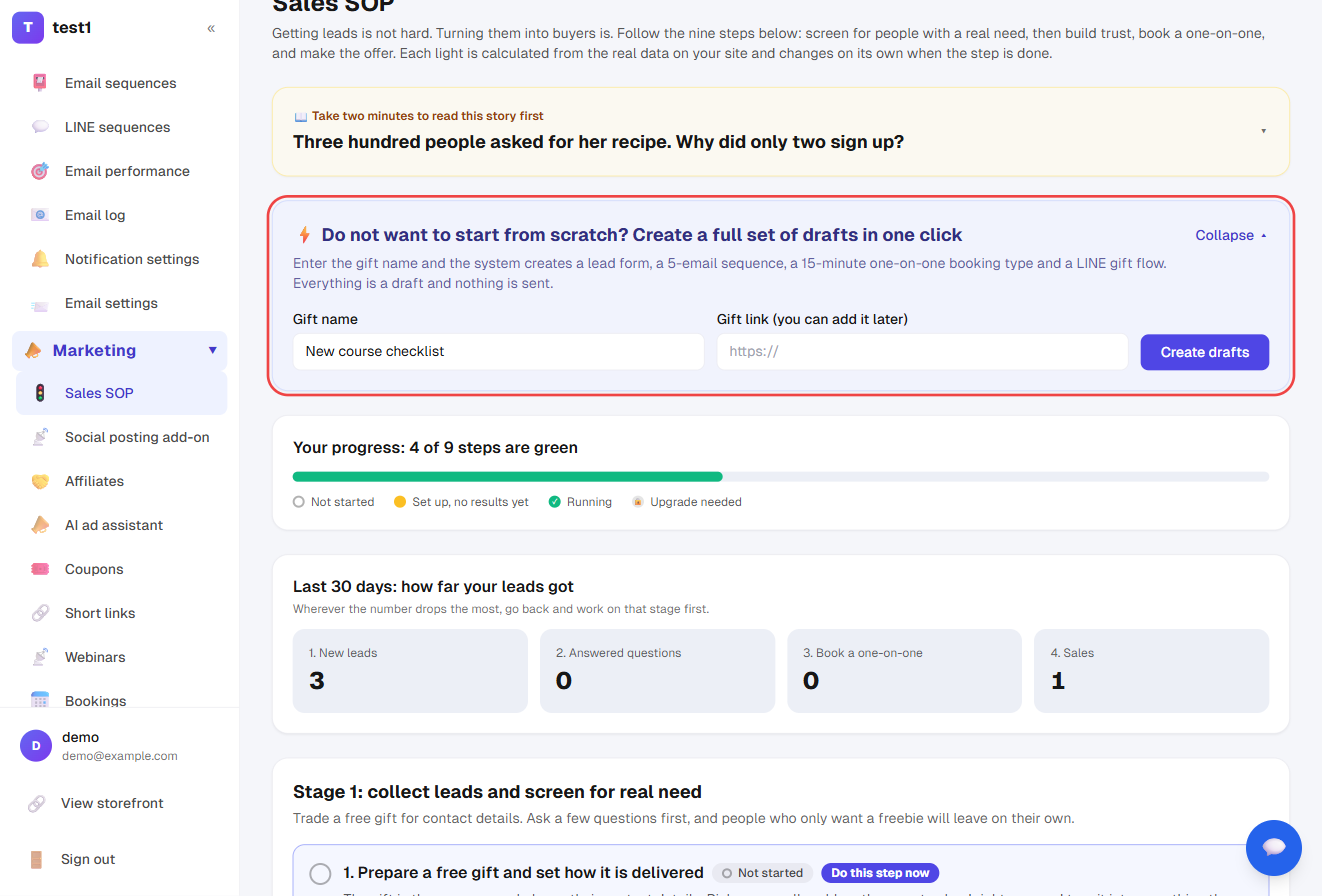
Under Do not want to start from scratch?, enter a gift name (the gift link can be added later) and click Create drafts.
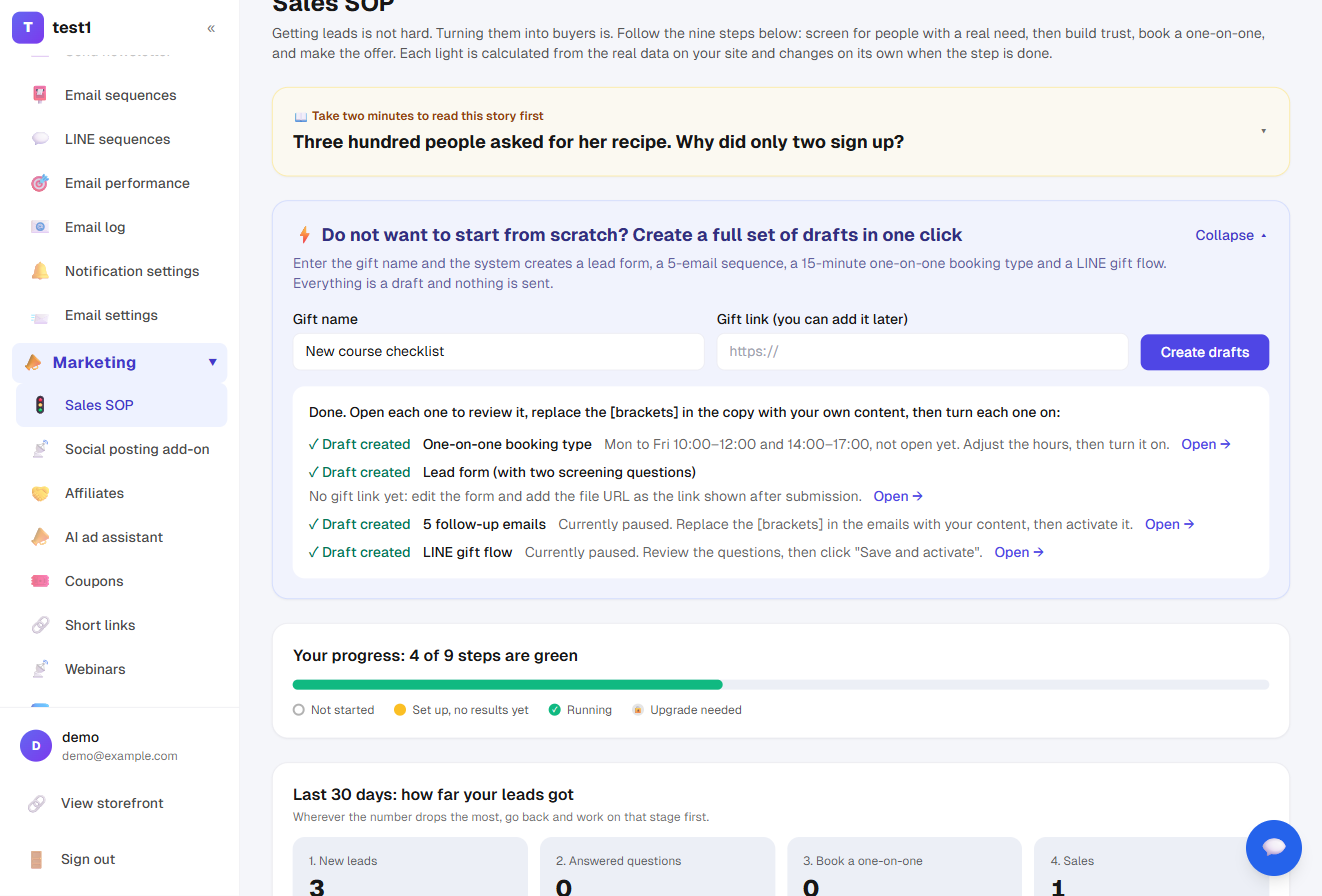
The system creates four things, each with an Open link:
- A 15-minute one-on-one booking type
- A lead form with two screening questions
- A 5-email follow-up sequence
- A LINE gift flow
Everything is a draft or paused, and nothing is sent. Open each one, replace the [brackets] in the copy with your own content, then turn each one on. Items that already exist with the same name are not recreated, and items your plan does not include are skipped with a note on which plan has them.
4. Read the lights and the 30-day numbers
| Light | Meaning |
|---|---|
| Grey | Not started |
| Yellow | Set up, but no numbers in the last 30 days |
| Green | Running |
| Lock | Your current plan does not include this feature |
Yellow is a reminder that setting something up is not the same as finishing: leads have to actually reach that step.
The four numbers below (new leads → answered questions → one-on-one bookings → sales) are your funnel for the last 30 days. Wherever the number drops the most, work on that stage first. The step marked "Do this step now" is what the system suggests you do next.
5. Work through the nine steps in order
Stage 1: collect leads and screen for real need
- Prepare a free gift: in Forms, set the link shown after submission, or create a LINE gift flow.
- Publish a lead form: put it on a landing page, under articles or in a popup, and share the link in posts.
- Ask a few questions before giving the gift: add choice or text questions to the form. People who only want a freebie drop out, and the answers stay with the lead.
- Deliver the gift in a LINE chat: see step 8 below.
Stage 2: earn their time
- Let AI answer common questions first: turn on the support bubble, add an AI key and write your knowledge base.
- Keep delivering value with a sequence: an email sequence or LINE sequence triggered by the form's tag.
Stage 3: get them to act
- Invite people to book a one-on-one: open a 15-minute booking type and put the link in your sequence emails and LINE messages.
Stage 4: get them to pay
- Prepare offers at different price points: at least two, so you can propose what fits each customer.
- Get paid: payments must be in live mode. This step shows sales in the last 30 days and how many came from your leads.
Each step has a button that takes you straight to the page where you set it up.
6. Not sure what to write: click "Have AI write it"
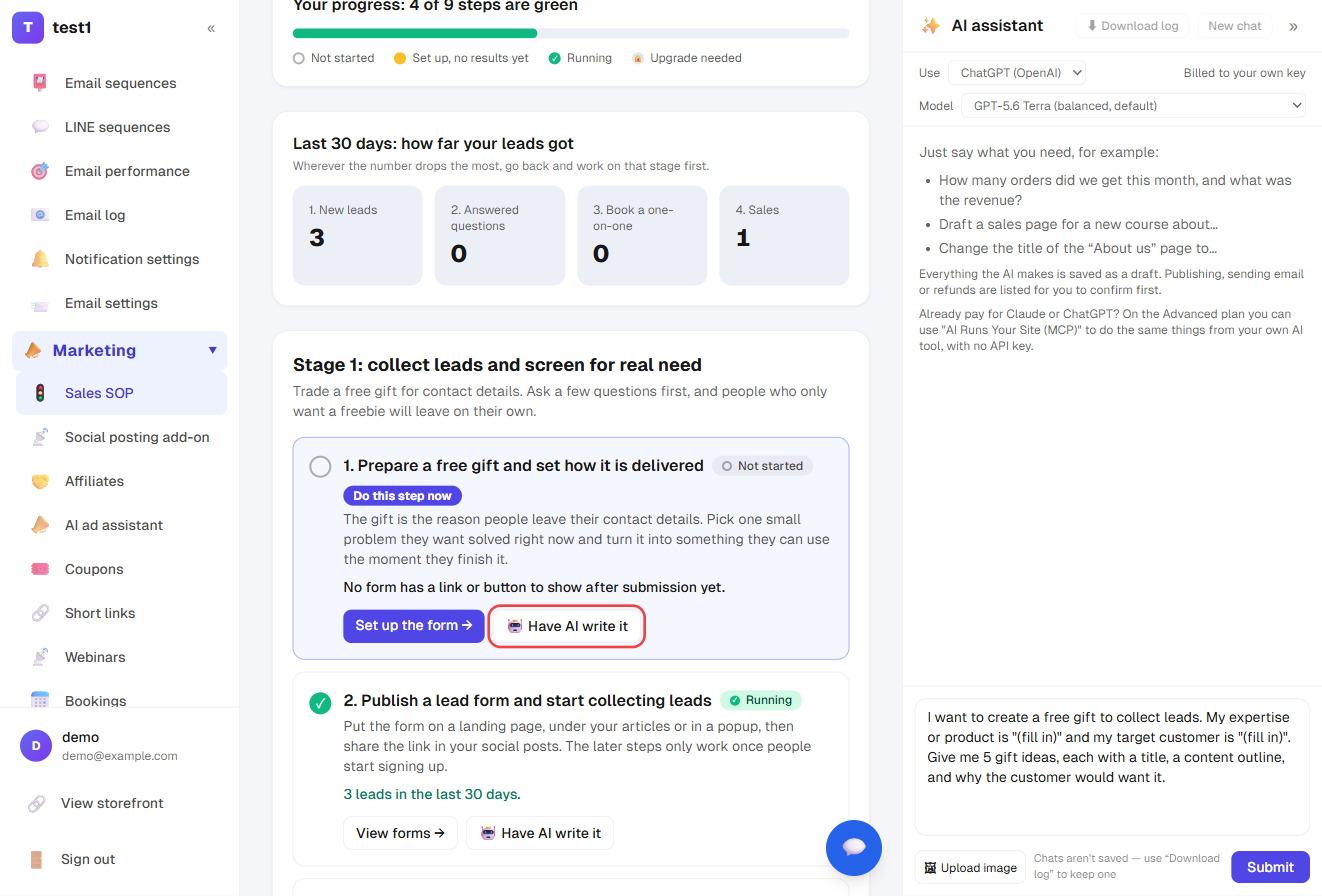
Have AI write it next to each step opens the AI assistant on the right with a complete request already in the input box. Replace the parts in brackets with your product and customer, then click Submit. You need to add your own key under AI writing key first; usage is billed to your own key.
7. Post on social media every day to bring people to step one
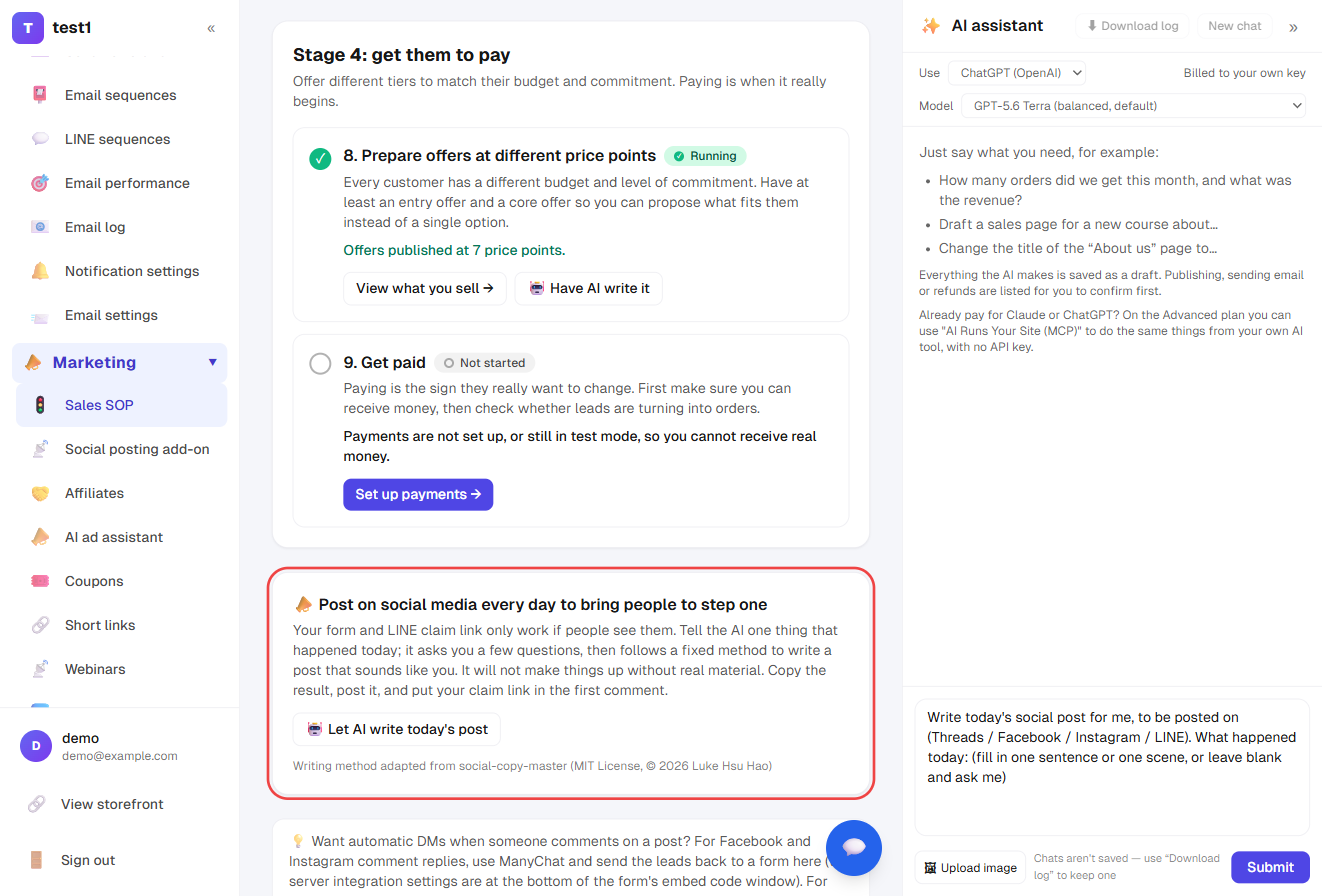
Your form and LINE claim link only work if people see them. Near the bottom of the page, under Post on social media every day, click Let AI write today's post. Replace the brackets with the platform (Threads, Facebook, Instagram or LINE) and one thing that happened today, then send.
The AI follows a fixed method:
- It asks you for material first: a sentence that got a reaction from you today, a scene that made you stop, something you got stuck on. Answer the ones that resonate; you do not need to answer all of them.
- It picks one of eleven ways to write that fits your material, such as a customer diagnosis, a lesson from a mistake, or an insight from everyday life.
- It checks three things before handing it over: enough real details, no repeated rhythm across posts, and whether the post has something at stake.
- The post comes back in the chat for you to copy. You can ask it to change only the opening, the ending or the tone while everything else stays the same.
The AI will not invent material. If you give it none, it asks. It also does not publish for you; when you want to sell, put your claim link in the first comment.
If you connect your own Claude or ChatGPT to the site (see Run your site with AI), saying "write today's social post" uses the same method.
Writing method adapted from social-copy-master (MIT License, © 2026 Luke Hsu Hao).
8. Deliver the gift in a LINE chat: ask first, then give
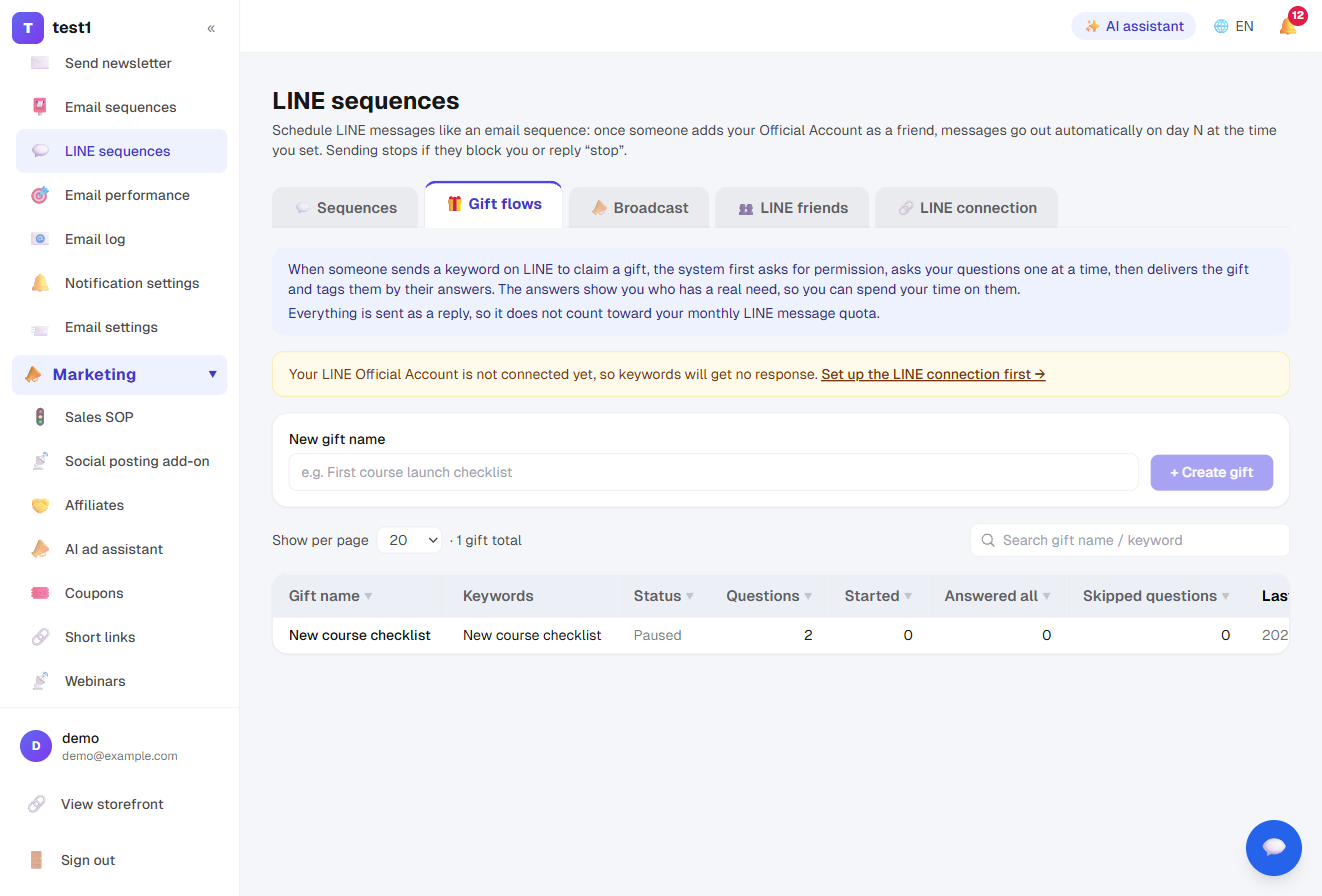
Go to Email → LINE sequences → Gift flows (Advanced plan; connect your LINE Official Account first). If you used step 3, a paused gift is already here. You can also create one under New gift name.
Click Edit to set it up:
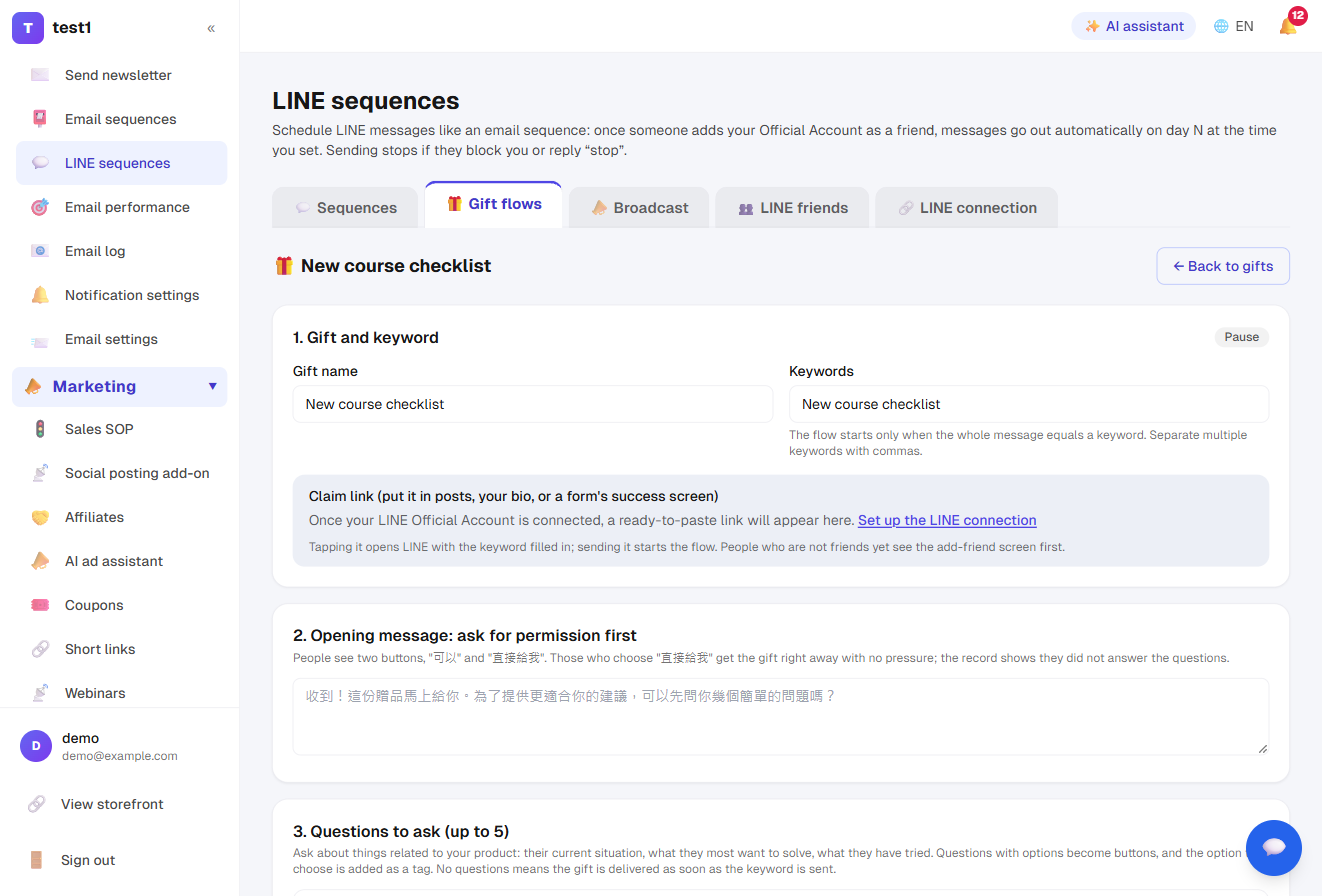
Gift, keywords and opening line. The flow starts when someone sends a message that exactly matches a keyword. Once your LINE Official Account is connected, a claim link appears here. Put it in posts, your bio, or a form's success screen: tapping it opens LINE with the keyword filled in. The opening line comes with two buttons, "Sure" and "Just send it".
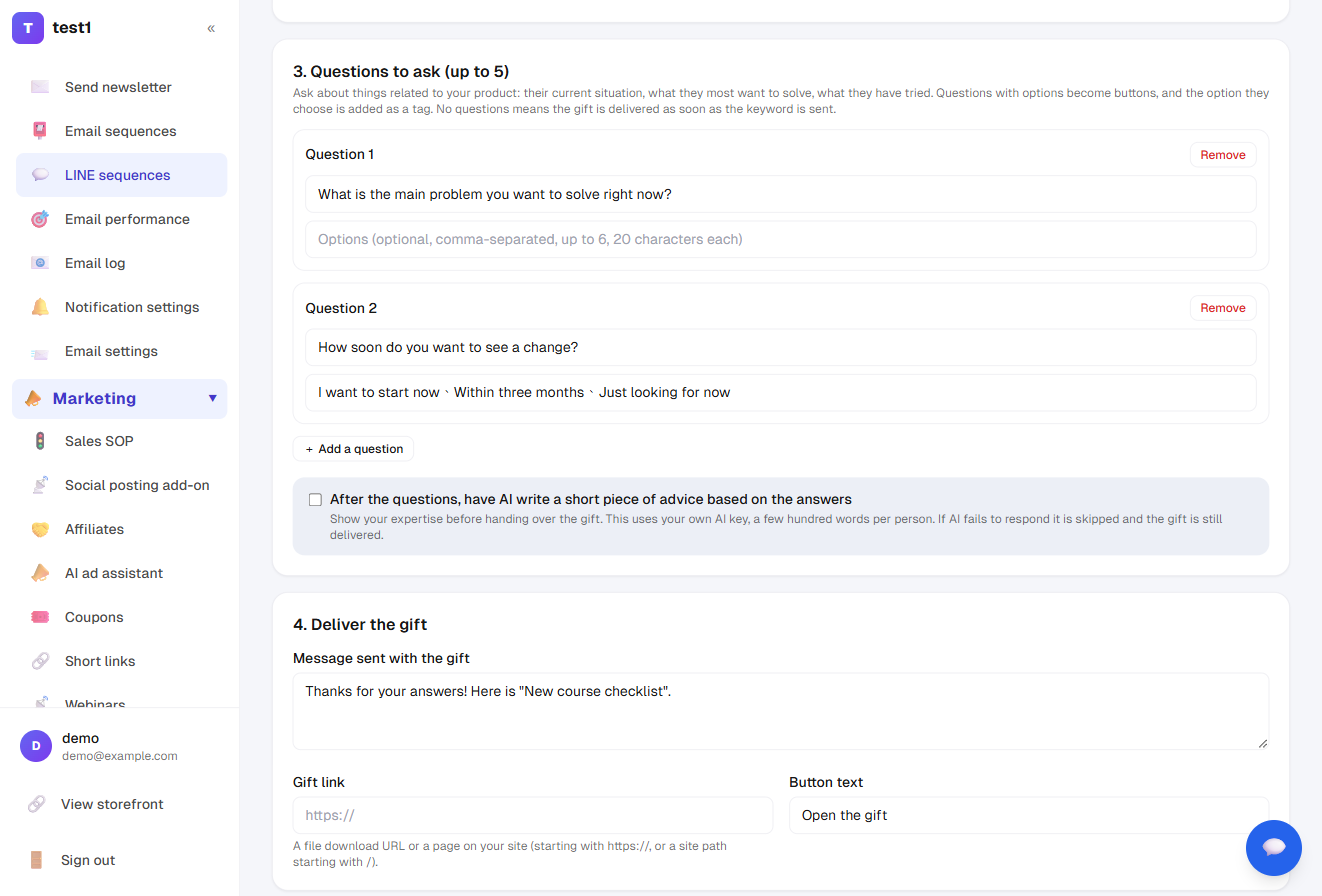
Questions (up to 5) and delivery. Questions with options become buttons, and the chosen option is added as a tag. Tick After the questions, have AI write a short piece of advice based on the answers to send advice tailored to their situation before the gift (using your own AI key).
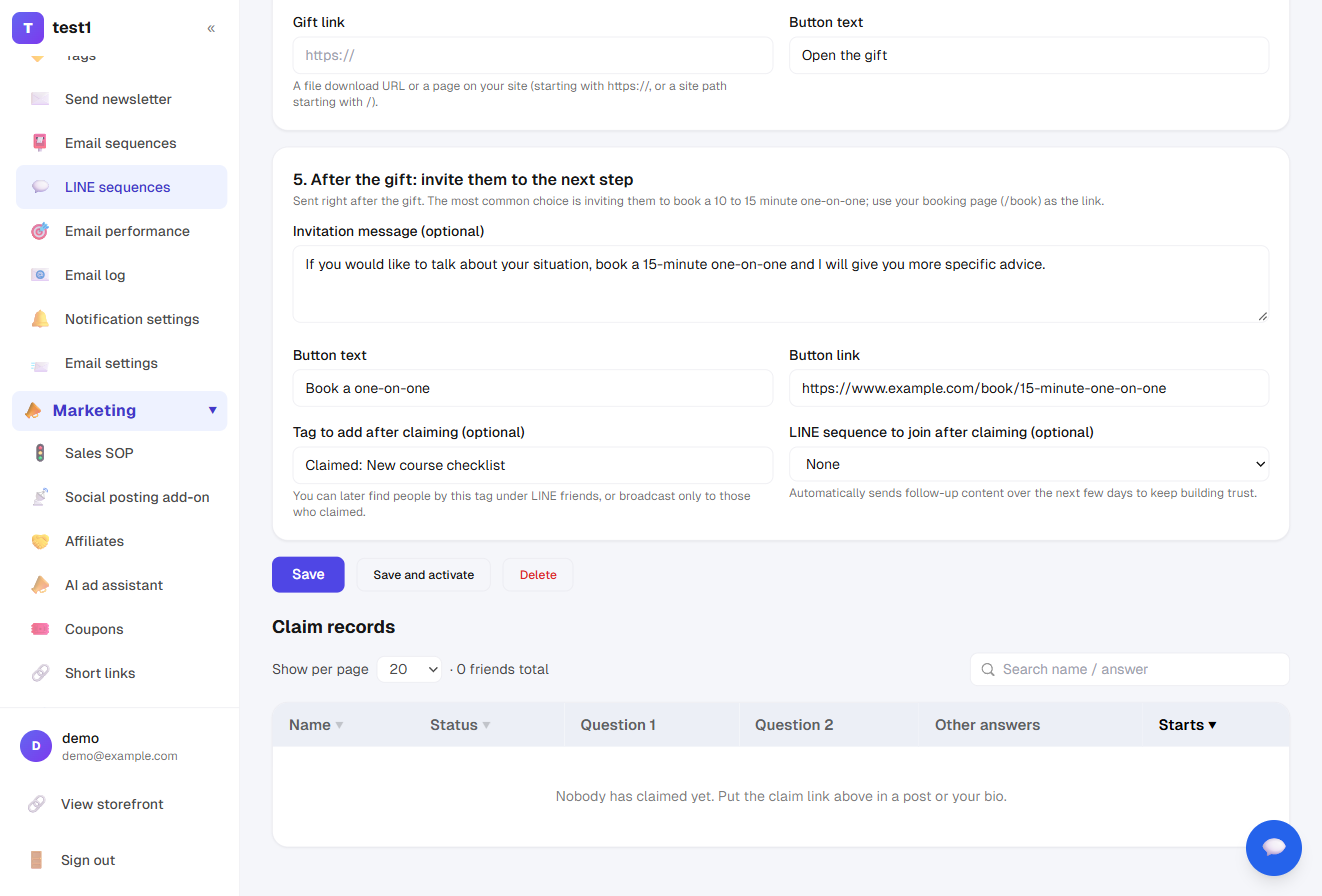
The invitation after the gift. It is sent right after the gift, most often to invite them to book a one-on-one. You can also set a tag to add and a LINE sequence to enrol them in. When you are ready, click Save and activate.
What the customer sees:
- The system asks whether it may ask a few questions. They choose "Sure" or "Just send it".
- "Sure" → questions are asked one at a time, then the gift is delivered, followed by your invitation.
- "Just send it" → they get the gift right away, and the record shows they did not answer.
Everything is sent as a reply, so it does not count toward your monthly LINE message quota. Claim records at the bottom of the page list who claimed and what they answered, so you can pick out the people worth contacting one-on-one.
Automatic DMs for Facebook and Instagram comments
This is not built in. Use ManyChat and send the leads back to a form here; see ManyChat auto-reply.