
Listen mode (audio only)
Let students listen while driving or commuting — audio keeps playing with the screen locked or while using maps. Depending on whether your videos are on Bunny, YouTube or Vimeo, here's whether to upload an audio file or let it work automatically.
Courses → Topics & lessons → Edit on a lesson, then 🎧 Listen mode (audio only) on the right. It's included in every plan at no extra cost.
Many students learn in the car, on the train or while doing chores. Videos on a web page are paused by the phone as soon as the screen locks; Listen mode plays the sound only, so it keeps playing with the screen locked or while using maps or another app, and the lock screen and car Bluetooth controls can pause, go back 15 seconds or skip ahead 30.
First, where are your videos?
| Your videos are on | What to do |
|---|---|
| Bunny | We recommend uploading an audio file. Or turn on Bunny's "MP4 Fallback" to have it work automatically (there's an anti-download trade-off — see below) |
| YouTube | Upload an audio file or paste an audio file URL. YouTube doesn't allow extracting audio and its player stops when the screen locks, so it can't be automatic |
| Vimeo | Same as YouTube: upload an audio file or paste an audio file URL |
| A direct video file (URL ends in .mp4) | Nothing to do — we use the sound from the video file |
| The lesson has no video | Upload an audio file to make it an audio-only lesson (a podcast-style course, for example) |
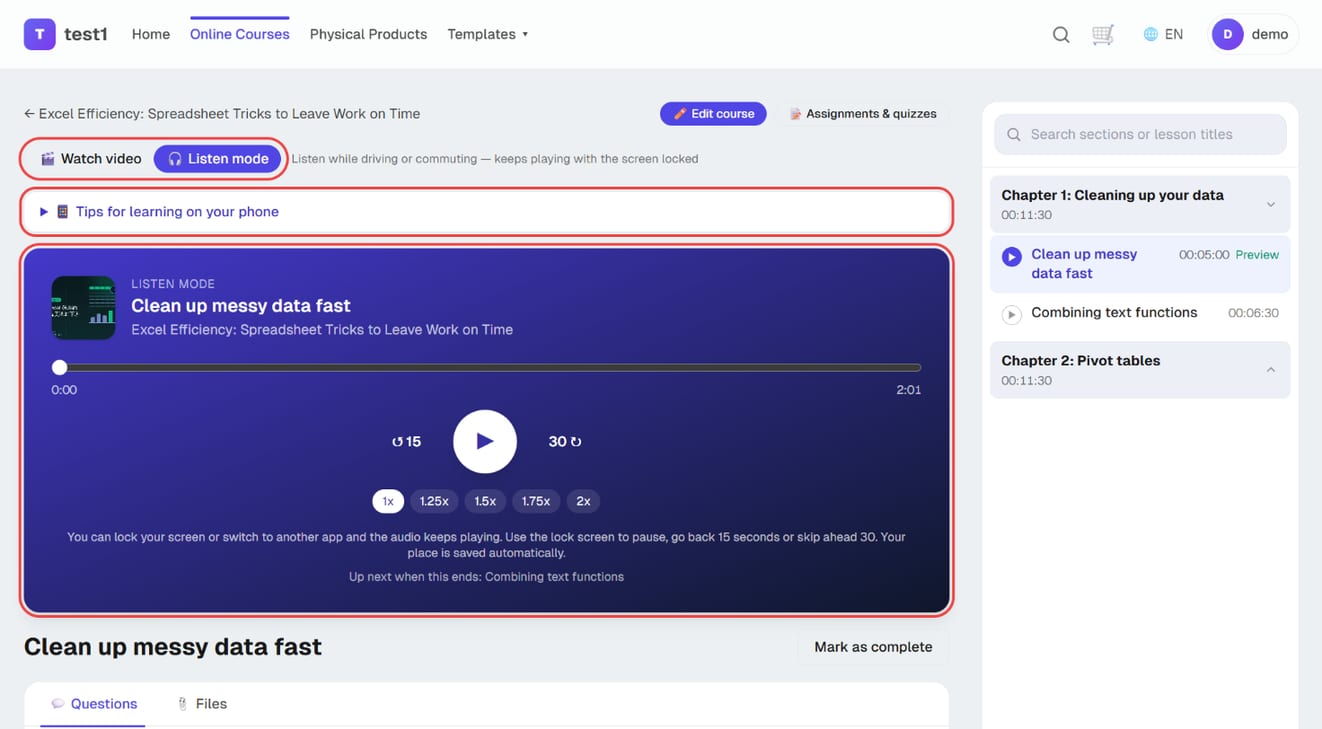
Once set up, students see a "🎬 Watch video | 🎧 Listen mode" switch above the video. Lessons without an audio version don't show it.
Set up Listen mode, step by step
Step 1: Upload an audio file (or paste a URL) in the lesson editor
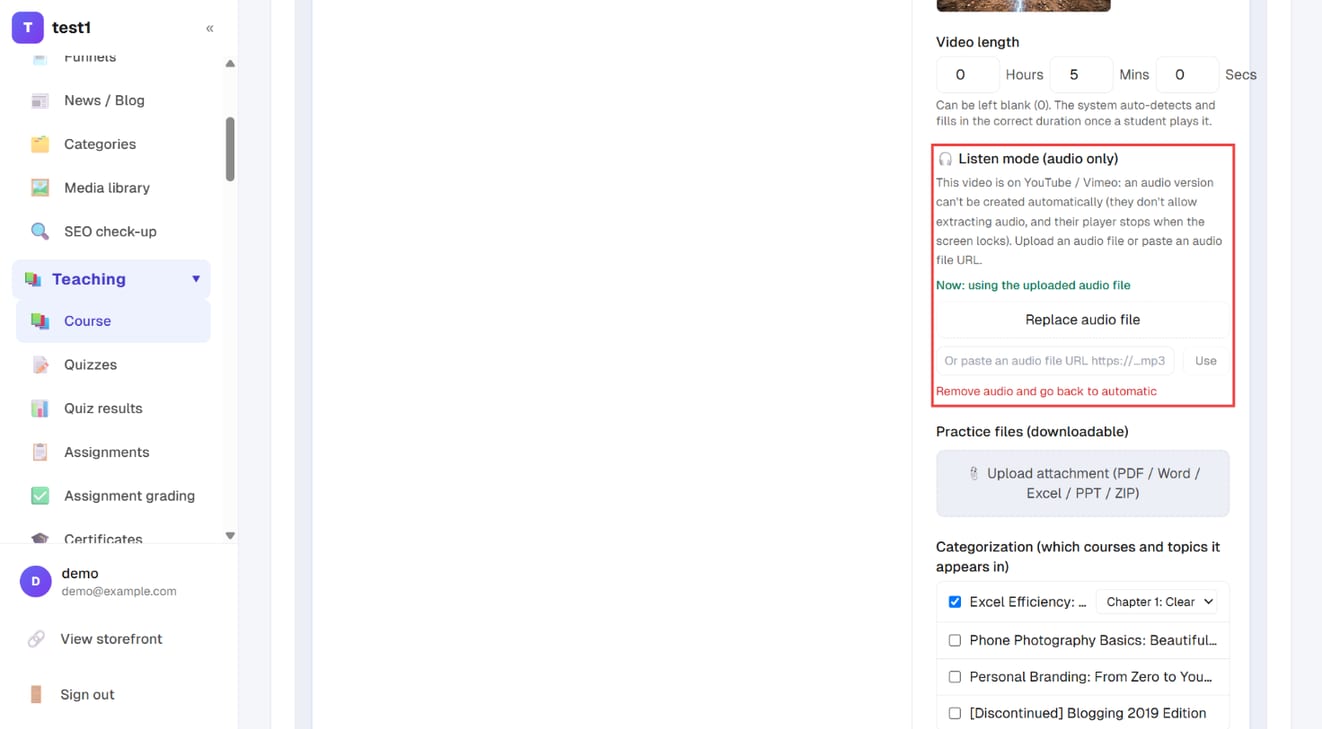
In the left menu, click "Teaching → Course" → "Manage topics & lessons" on the course → "Edit" on a lesson. Under "🎧 Listen mode (audio only)" on the right, the box tells you what to do for this video's source and shows the current status. Upload an audio file, or paste an audio file URL and click "Use".
Step 2: What students see
On the lesson page, students get a "🎬 Watch video | 🎧 Listen mode" switch above the video. Listen mode turns into an audio player with 15-second back, 30-second skip and playback speed, plus "📱 Tips for learning on your phone".
The sections below go into each option in detail.
Upload an audio file (works with any video source)
- Open the lesson's Edit (save a new lesson once first)
- Under 🎧 Listen mode (audio only), click Upload audio file (MP3 / M4A) and choose the file
- When you see "Audio uploaded" you're done — no need to click the lesson's Save
| Item | Details |
|---|---|
| Formats | MP3, M4A (recommended), AAC, WAV, OGG |
| Size limit | 500MB. We recommend converting to a 64–96kbps mono M4A or MP3: about 30–45MB per hour, easy on students' mobile data |
| Storage | Counts toward your site's storage |
| Protection | Stored privately — only students who can view this lesson can listen; if the link gets shared, it won't open for anyone else |
Click "Replace audio file" to swap it; Remove audio and go back to automatic deletes the file from storage.
No audio file? Export one from your video
- You have the original video file
- Mac: open it in QuickTime Player → File → Export As → Audio Only to get an M4A
- Windows: use the free VLC → Media → Convert / Save → add the video → Convert → profile Audio - MP3
- Video on YouTube: in YouTube Studio → Content → ⋮ next to the video → Download gets the MP4 you uploaded, then convert it as above
- Video on Vimeo: download the original file from the video's settings (your Vimeo plan needs download access), then convert it as above
- Video on Bunny: Bunny doesn't keep original files by default, so convert from the original on your computer
Paste an audio file URL
If the audio is already hosted elsewhere (a podcast host, for example), paste the URL of the audio file itself (starting with https, usually ending in .mp3 or .m4a) into "Or paste an audio file URL" and click Use.
⚠️ Paste the file URL, not the episode page. And anyone with an external URL can listen — for paid course content, upload the file instead so it's protected.
Automatic on Bunny (MP4 Fallback)
Bunny's MP4 Fallback creates an extra MP4 of every video. With it on, we automatically pick the lowest resolution one and play it as audio (sound quality doesn't depend on resolution, and the lowest uses the least data), so you don't need to upload anything.
To turn it on:
- Bunny dashboard → Stream → your video library → Encoding → turn on MP4 Fallback
- Videos uploaded before you turned it on don't have the MP4: re-encode them from Bunny's video list
- Make sure the CDN hostname is filled in under Video settings on your dashboard
⚠️ The anti-download trade-off: MP4 Fallback gives out a URL that downloads the whole video, which is why Video settings & media library recommends keeping it off. If Bunny's DRM (MediaCage) is on, Bunny forces it off and automatic audio won't work. If you're worried about your course being downloaded and resold, keep it off and upload audio files instead — they're permission-protected and use far less of your students' data (about 30–45MB per hour versus 200–300MB for the automatic MP4).
How students use it
- Tap 🎧 Listen mode above the video on a lesson page to switch to audio only; tap 🎬 Watch video to switch back
- The choice is remembered on that device, so people who listen in the car get Listen mode on the next lesson too
- The player can go back 15 seconds, skip ahead 30, and play at 1–2× speed
- When a lesson ends, the next one starts automatically, even with the phone locked, so students can listen through a whole course
- Audio keeps playing with the screen locked or while using maps or other apps; the lock screen and car Bluetooth buttons can pause and skip
- My Courses and every lesson page have 📱 Tips for learning on your phone, which shows students how to add the site to their home screen, that Continue learning picks up where they left off, and how to use Listen mode
We recommend students add your site to their home screen first (see Mobile app & push notifications) — it opens like an app from the home screen and they don't have to sign in every time.
Progress, refund limits and attendance hours
- Their place is saved automatically and shared with the video: listen to minute 12 in the car, and the video picks up at minute 12 at home
- On courses with a refund limit or attendance-hour certification, listening time counts too, so students can't get around it by listening
Current limits
- Auto-continue only moves on to lessons that have an audio version: if the next lesson is video only (for example YouTube with no audio uploaded), playback stops there so students don't miss content. Set up audio for every lesson in the course
- No offline downloads: the web page needs a connection to play. Offline downloads would need a separate native app