
Social posting add-on
A US$9/month add-on: publishing a post also shares it to nine social platforms, with a caption you control per post.
Marketing → Social posting add-on. The moment you publish an article, the same article goes out to your social accounts.
A US$9/month (US$90/year) add-on. No plan includes it, and every plan can buy it. Buying it gets you all nine platforms, with no tiers. You can cancel any time, and your connected accounts and history are kept. Subscribe at the bottom of the Overview page. Without it, the menu item does not appear.
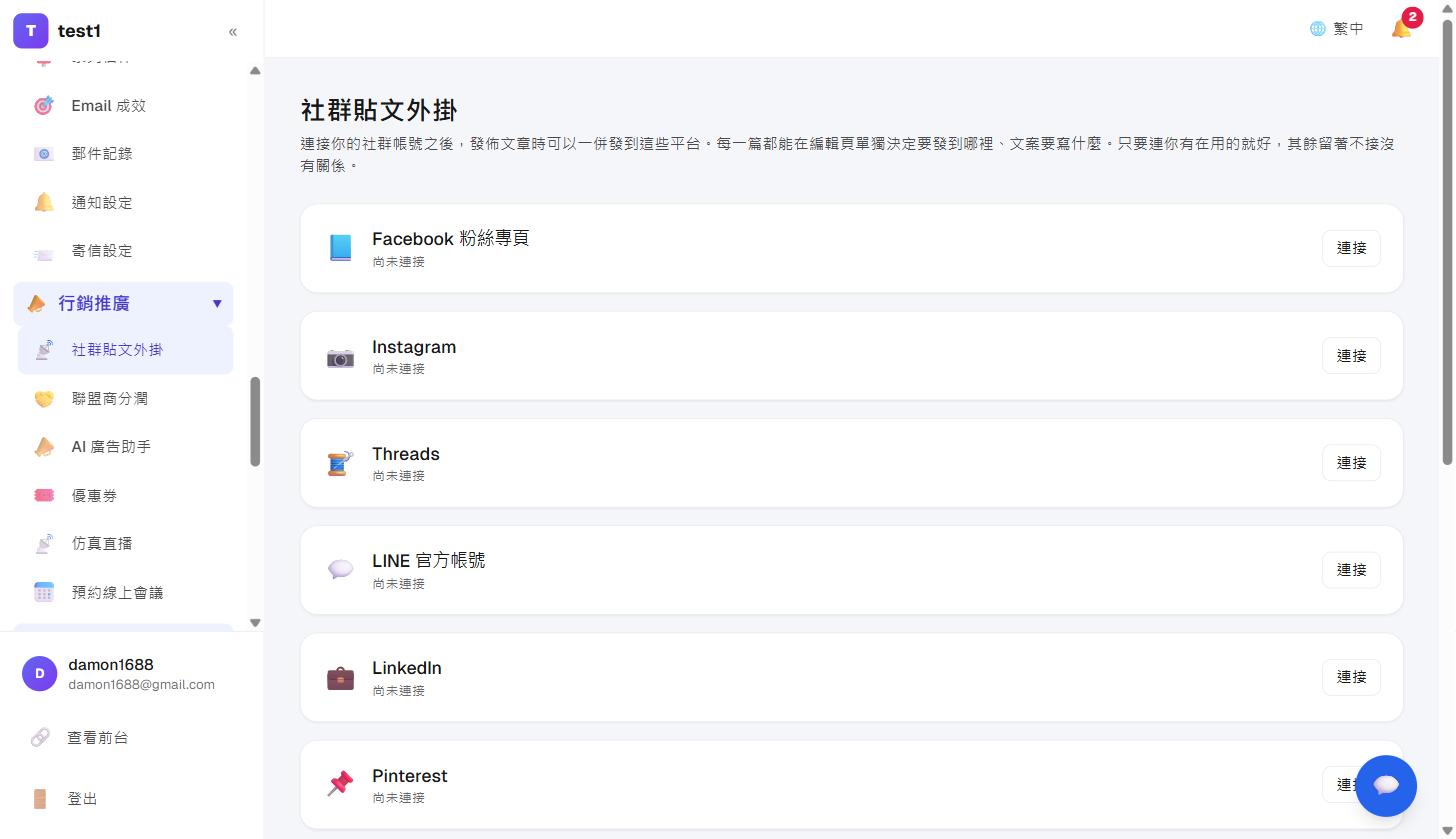
Supported platforms
Nine platforms, and you only need to connect the ones you actually use. Leaving the rest unconnected is fine.
| Platform | What it posts | Worth knowing |
|---|---|---|
| Facebook Page | Link post | Facebook fetches your cover image and title to build the preview card; clicking it opens your article |
| Image post | A cover image is required; links in the caption are not clickable, so the caption points readers to your profile link instead. 25 posts per day maximum | |
| Threads | Text post | Links are clickable, so it drives more traffic than Instagram; captions cap at 500 characters |
| LINE Official Account | Broadcast | The message lands in every friend's chat and costs one message per friend (200/month free, beyond that you pay LINE directly) |
| Link post | Home turf for B2B consultants and corporate trainers. Personal profiles only; company pages need separate LinkedIn approval | |
| Image Pin | A cover image is required. Pins are evergreen and their links are clickable, making it one of the few social platforms with real SEO value | |
| X (Twitter) | Text post | 280-character cap. The free API has a monthly posting limit; if you hit it, just retry later |
| Telegram channel | Text or image | Free, no quota, and the simplest to set up. The bot must be added to your channel with permission to post |
| Bluesky | Text post | 300-character cap, and links in the text become clickable automatically. Use an App Password, never your login password |
Platforms we deliberately skip: YouTube community posts have no public API, nor do Dcard, PTT or Vocus; Medium stopped issuing integration tokens; and self-promotion on Reddit gets you banned by moderators, so connecting it would hurt you.
Setting it up
Each platform connects independently, so you can connect Instagram alone without a Facebook Page.
- Go to Marketing → Social posting add-on and hit Connect next to a platform.
- Follow the steps on screen to get an access token from that platform's developer console, then paste it back.
- Press Test and save. We verify the token with the platform first and only store it if it works, so you know immediately whether it is right.
- Tick Share by default when publishing if you want this platform pre-selected on every new post.
The Facebook development-mode trap
A newly created Facebook app starts in Development mode, and posts made through the API may be visible only to you. After setting it up, check your Page from another account (or while logged out) to confirm the post is really public. Switching the app to Live requires a privacy policy URL.
Controlling each post
The post editor has a Share to social panel on the right:
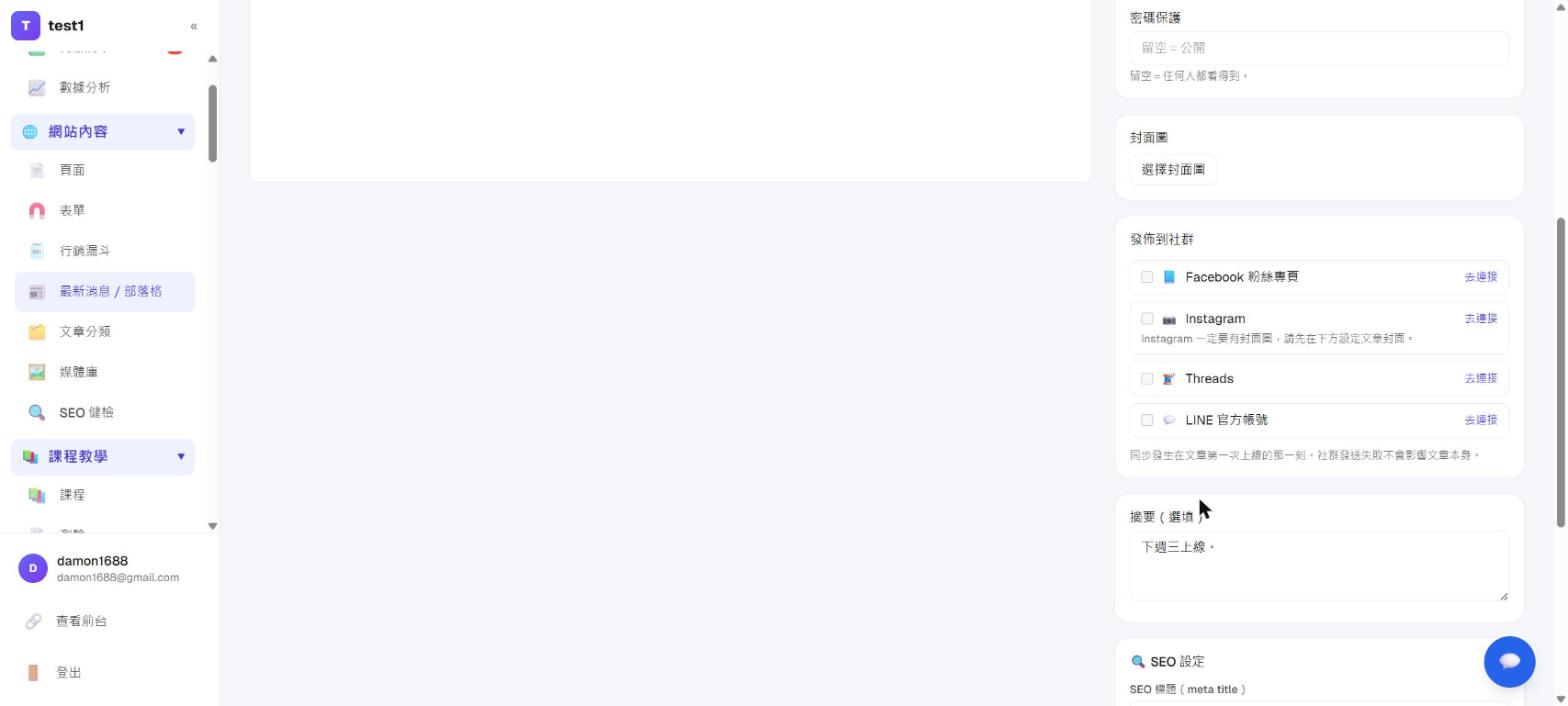
- Tick the platforms for this post (it follows your settings by default, and you can override it per post)
- Press Caption to see exactly what will be posted, and edit it if you want
- After publishing, the panel shows the result per platform, with a link to view each live post
When it posts, and when it does not
It posts the first time an article moves from draft or scheduled to published. Scheduled posts also share when they go live.
It does not post when:
- You edit an article that has already been published (fixing a typo will not post to your Page again)
- The article is password protected (the link would only show a password box)
- The article was written by AI (unticked by default; AI often produces dozens of posts at once, which would blow through Instagram's 25-a-day limit)
- Instagram or Pinterest is selected but the article has no cover image (a post on either platform is an image)
When something fails
A failed social post never affects the article itself. The article publishes normally; only that one social post is missing.
The editor panel shows the reason and a Retry button. Most failures are temporary (rate limits, slow image fetch) and retrying is enough.
If the access token has died (you changed your password, removed the app's access, or the Page changed admins), we mark that platform as disconnected, email you, and show it in red in the settings. Reconnect there. We only notify you once per platform per week, so scheduling five articles will not send you five identical emails.
RSS: reaching the platforms we do not build
Whether or not you buy this add-on, your site publishes a feed at yourdomain/feed.xml.
Point Zapier, Make or dlvr.it at it and you can forward posts automatically to LinkedIn, Pinterest, X, Telegram and anywhere else we do not integrate with directly. It is also how Feedly and Google Discover pick up your articles.
Deleting a post
Deleting an article here does not delete posts already published on social platforms. That is an outbound action, so you remove those yourself on the platform.