
AI Team: setting up your five site helpers
What the manager, analyst, writer, social editor and ads specialist do for you, and what each one needs first.
In the left menu, open Overview → AI Team. Every time you open it, the five helpers read your site's latest numbers (the past 7 days compared with the 7 before) and tell you what needs you and what's improving or slipping.
The Setup steps section at the top ticks each step automatically based on your current settings. Steps you haven't done have a link that takes you straight to the right settings page.
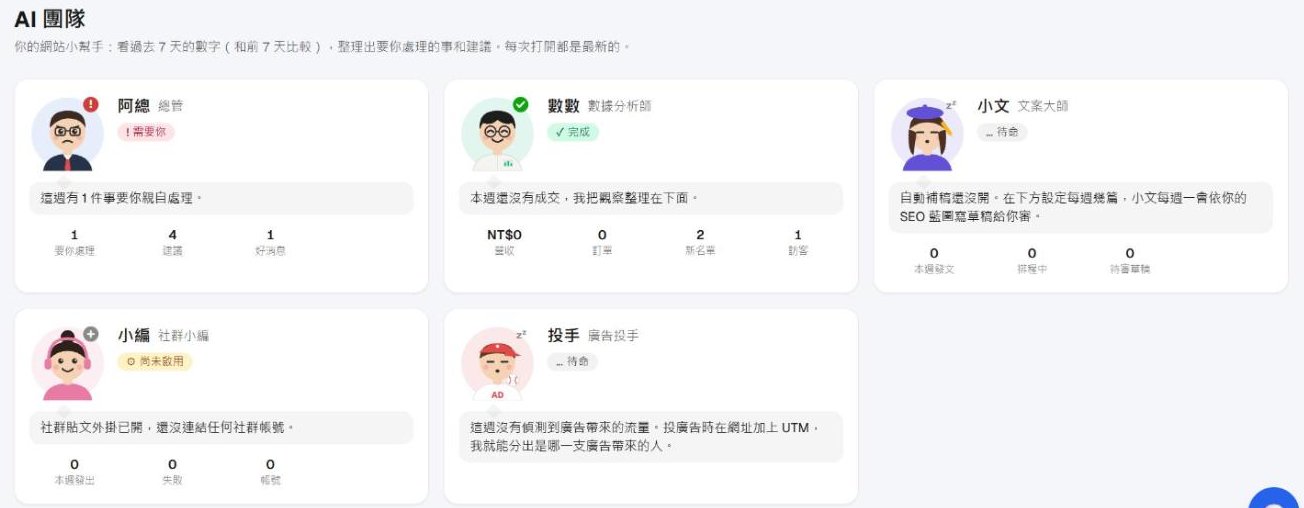
Two helpers that need no setup
Max (Manager)
Lists the things only you can handle: customers waiting for a human reply in support, paid orders not yet shipped, unread form submissions, and proposals from your AI assistant. Items disappear once handled.
Tip: keep the Weekly report switch at the bottom of the page on (it's on by default). Every Monday at 8 a.m. the highlights are emailed to the site owner. Use Send me a test to preview it.
Nina (Data analyst)
Compares revenue, orders, new leads, visitors and article views with last week, e.g. "revenue down 40%", "300 subscribers but no email in two weeks", "no new post in 20 days", each with a link to act on it.
Traffic stats start collecting automatically when your site goes live, usually within a day.
Three helpers to set up
Wendy (Writer): weekly blog drafts
Every Monday Wendy drafts posts from your SEO blueprint until you reach your weekly number. Drafts only. Nothing goes live until you publish it.
- Plan: requires the advanced plan with AI content.
- AI writing key: in Settings → AI writing key, paste your own Claude (Anthropic) or ChatGPT (OpenAI) API key. Writing costs are billed to your AI account.
- SEO blueprint: in Site content → News / Blog, open the SEO blueprint tab, enter your field and audience to create an article plan (or run a viral-topic analysis). Wendy only picks topics from here.
- Weekly number: back on the AI Team page, under Writer auto-drafting at the bottom, choose 1, 2, 3, 5 or 7 posts a week (default: off).
How the count works: posts published this week + scheduled posts + unreviewed drafts. Wendy only writes when that total is below your goal, so if drafts pile up unreviewed, she stops and won't keep spending your AI credits. You'll get a bell notification when a draft is ready; review and edit it in Blog, then publish.
Sophie (Social media editor): auto-post to social
- Turn on the Social posting add-on (paid add-on).
- On the add-on page, connect your Facebook Page, Instagram, Threads and other accounts, and switch on Auto-publish.
New articles are then posted automatically. If an account's authorization expires (for example after a Facebook password change) or a post fails, it shows up in the manager's to-dos; just reconnect.
Adam (Ads specialist): how many people your ads bring
Adam doesn't connect to your ad accounts; he reads your site's own traffic stats.
- Tracking codes: in Settings → Tracking / Pixels, add your Meta Pixel ID or Google tag (whichever platforms you advertise on), so the ad systems know who bought or signed up.
- UTM tags on ad links, e.g.
?utm_source=facebook&utm_medium=paid&utm_campaign=black-friday. The easiest way is Marketing → Short links → Add tracking parameters (UTM). Google Ads clicks are recognized automatically.
Adam then reports how many page views your ads brought this week and which campaign worked best, and warns you if you're advertising without tracking codes or getting traffic without any sales.
FAQ
Who gets the weekly report? The site owner's email. Only the owner can change these settings; co-admins can view the AI Team page.
Will Wendy publish posts on her own? No. She only creates drafts; nothing goes live until you publish.
Does "Send me a test" make Wendy write? No. The test email is only a preview and doesn't use your AI credits.