Migrating from another course platform
Move your students and their course access across: which import route to use, how students log in afterwards, and what does not come with them.
The hard part of migrating is not the accounts — it is the access mapping: who can watch which course. That is why we deliberately build no platform-specific integration. We do not need your old platform's API and we do not guess its export format. If you can export a list of emails, you can move.
Step one: export from your old platform
In your old dashboard, export the enrolled-student list for each course separately (Teachable, Kajabi and most others already export one list per course, so there is nothing to merge). A list only needs an email column; names are a bonus.
You cannot export passwords from any platform, and you do not need to. See "How students log in" below.
Three ways in — pick one
| What you have | Use | Where |
|---|---|---|
| One list per course (most common) | Paste a list to grant access to this course | Courses → the course → Students |
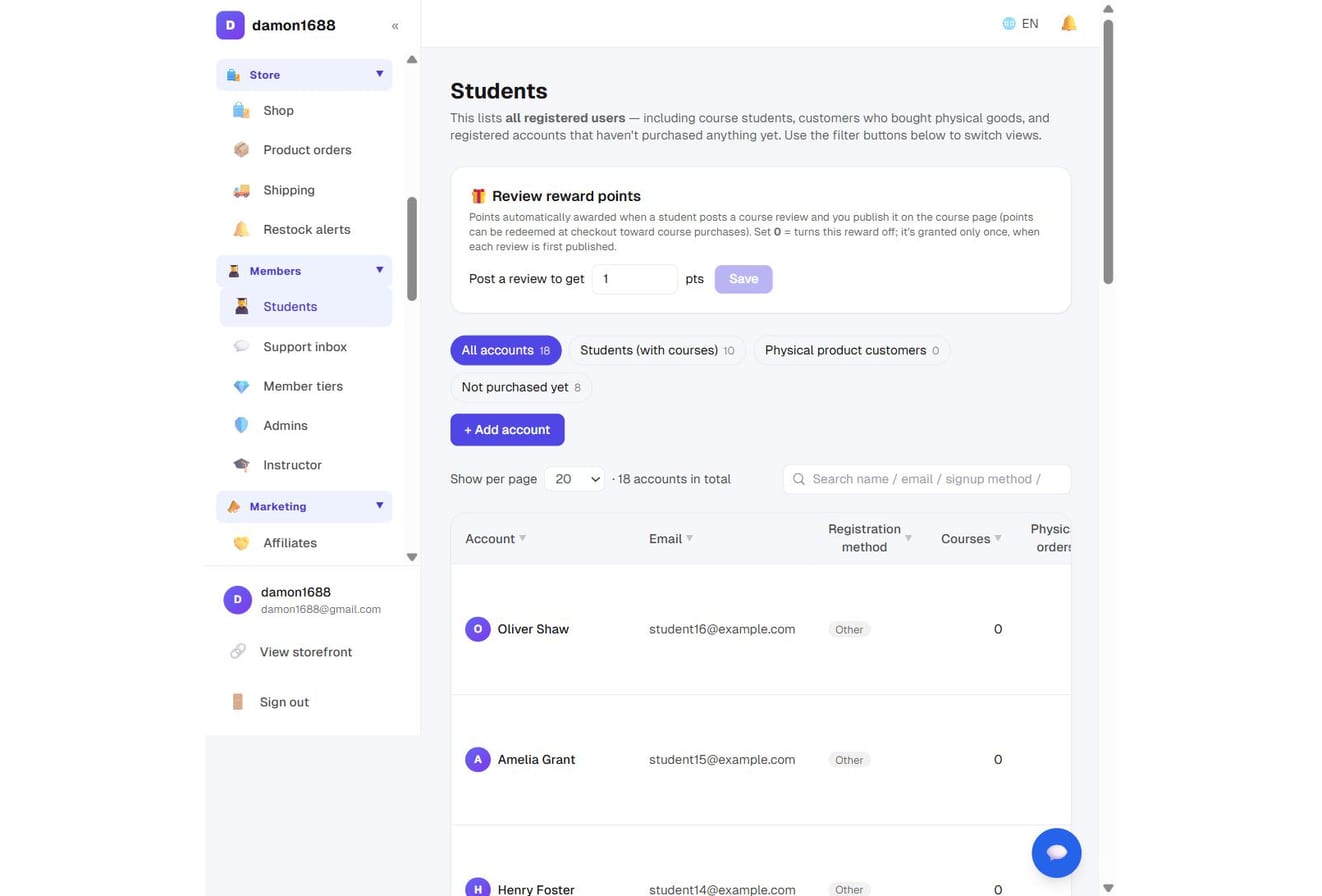
| One sheet with a course column | Bulk import students | Students → Students / accounts |
| People already on the site, just need access | Add students | Top right of the course's Students page |
| You were on systeme.io | Dedicated import (contacts, tags, course structure, access) | Import from systeme.io |
① One list per course (recommended)
Open the course's Students page, expand "Paste a list to grant access to this course", paste the email column straight from your spreadsheet (CSV/Excel upload also works), and everyone gets access.
The course is fixed to the one you have open — the file's course column is ignored, and you never have to type a course name correctly.
② One combined sheet
If you already have an "email / name / course" sheet, use Students → Bulk import students.
- Recognised headers map automatically; otherwise columns are read in order (email first)
- The course column accepts a course title or course ID; separate multiple courses with commas. Leave it empty to create accounts without granting access
- You get a preview first: per course, how many will be granted and how many already have access. Confirm before it writes anything
- Up to 2,000 rows per batch
What an import actually does
One row = one account + one set of permissions:
| Item | Behaviour |
|---|---|
| Email already exists | Reuses that account. Never overwrites their name or password |
| Email is new | Creates an account with no password |
| Course access | Records a $0 paid order (payment method "added manually") as the source of the permission, then grants access |
| Access window | Uses the course's access-days setting, counted from the day you import |
| Re-running the same file | Nobody is enrolled twice; no duplicate orders |
| Bad rows | Invalid emails, duplicates within the file, unknown courses are listed as skipped — everything else still runs |
🚨 Importing sends no email. Announce it yourself
An import never emails anyone. That is deliberate: blasting hundreds of notifications from a domain with no sending reputation is the fastest way to land in spam — and to drag your order receipts down with it.
Announce it through your own newsletter or social channels, and tell students:
- Go to the sign-in page with the same email they bought with and click "Forgot password" to set a new one
- Or sign in with Google using that same email
- Everything they own appears under "My courses"
The import panel includes a ready-made announcement you can copy.
Access windows: fix them after importing
An import can only apply "course access-days, counted from today". If your old platform granted access until a fixed date, open the course's Students page and use "Bulk set access window" to set the correct range for everyone at once (or just the people your search filters down to).
- Leave both fields empty to clear the window: starts now, never expires
- Dates use your site's timezone: from 00:00 on the start date to 23:59 on the end date
Content and video
- Rebuild courses, sections and lessons in the dashboard (Create your first course)
- Videos already on YouTube/Vimeo: paste the URL into the lesson
- Videos uploaded to the old platform: re-upload them to your own Bunny account (Video & media)
- Site content from WordPress has its own importer (Import from WordPress)
- Do not let old URLs 404 — map them with 301 redirects so your search rankings survive
What does not come across
| Item | Status |
|---|---|
| Course progress / completion | Not migrated. Students start from 0% |
| Order history and amounts | Not migrated. Imports create $0 orders used only as proof of access |
| Passwords | Cannot be exported anywhere, and are not needed |
| Old coupons and affiliate links | Rebuild them |
| Video files | Re-upload unless hosted on YouTube/Vimeo |
A sane order of operations
- Build the courses and lessons, keep them as drafts
- Attach the videos and watch one yourself
- Import students — try 3–5 addresses of your own first
- Fix the access windows
- Connect payments (Payments)
- Publish → set up 301 redirects → announce to students last
FAQ
What if an import fails halfway? Whatever was written stays; nothing is left half-applied. Fix the file and run it again — re-importing never double-enrols.
Someone bought three courses. Do I import them three times? With the per-course method, yes — once per course, and the system recognises it is the same account. Or use the combined sheet with all three course names in the course column.
Can I try a small batch first? Yes, and you should. Paste 3–5 of your own addresses, check access and the login flow, then paste the full list.