
Event registration add-on
A US$19/month add-on for in-person classes, talks and workshops: paid tickets, capacity and waitlists, group sign-ups and pre-event emails.
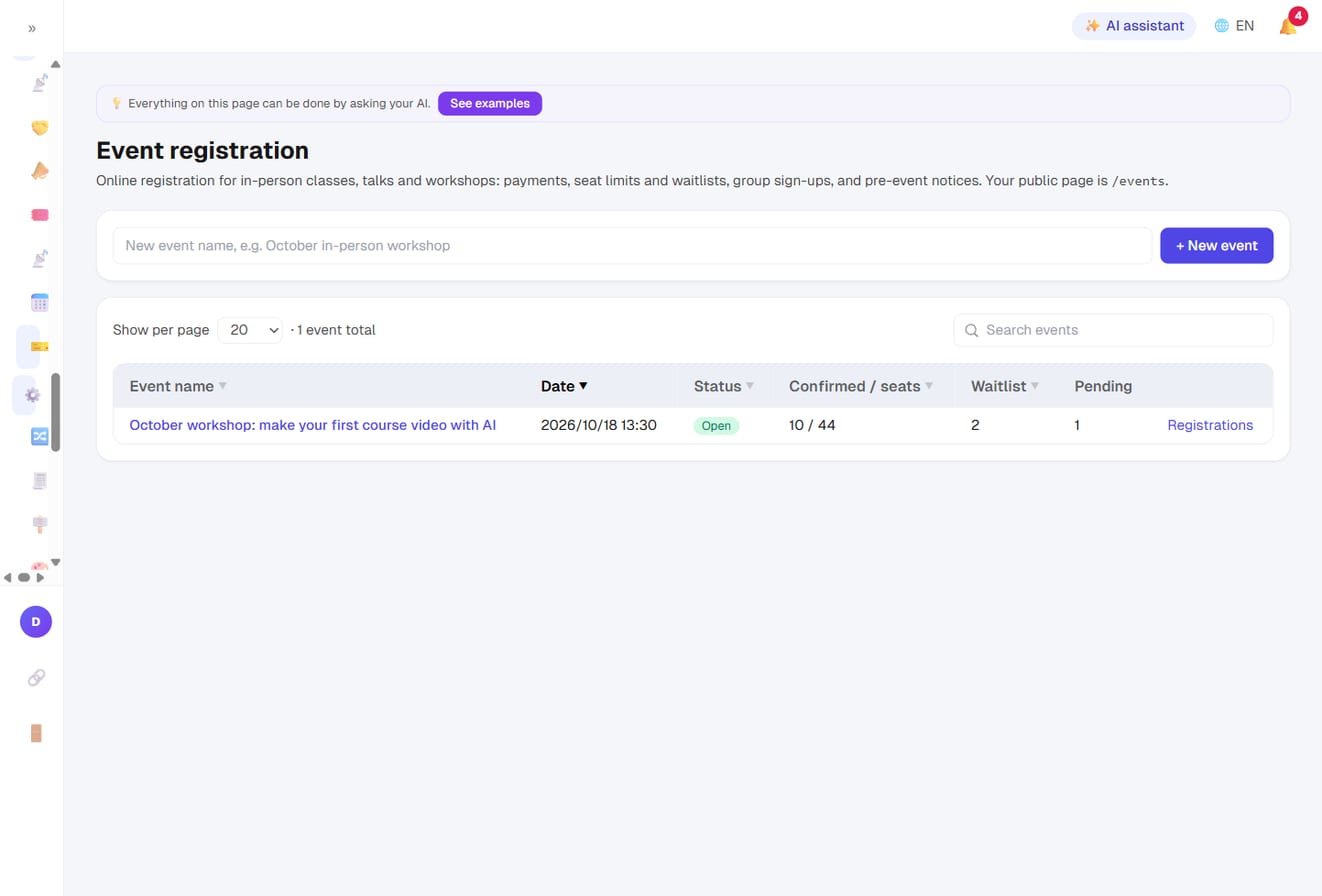
Marketing → Event registration. Registration pages, ticket sales, capacity control and check-in lists for your in-person classes, talks and workshops all live here.
A US$19/month (US$190/year) add-on with unlimited events and attendees. No plan includes it, and every plan can buy it. Subscribe at the bottom of the Dashboard page (or in your account center); the charge is prorated onto your current bill. Without it, the menu item does not appear. You can cancel any time. The events pages close immediately on both your dashboard and your site, but your events and registrations are kept and come back if you subscribe again.
Creating an event
- Type a name at the top of the list and press + New event.
- Every new event starts as a draft with one free, unlimited ticket already set up. Change it to what you need.
- Fill in the sections below and press Save.
- Set the status to Open to make it visible. While it is a draft, use Preview registration page at the top right to check it (only you can see the preview).
| Section | What goes in it |
|---|---|
| Basic info | Name, URL slug (the page lives at /events/slug; letters, numbers and hyphens only), a one-line summary, a cover image (2:1 banner works best) and the description |
| Time and place | Start and end time (in your site's time zone); an address, or joining instructions for an online event |
| Registration settings | Status, when registration opens and closes (leave blank to open on publish and close when the event starts), and how duplicate sign-ups are detected |
| Tickets and seats | See the next section |
| Payment method | Only shown when a ticket costs money: whether you also accept bank transfer |
| Registration form fields | What to ask besides name, email and phone |
| Self-service | Whether attendees can edit or cancel on their own, and a note added to the confirmation email |
All your events are listed at yourdomain/events, which you can add to your menu.
Tickets, seats and waitlists
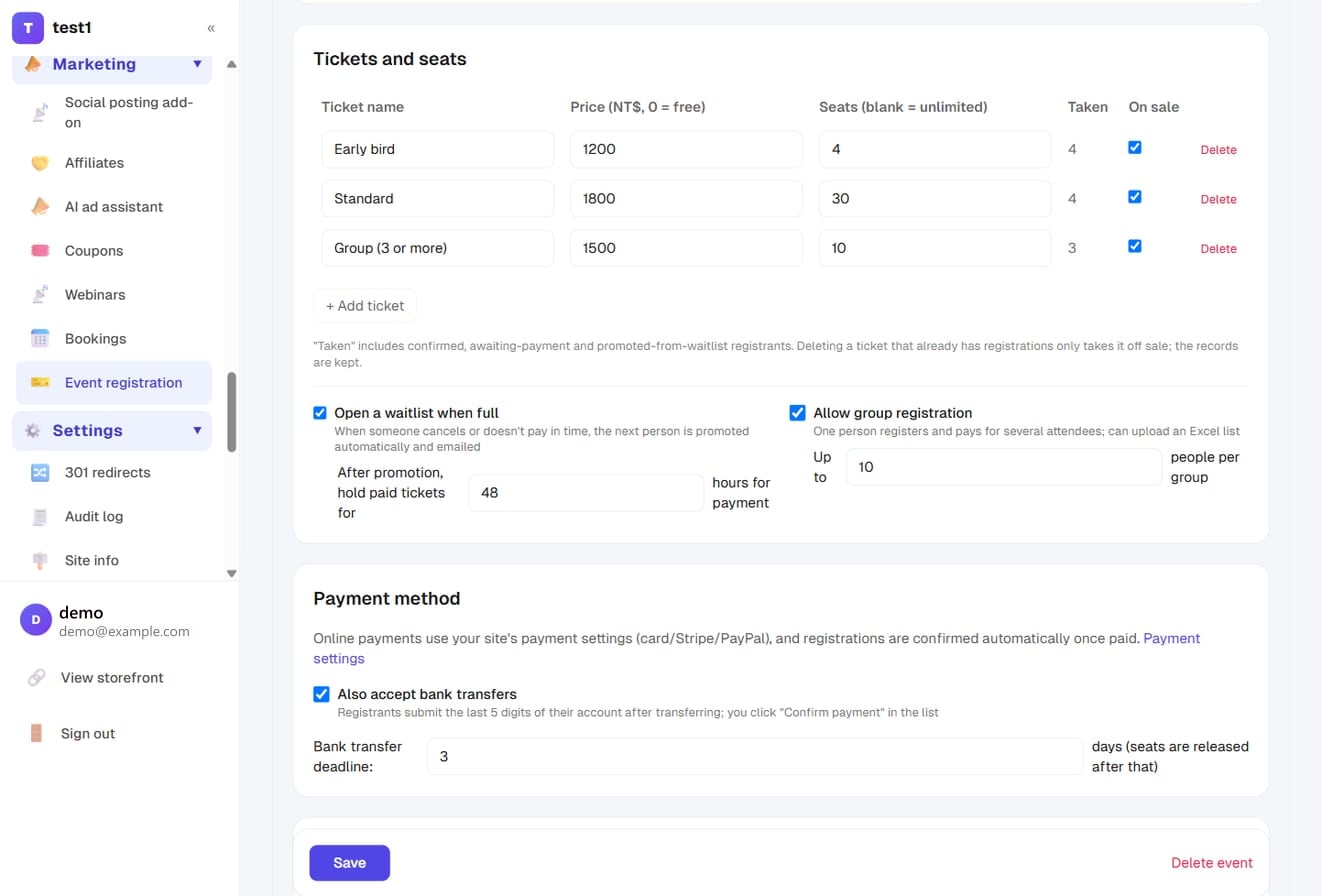
- Each ticket type has its own price and capacity. A price of 0 makes it free; a blank capacity means unlimited. Up to 20 ticket types per event.
- "Taken" is the live count, including people who are paying right now. A seat is held the moment someone registers, so when two people go for the last seat only one gets it. You never oversell.
- A ticket type that already has registrations cannot be deleted; deleting it just takes it off sale and keeps the attendees.
Open a waitlist when full (on by default): once a ticket sells out, people can join the waitlist. Whenever someone cancels, someone's payment window runs out, or you raise the capacity and save, the next person in line is promoted automatically:
- Free ticket: they are confirmed straight away and emailed.
- Paid ticket: they get an email asking them to pay, and the seat is held for them (48 hours by default, adjustable). If they do not pay in time, the seat moves to the next person.
Expired seats are checked and released every 10 minutes. There is nothing to do by hand.
Duplicate sign-ups: by default one email can register once per event. You can match on phone number instead (phone becomes required) or turn the check off. People who cancelled or expired can register again.
Group registration
Turn on Allow group registration under Tickets and seats and set the maximum group size (20 by default).
Attendees can then choose group registration: one contact person pays and receives the emails for the whole group. Members can be added one by one, or the contact can press Download Excel template, fill it in and Upload Excel/CSV.
- The template has name, email and phone, plus any registration form fields you added. Only the name is required.
- Columns are matched by their heading, so the order does not matter.
- A group takes its seats all at once. If there are not enough seats left for the whole group, the page says how many remain; groups do not join the waitlist.
Registration form fields
Name, email and phone are always included. You can add up to 20 more: single-line text, email, phone, paragraph, dropdown, checkboxes, a single tick box, and file upload.
File upload is handy for portfolios, student IDs or proof of eligibility. Up to 10MB per file; PDF, images, Office documents, ZIP and TXT are accepted. Uploaded files are never public. You download them from the attendee list in your dashboard, and they count toward your site's storage.
Taking payment: online or bank transfer
Online payment uses whatever you set up under Payment settings: a Taiwan gateway's credit card, Stripe or PayPal (charged in US dollars). Once the payment goes through, the registration is confirmed and both of you are emailed. So that seats are not tied up for days, events only take payments that settle instantly: no ATM virtual accounts, convenience-store codes or installments.
Bank transfer: turn on Also accept bank transfers under Payment method and set how long people have to pay (3 days by default; unpaid seats are released afterwards).
- The attendee chooses bank transfer and gets an email with your account details.
- After paying, they follow the link in the email and fill in the last five digits of their account, the date and the amount (you can change what is asked).
- You get a "transfer details submitted" email.
- Check it against your bank, then press Confirm payment in the attendee list. They receive their confirmation email.
Attendees editing or cancelling
Every registration email has a View / manage my registration link, and attendees do not need an account. For a group, the contact person manages the whole group.
From that link they can pay, switch to bank transfer, fill in transfer details, and, within the limits you set, edit their details (until the event starts) or cancel (by default up to 24 hours before the start). If you allow neither, the page asks them to contact you directly.
Cancelling a paid registration does not refund it automatically. How much to refund, and whether to deduct fees, is your call. The attendee is told you will contact them about refunds, and you get an email reminding you.
The attendee list, check-in and export
Open an event and switch to the Registrations tab:
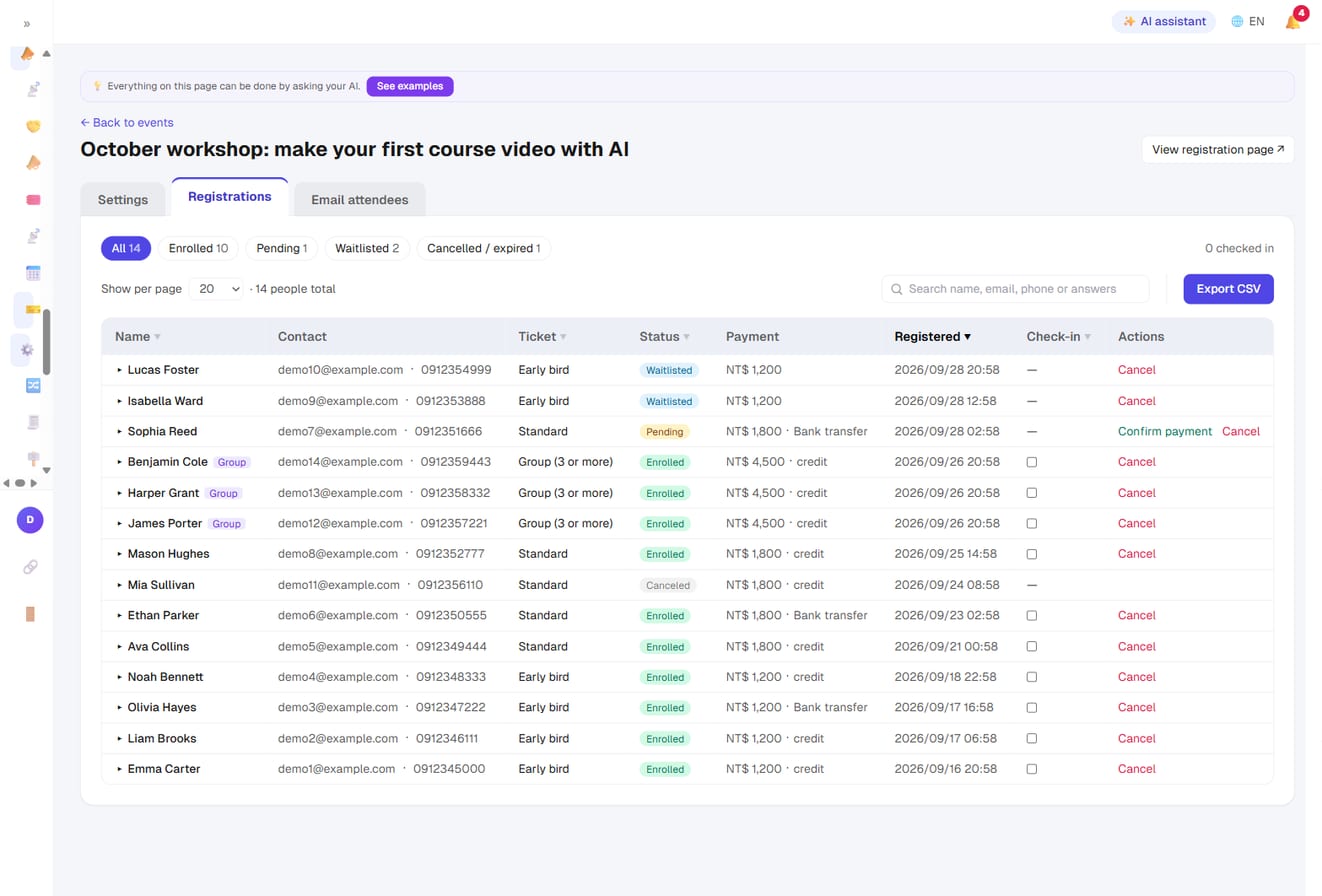
- Filter by status (enrolled, pending, waitlisted, cancelled, expired), search by name, email, phone or any answer, and sort the columns.
- On the day, tick the check-in box; the checked-in count at the top updates as you go.
- Click a row to see every answer, uploaded files and transfer details.
- Cancelling a registration releases the seat to the waitlist immediately.
- Export CSV gives you name, contact details, ticket, status, payment method, amount, registration and check-in times, and one column per form field.
Pre-event emails
The Email attendees tab emails the people in this event: confirmed attendees, confirmed plus those still paying, the waitlist, or everyone.
{{name}}in the message becomes each person's name.- Upload handouts to the media library and link to them; attachments are not supported.
- Each address gets one copy. Group members without an email are covered by their contact person.
- Up to 1,000 recipients per send. Mail goes out through your site's email settings, and each send is logged below.
Emails sent automatically
| To attendees | To you |
|---|---|
| Registration confirmed (with your note and the manage link) | New registration |
| Please complete payment (bank details for transfers) | Payment received |
| Added to the waitlist; promoted from the waitlist | Attendee cancelled |
| Registration expired; registration cancelled | Transfer details or form answers submitted |
Attendees are also added to your email list, tagged 活動報名 and 活動: followed by the event name, so you can keep in touch afterwards.
Asking your AI about registrations
If you have connected your AI tool (MCP), you can ask it things like "how many seats are left for the workshop?" or "who hasn't paid yet?". The AI can only read events and attendee lists; it cannot register, cancel or confirm payments for you.