
The page builder
Assemble sales pages, about pages and event pages from blocks: fourteen block types, multi-column sections, templates, version history, and pasting raw HTML.
Website → Pages. Anything that isn't a course or a blog post is built here: about, contact, sales pages, event sign-ups, thank-you pages.
Your home page is a page too and can be fully customised; delete all its blocks to fall back to the default layout.
Build a page, step by step
Step 1: Open the page editor
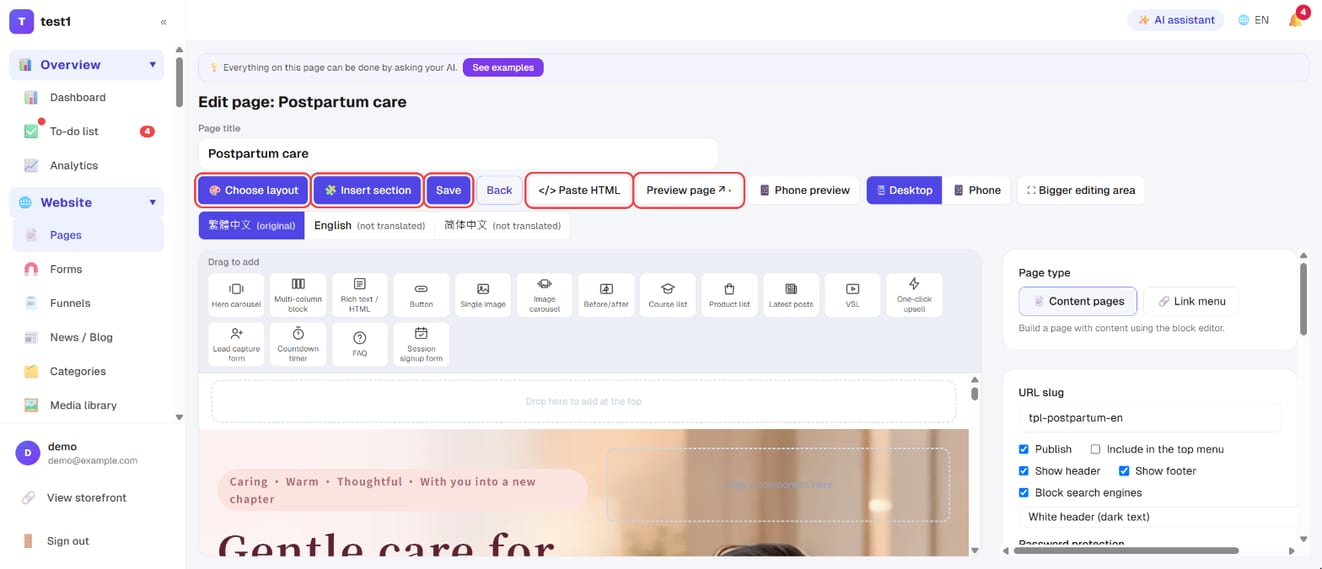
In the left menu, click "Website → Pages", then "+ New page" or a page's "Edit" (for the home page, "Edit home page"). The toolbar at the top:
- Choose layout: apply a complete ready-made layout in one click (⚠️ replaces the current content)
- Insert section: insert a ready-made section, such as "three features" or "testimonials"
- Save, Paste HTML, Preview page
- Desktop / Phone: switch the editing width to see the phone version
- The language tabs below: with several languages on, each language has its own copy (see Languages & translation)
Step 2: Drag blocks into the editing area
The "Drag to add" row holds every block. Drag the one you want into the editing area below, or click it to add it at the top. Click a block in the editing area to change its text, images and settings.
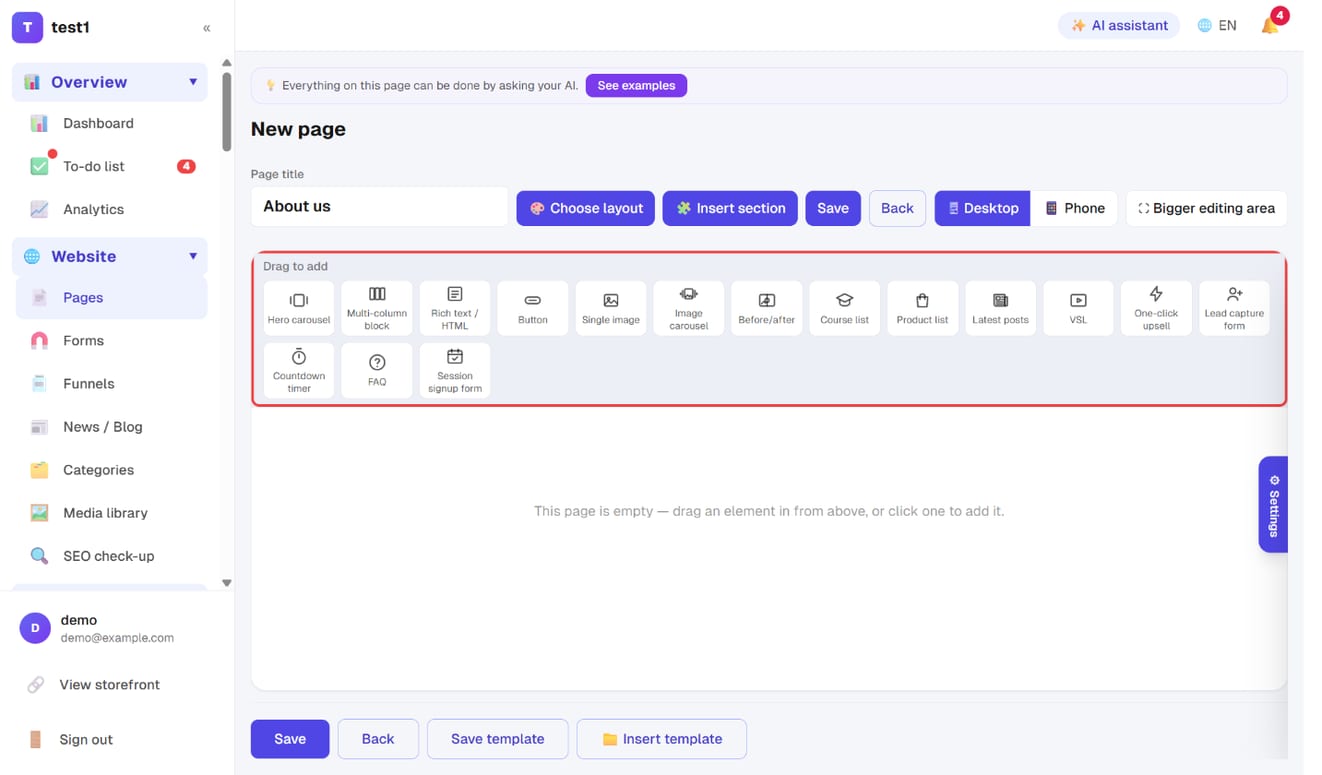
What each block is for is in "Fourteen block types" below.
Step 3: Page settings
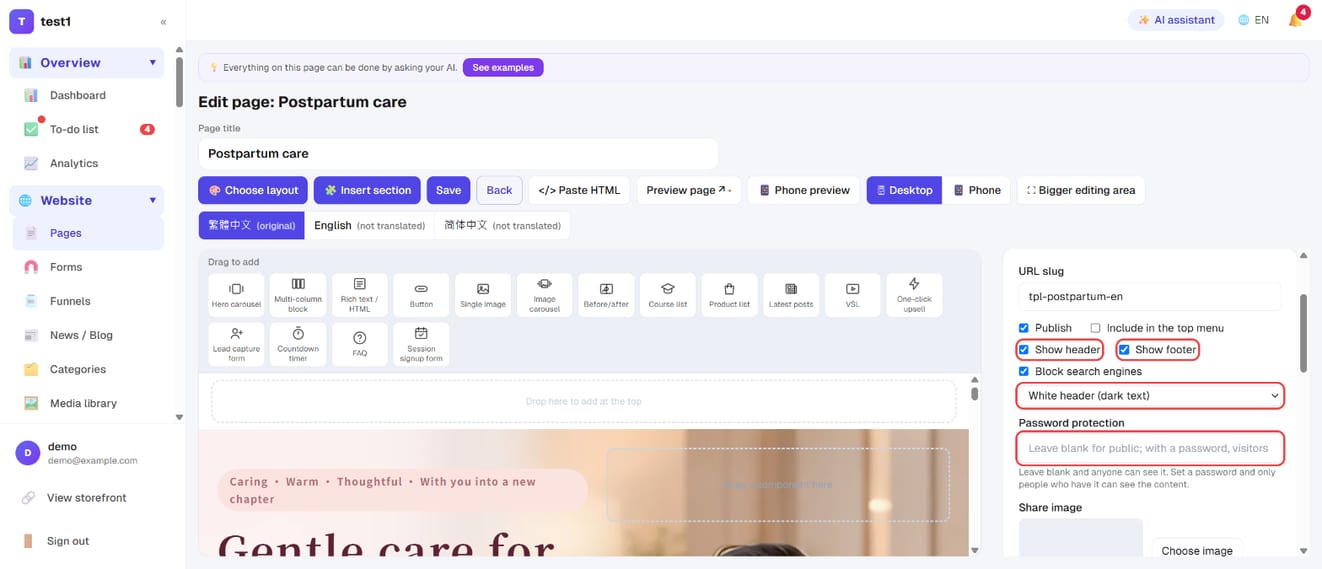
Open "⚙ Settings" on the right of the editing area:
- Show header / Show footer: switch both off and the page becomes a standalone landing page
- Header style: a white header, or a transparent one (the Hero background fills up behind white text)
- Block search engines: for thank-you pages and internal pages
- Password protection: only people with the password can see the page
- Share image: the thumbnail shown when the link is shared on Facebook or LINE
- Scroll-reveal: blocks fade in from below as visitors scroll
Step 4: Save, save as a template, check the version history
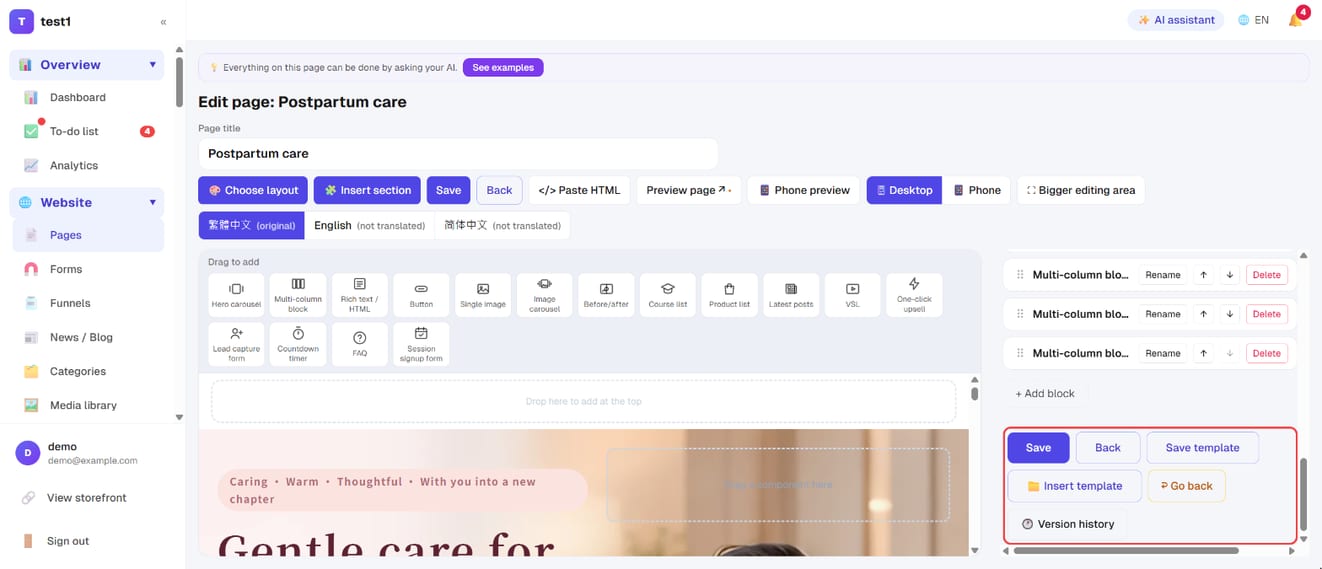
Below the editing area:
- Save: every save keeps a version
- Save template: keep this page as your own template, to insert into new pages or funnels later
- Insert template: insert a saved template (after the current content, or replacing it)
- Go back and Version history: if something breaks, restore an earlier version — the current content is saved as a version first
Don't want to start from scratch? Use "Choose layout"
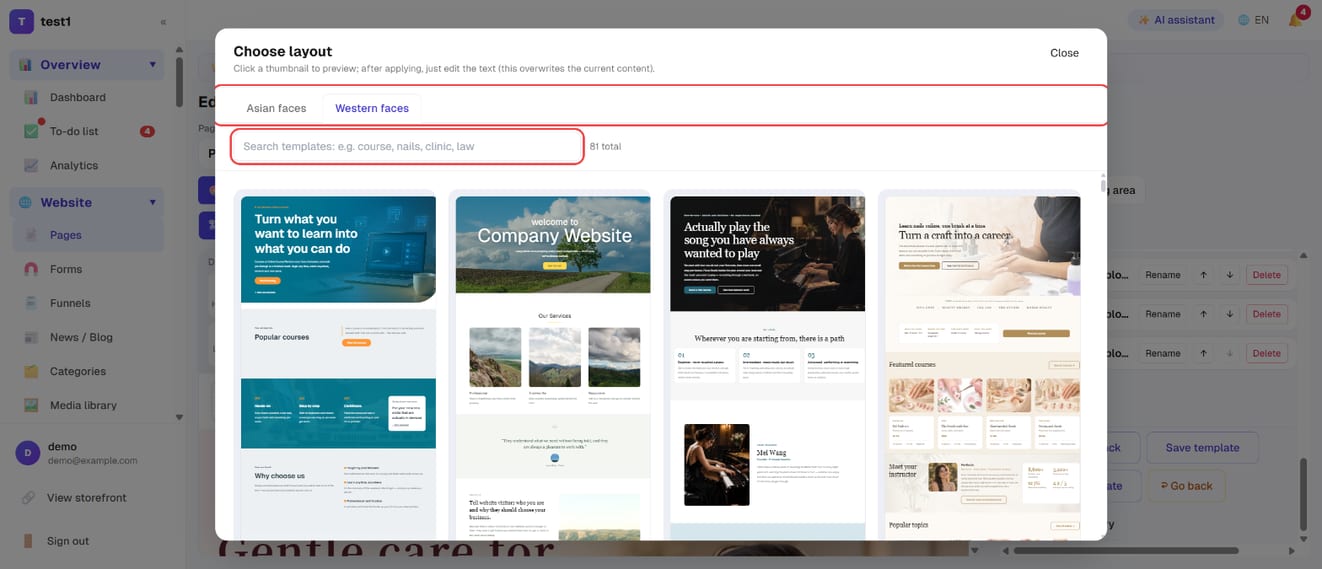
Click "🎨 Choose layout" at the top. There are two sets of ready-made layouts, Asian faces and Western faces, and you can search by keyword (for example "course", "nails", "clinic"). Click a thumbnail to preview it full size; after applying, just change the text.
Two kinds of page
Pick one when you create it:
- Content page — a real page built with the block editor
- Menu link — just an entry in the navigation pointing at an external URL or an internal path (
/shop,/blog), optionally opening in a new tab
The editor: build left, watch right
Add and reorder blocks on the left; the live preview on the right updates as you go. Click anything in the preview and the left panel jumps to its settings.
Fourteen block types
| Block | What it's for |
|---|---|
| Hero carousel | Full-width image and headline; multiple slides, adjustable height (custom desktop / phone pixels) and transition; any slide can be a video |
| Multi-column section | Side-by-side columns — and your section wrapper: background colour/image/video, padding, content width |
| Text / HTML | Regular content with a full editor; switch to source mode to paste HTML |
| Button | Links to checkout or anywhere else, or opens a form in a popup |
| Image | A single image, optionally linked |
| Image carousel | Several images with left/right arrows: one shared aspect ratio, 1–4 per view, optional autoplay (pauses on hover), click to enlarge |
| Course list | All courses or a chosen set, with columns per row and page size |
| Product list | The same, and can pull in a whole product category |
| Latest posts | Pulls in your newest published blog posts; hidden on the live site until you have one |
| VSL video | The CTA button only appears after the video reaches a set number of seconds |
| One-click upsell | Charges the card saved at the student's last checkout (Stripe only) |
| Opt-in form | Inline or popup; submissions join your subscriber list. Can reuse a saved form |
| Countdown | A fixed deadline, or an evergreen timer that starts per visitor |
| FAQ | A collapsible question-and-answer list |
The multi-column block is your layout skeleton. Want "a dark band across the page"? Use it: set the background and padding, then drop elements into the columns.
Three layout switches worth knowing
- Show header / show footer — turn both off and the page becomes a standalone landing page with no navigation, so visitors only go forward
- Header style — white, or transparent (the hero colour runs behind it with white text). With transparent, make sure the hero is dark and switch to a light logo
- Spacing above and below each element — tune density block by block; choose "None" to butt two elements right up against each other
A video playing behind your hero
For the "full-width video with the headline on top" look you see on brand sites:
- Add a multi-column section at the very top and set it to one column
- In its settings, under 🎬 Background video, click "Choose from video library", or paste a YouTube / Vimeo URL or an .mp4 URL
- Darken it with the video overlay and set the text colour to white; set "Section height" to 16:9 to show the whole frame
- Put your headline (Text / HTML) and a button in the column
The video plays muted, looped and automatically. Short clips of 10–30 seconds with no important audio work best. The Hero carousel works the same way: click "+ Add video" and that slide uses a video background, with your headline on top. YouTube may briefly flash its logo when it starts and loops; Vimeo only hides its controls if the video owner is on a paid plan. The cleanest result is the video library (MP4). Picking from the video library needs the CDN hostname filled in under Video settings, and MP4 Fallback switched on in your Bunny library (only videos uploaded after that get an MP4 file).
Columns per row need a save
Course and product lists let you set how many fit per row. Press save after changing the dropdown or it won't take effect — the single easiest step to miss.
Layouts, templates and versions
- Apply a ready-made layout — one click for a whole design. ⚠️ It replaces the current content
- Save as template — keep this page as your own template and insert it later into pages or funnels; templates export to a file and import back
- Insert template — if the page already has content, choose whether to append or replace
- Version history — every save keeps a version you can preview and restore; restoring saves the current content as a version first, so you can always come back
Building a page by pasting HTML
Paste HTML page on the page list is for whole pages generated by AI: paste in the complete HTML from ChatGPT or Claude and it renders full-screen, exactly as written — CSS and JS preserved, nothing simplified away. Limit 5MB.
Pair it with Copy selected URLs for AI in the media library: upload your images, hand the AI the URLs, ask it to lay out a page with them, paste the result back.
⚠️ When pasting a full page into a Text/HTML block, stay in source mode when you save. Switching back to visual mode strips
<style>and<script>.
Menus and hierarchy
Straight from the page list:
- In menu — tick to show it in the storefront navigation
- Parent — set one and the page becomes a dropdown item under it
- Drag to reorder — the order is the menu order; remember to save it
- Courses and Shop are system entries: they can't be deleted, but you can rename and reorder them
Multiple languages
The editor has one-click AI translation into the other languages you've enabled, and a way back to the original at any time.
⚠️ Running several languages hurts SEO (one URL, several versions of the content) unless you genuinely serve those markets — see the SEO check.
FAQ
Should a sales page be a page or a funnel? One page on its own: a page. A sequence (sales → checkout → thank you → upsell): a funnel.
I broke the layout — can I get it back? Yes: version history, pick a version, restore. Which is also the argument for saving often.
What happens when the countdown hits zero? Your choice: show 00, hide the timer, replace it with a message, or redirect somewhere else.
Why does the one-click upsell button do nothing? It needs four things: the feature on, the student signed in, a card saved at their last checkout, and them not already owning the course. If any fails it quietly falls back to a normal checkout link rather than a dead button. Stripe only.
The images in my pasted HTML are missing. Use full URLs from the media library. Local paths and hotlinked images break sooner or later.