
Mobile app (Add to Home Screen) & push notifications
Your site can be added to a phone's home screen and opens full-screen like an app — free on every plan, no App Store needed. Push notifications are an add-on: new orders, bookings, form submissions and messages pop up right on your phone.
Settings → Mobile app. Without building a separate app, your students and customers can add your site to their home screen: your icon appears on their phone, and it opens full-screen with no browser address bar — it looks and feels like an app.
| Feature | Cost |
|---|---|
| Add to Home Screen (installable web app) | Free on every plan — works without any setup |
| Push notifications | Add-on — not included in any plan, available on every plan |
Add to Home Screen (free)
Every site is already installable, even if you don't change any settings: the name comes from your site title, the color from your Theme Design accent color, and the icon from your favicon. If there's no favicon either, an icon is generated from the first letter of your site name.
How visitors install it
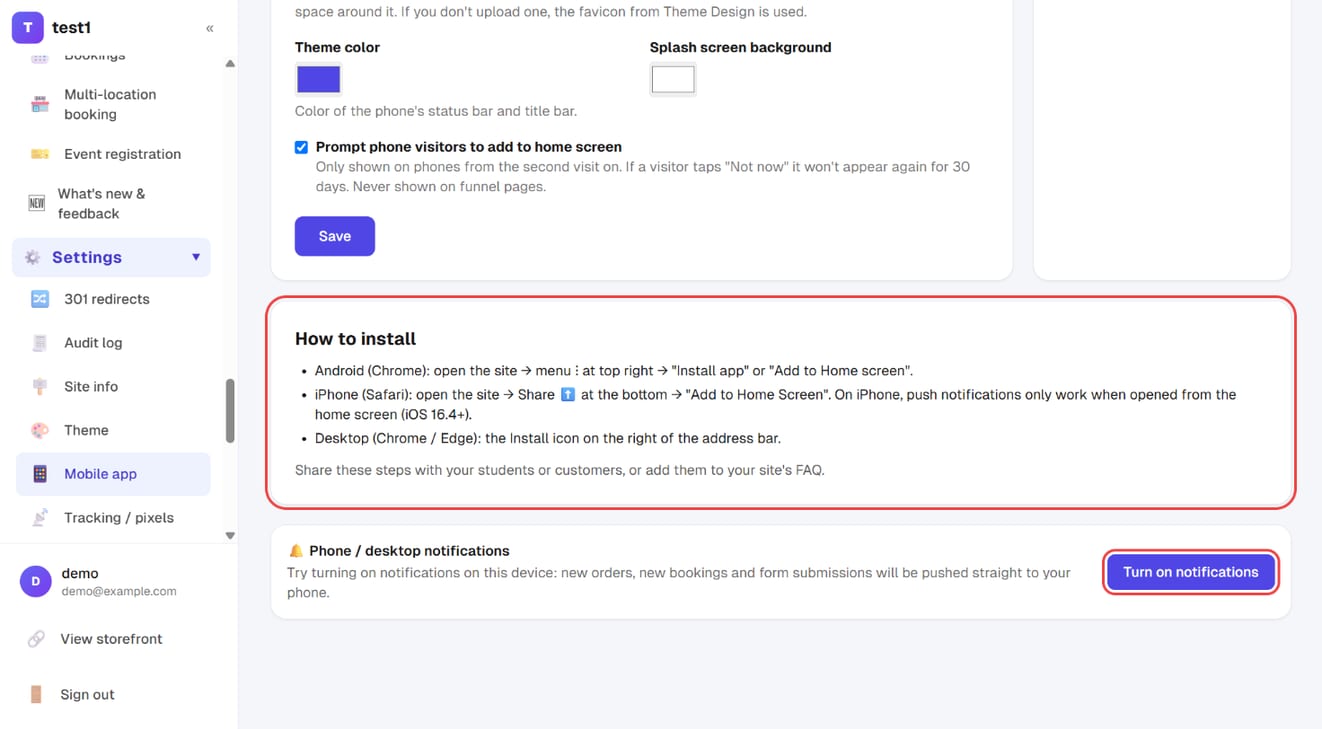
- Android (Chrome): open the site → menu ⋮ at top right → "Install app" or "Add to Home screen"
- iPhone (Safari): open the site → Share ⬆️ at the bottom → "Add to Home Screen". It has to be Safari — the in-app browsers inside LINE or Facebook don't have this option
- Desktop (Chrome / Edge): the Install icon on the right of the address bar
You can paste these steps straight to your students, or add them to your site's FAQ.
Prompting visitors to install
From a phone visitor's second visit on, a prompt at the bottom of the screen invites them to add your site to their home screen: on Android they tap "Install" and it's done; on iPhone it shows them how to tap Share → Add to Home Screen. If they tap "Not now", it won't appear again for 30 days. People who already opened it from the home screen never see it, and it never appears on funnel pages so it can't get in the way of a sale. To turn it off, uncheck "Prompt phone visitors to add to home screen" on the Mobile app page.
Name, icon and colors
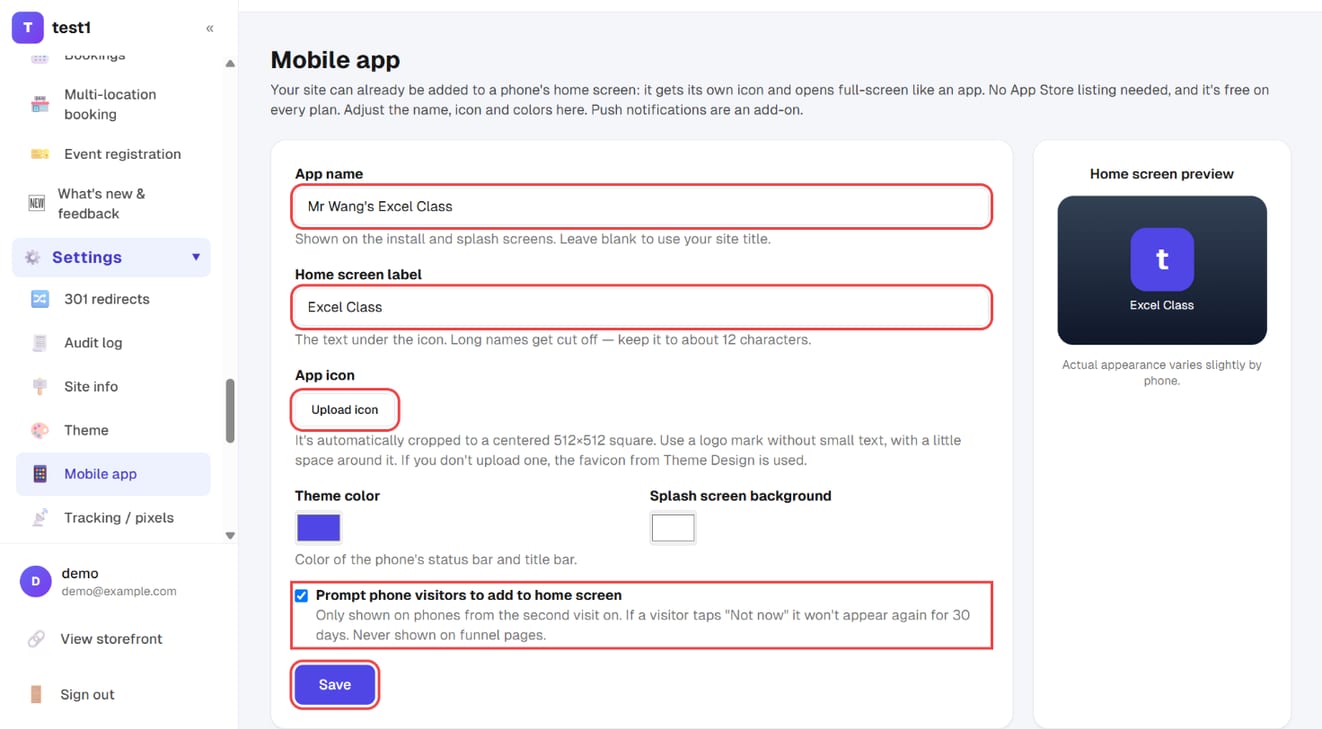
In the left menu, click "Settings → Mobile app": set the App name, the Home screen label (about 12 characters), click "Upload icon", pick the colors, tick "Prompt phone visitors to add to home screen", and click "Save". The preview on the right updates as you go.
Further down the same page, "How to install" has instructions you can pass on to students, and "Turn on notifications" enables push notifications on the device you're using.
| Field | What to enter |
|---|---|
| App name | Shown on the install and splash screens. Leave blank to use your site title |
| Home screen label | The text under the icon. Long names get cut off — keep it to about 12 characters |
| App icon | Upload an image and it's automatically cropped to a centered 512×512 square. Use a logo mark without small text, with a little space around it |
| Theme color | Color of the phone's status bar and title bar. Leave blank to follow your theme's accent color |
| Splash screen background | The color that flashes when the app opens. Leave blank for white |
The home screen preview on the right shows your icon before you save. Changes take effect within about 10 minutes. For people who already added it: Android updates the name and icon automatically within about a day; iPhone doesn't update automatically — they need to remove it and add it again.
Push notifications (add-on)
With the add-on, notifications you'd otherwise get by email — or only see after signing in to the dashboard — pop up right on your phone or computer:
- You and your admins: every notification in the dashboard bell is also pushed — new orders, pending payments, new bookings, form submissions, support messages, instructor applications, student questions, AI actions awaiting confirmation, and more
- Matchmaking members (on sites with the Matchmaking add-on): someone wants to meet you, the other member accepted or declined, a meeting has been arranged
How to get it: subscribe in the add-ons section at the bottom of your dashboard Overview page (the price is listed there). You can cancel any time. On sites without the add-on, the "Turn on notifications" button doesn't appear. If you cancel, everyone's notification settings are kept, so they come back automatically when you subscribe again.
Turn it on once per device
Notifications are tied to this account + this device: the same person needs to turn them on separately on their phone and their computer.
- Sign in to the dashboard, go to Notifications or Mobile app, and click Turn on notifications
- Click Allow when the browser asks
- A test notification is sent to the device straight away — once it arrives, you're set
Co-admins can turn it on themselves; the site owner doesn't need to do it for them. To stop, go back to the same page and click "Off".
Who gets which notification is still decided by Notifications: people with 🔔 dashboard alerts checked for a notification type get the push for it.
iPhone limits
This is Apple's rule, not a site setting: iPhone needs iOS 16.4 or later, and the site must first be added to the home screen and opened from the home screen icon before notifications can be turned on. If you open the site directly in Safari, you won't see "Turn on notifications" — it tells you to add it to the home screen first.
Not getting notifications?
- "Turn on notifications" does nothing, or says it's blocked by the browser: you clicked "Block" before. In your browser (or phone) settings for this site, set notifications to "Allow", then try again
- The test notification arrives but real ones don't: check in Notifications that your 🔔 is checked for that notification type
- Do Not Disturb / Focus mode is on: the phone holds notifications back until you turn it off
- After switching phones or clearing browser data: turn notifications on again on that device
What students see
My Courses and every lesson page show 📱 Tips for learning on your phone, which automatically teaches students three things: how to add your site to their home screen (iPhone and Android steps), that Continue learning takes them straight back to the lesson and second they stopped at, and how to use 🎧 Listen mode while driving or commuting. You don't need to write your own instructions. To set up Listen mode, see Listen mode (audio only).
Why not the App Store?
Listing on the App Store / Google Play means a yearly developer account fee and a review for every update — and apps that "just wrap a website" are often rejected. An installable web app needs no review and updates the moment you change your site. Together with push notifications, it covers the two things people use apps for most on course, booking and matchmaking sites: one-tap access and instant notifications.