
Students & order management
View students, manually grant course access, handle orders, and understand the difference between removing course access and deleting an account.
Manage students and orders, step by step
Step 1: Find people in "Students"
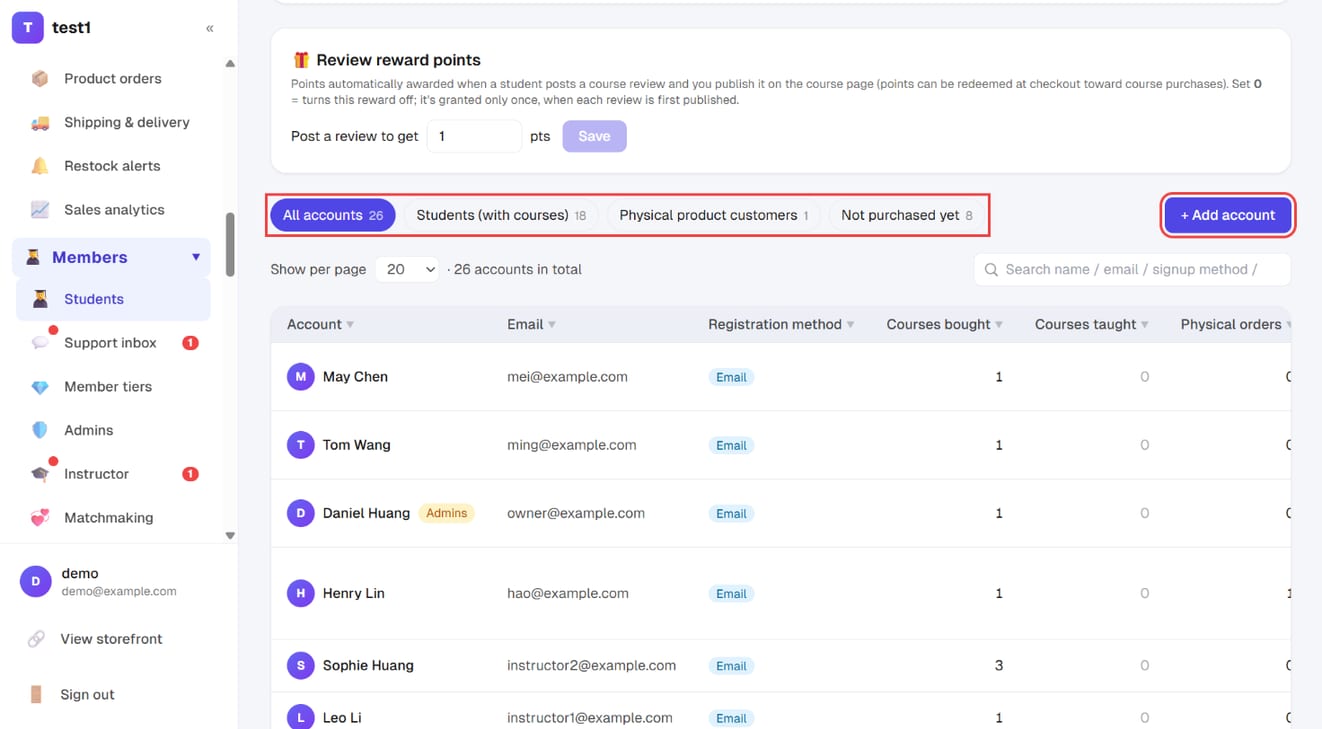
In the left menu, click "Members → Students". It lists every registered user; the filter buttons at the top switch views (all accounts / students with courses / physical product customers / not purchased yet).
Step 2: Add a student manually and grant courses
For offline payments, gifts or making up for a complaint, click "+ Add account" at the top right:
- Fill in Email, Name and a Login password (set one for them and tell them), plus a phone number if needed
- Tick the courses under "Courses they can watch"
- Click "Create"
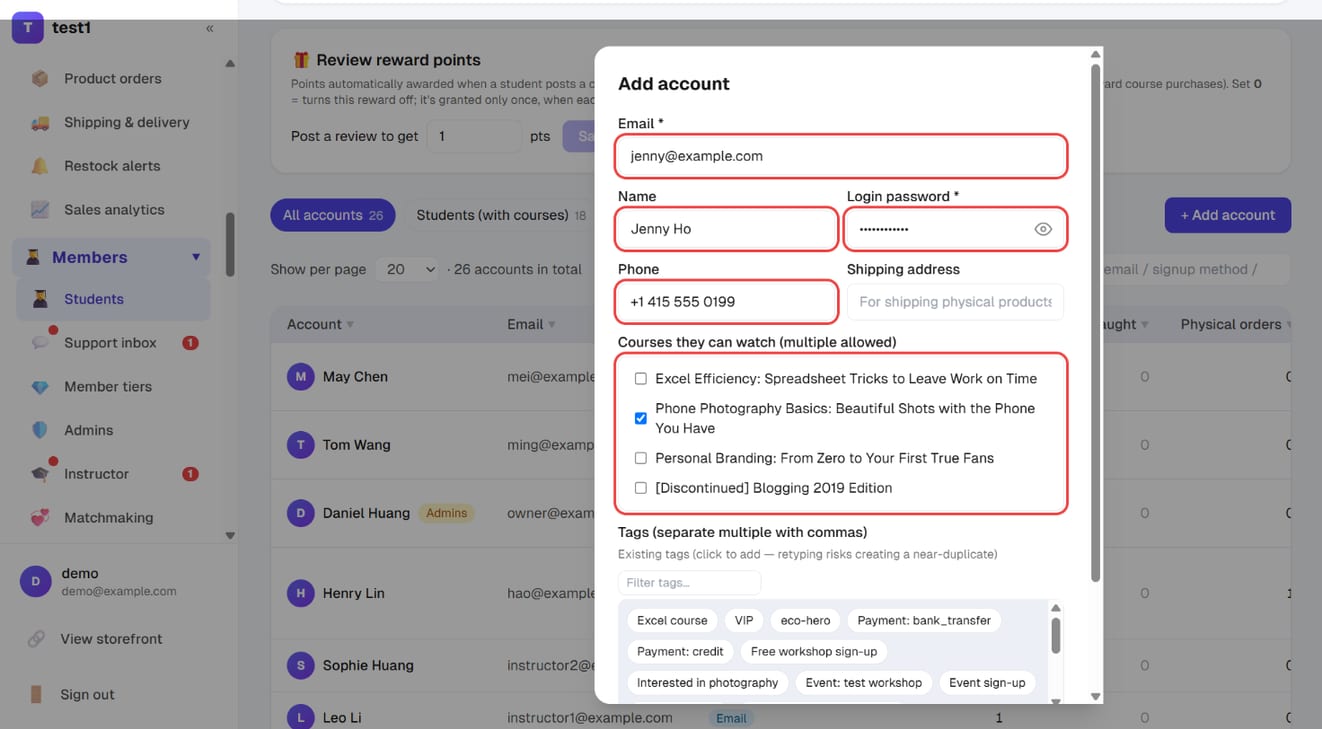
Adding someone manually creates a $0 order flagged "Added manually in dashboard", so you can always trace where access came from — and it doesn't count towards revenue.
Step 3: Change courses, points or reset the password
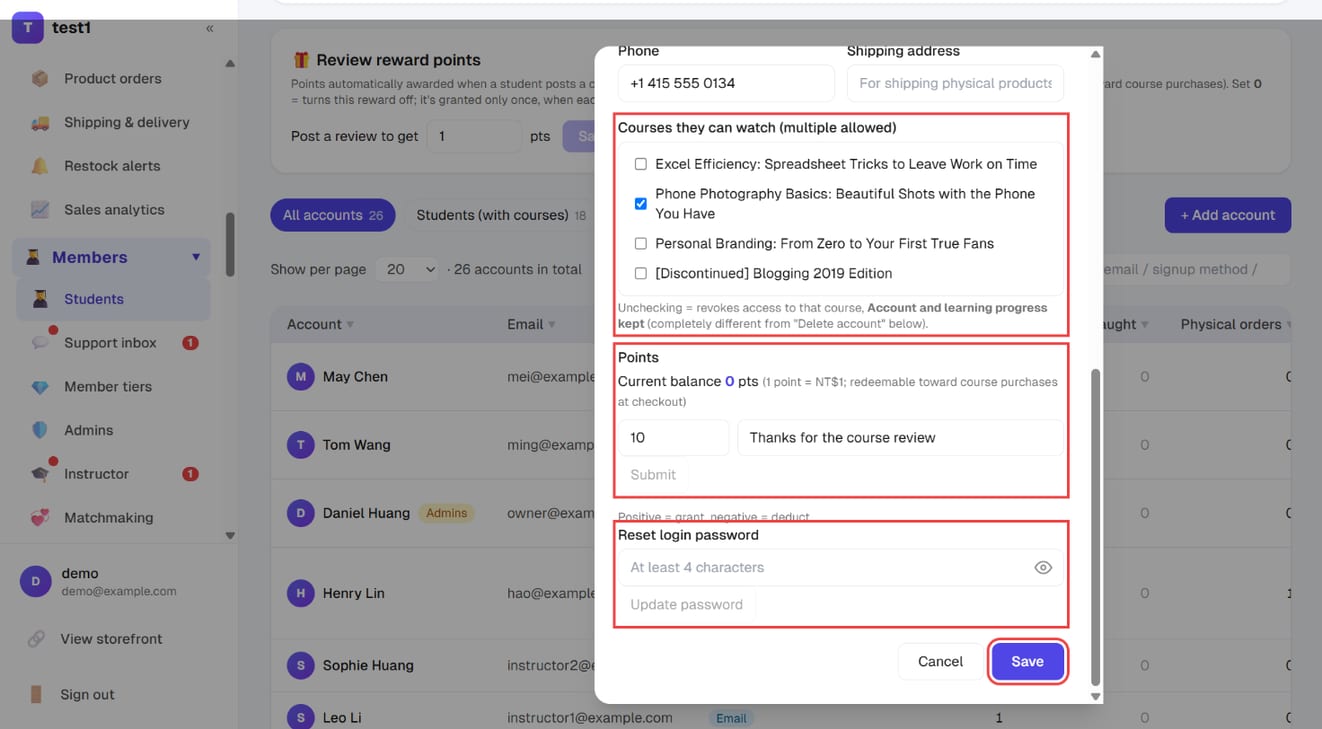
Click "Edit" on a student:
- Courses they can watch: untick to revoke that course — the account and learning progress are kept
- Points: enter an amount (negative to deduct) and a reason, then click "Submit"
- Reset login password: type a new password and click "Update password"
Click "Save" when you're done.
Step 4: Confirm transfers, refund or export in "Course orders"
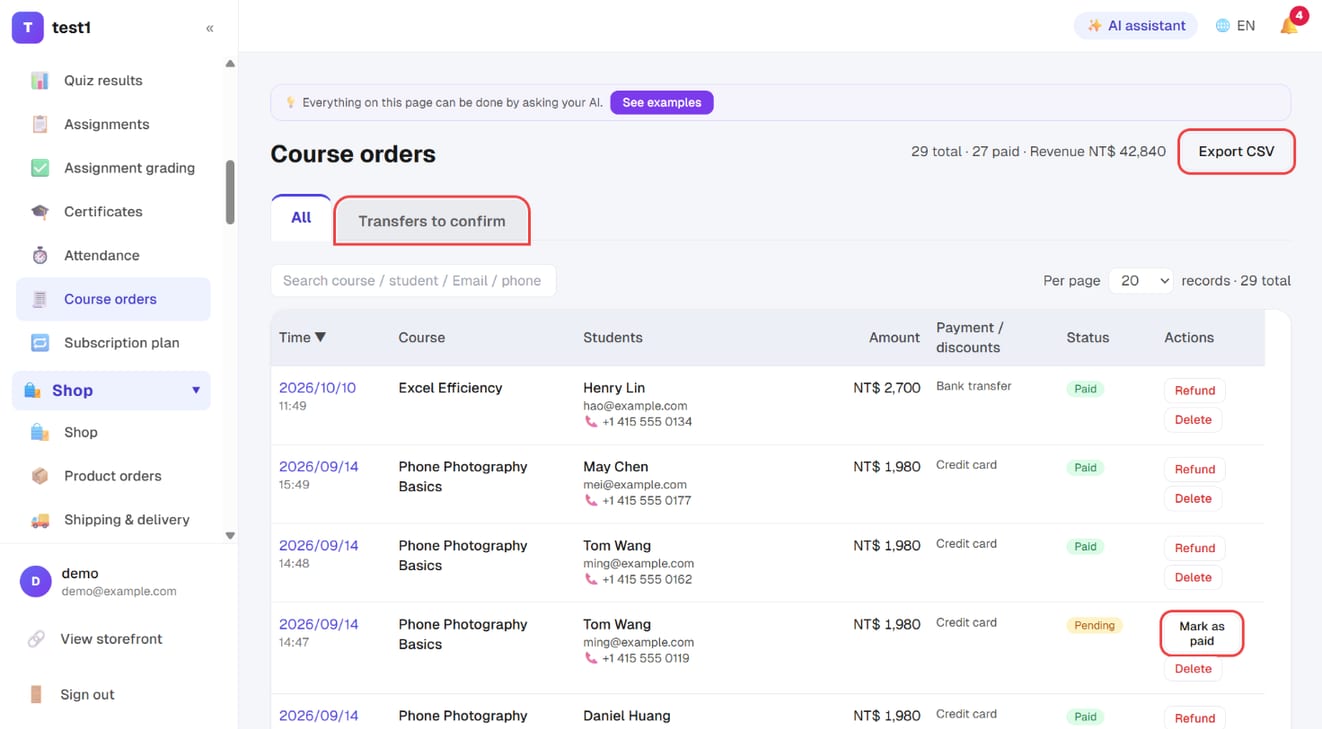
In the left menu, click "Teaching → Course orders":
- The "Transfers to confirm" tab lists orders paid by bank transfer (or another offline method) that haven't been confirmed yet
- Once the money arrives, click "Mark as paid" on that order — the course unlocks immediately and the student is emailed
- Paid orders have a "Refund" button
- "Export CSV" at the top right exports every order (including custom checkout fields)
Physical product orders live under "Shop → Product orders" — see "Shop & shipping" for fulfilment.
Students / accounts
"Members → Students" lists all registered users. Use the filter buttons at the top to switch views:
| Filter | Contents |
|---|---|
| All accounts | Everyone who has registered |
| Students (with courses) | People who own at least one course |
| Physical product customers | People who bought products but no courses |
| Not yet purchased | Registered but haven't bought anything yet |
The "Not yet purchased" group is often overlooked — they've already shown interest in you, so they're the lowest-cost list to convert.
Manually adding a student
Useful for offline payments, gifts, or compensating a support complaint. Two entry points:
- From the course: Course → that course's "Students" → "+ Add student"
- From accounts: Students / accounts → when you "+ Add account" you can tick the courses to grant at the same time
Adding a student manually creates an order for $0 flagged as "Added manually from the admin", so you can trace where access came from later, and it won't affect your revenue stats.
💡 The person must already have an account (or you create one for them). The system does not automatically send a password — you'll need to ask them to set one via "Forgot password", or set it for them directly.
Removing a course vs. deleting an account
These two are very different — double-check before you act:
| Action | Effect | Reversible |
|---|---|---|
| Remove from course | Only revokes viewing access to this one course; the account, other courses, and learning progress are all kept | Yes, can be added back |
| Delete account | The entire account and its data are removed | ❌ Not reversible |
For everyday cases (refunds, wrong course) just use Remove from course. Only delete the account when the person requests deletion of their personal data.
Orders
"Course teaching → Course orders" and "Shop → Product orders" are listed separately.
Each order shows the payment method, amount, status, and time. A Pending payment order means the customer chose bank transfer or another local payment method but hasn't paid yet; the system keeps the order while it waits for a payment notification.
Manually marking as paid
For offline transfers, open the order detail and click "Mark as paid"; the system immediately grants course access and sends the notification email.
FAQ
A student says they didn't get the notification email? Go to "Email & newsletters → Email log" and check that email's status. This logs every email the system sends, showing whether it was sent successfully or failed, the failure reason, and it can also be resent.
If the status is failed, it's usually a configuration issue with your email service provider — see "Email & newsletters → Email settings".
Can I change a student's password for them? Yes. In Students / accounts, find the person → "Edit" → set a new password directly.
What are points? Redeemable points that students can accumulate; 1 point = 1 unit of your currency, redeemable at checkout. Right now the only automatic way to earn them is "Posting a course review". You can set how many points on the top of the Students / accounts page; set it to 0 to turn it off.