
Quizzes & Assignments
Set auto-graded quizzes, collect assignment submissions, and clear everything waiting for you in one place.
Quizzes and assignments both live under a course. You can attach one to the whole course, or bind it to a specific lesson — when bound, students see it right on that lesson's page.
Create a quiz, step by step
Step 1: Create a new quiz
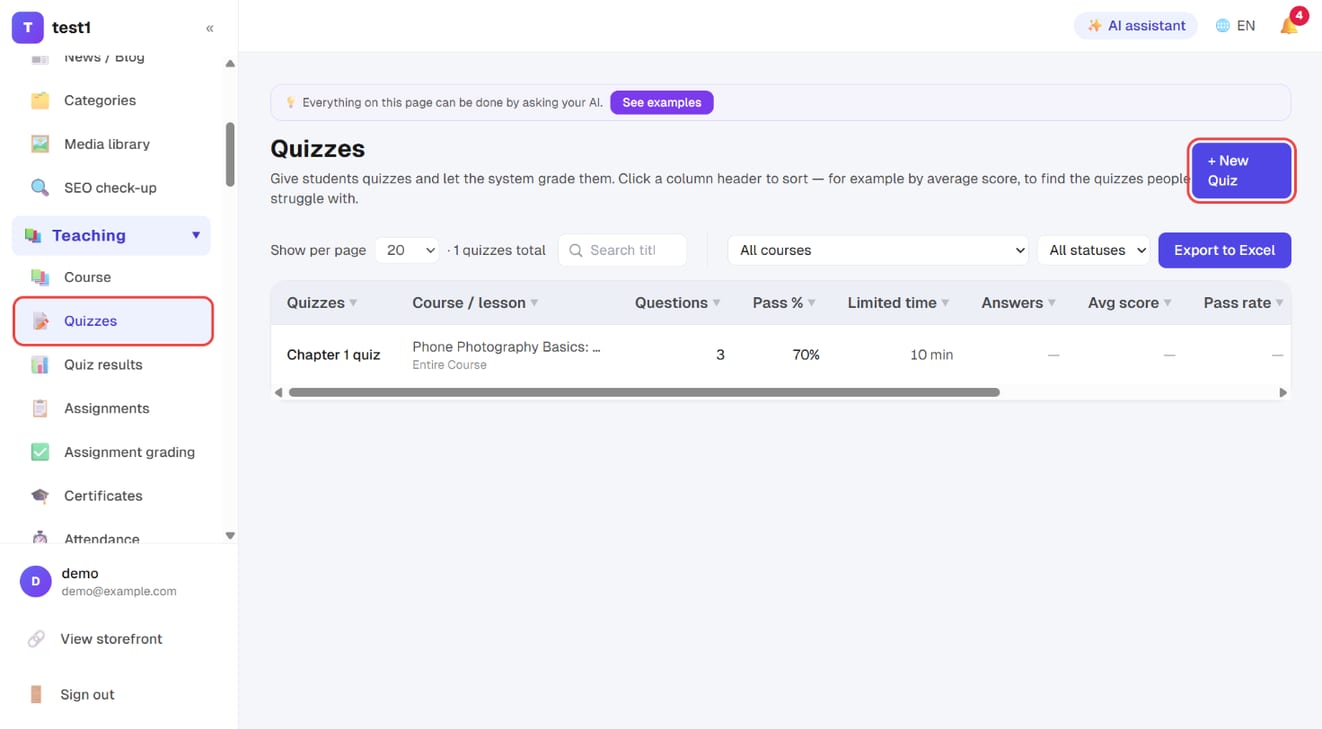
In the left menu, click "Teaching → Quizzes", then "+ New Quiz" at the top right.
Step 2: Fill in the quiz settings
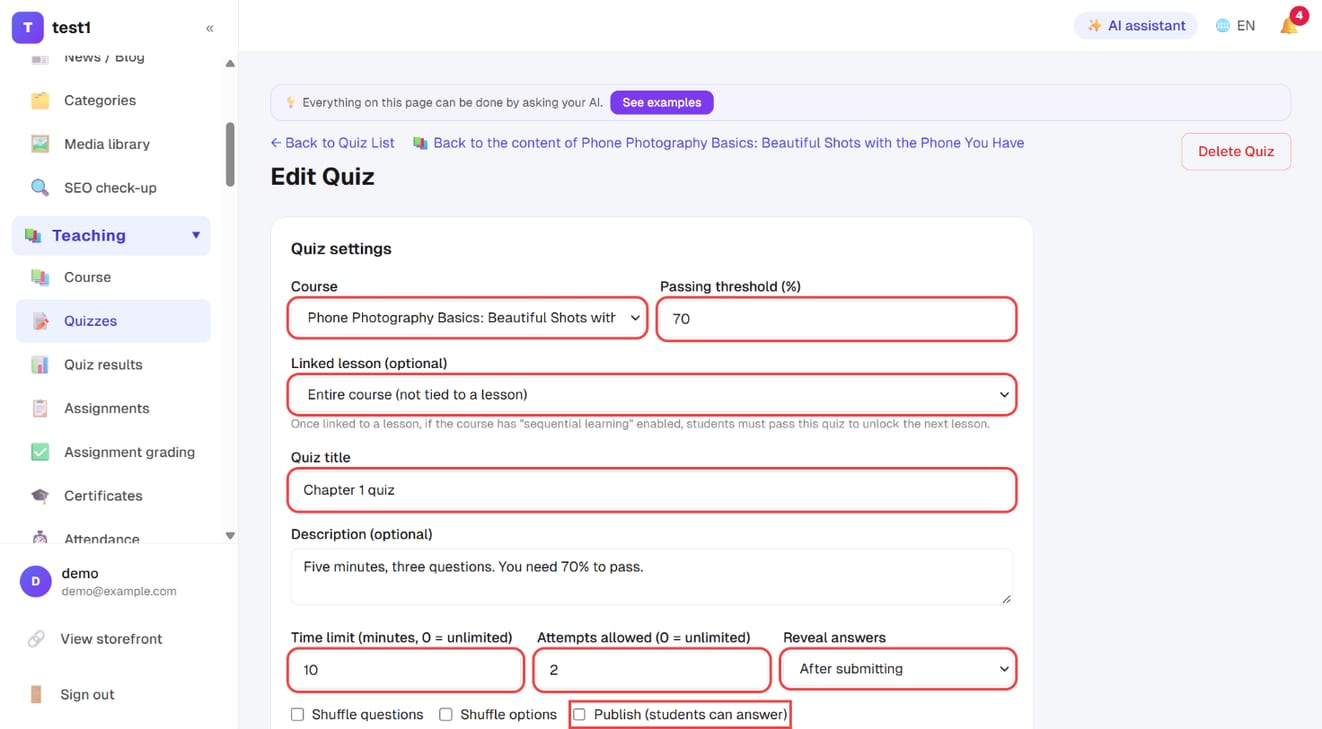
- Course and Linked lesson (optional): link it to a lesson and, with "sequential learning" on, students must pass it to unlock the next lesson
- Passing threshold (%), Quiz title, Description
- Time limit (0 = unlimited), Attempts allowed (0 = unlimited), Reveal answers (after submitting / after passing / never)
- Publish (students can answer): unticked, students can't see it
Step 3: Write the questions
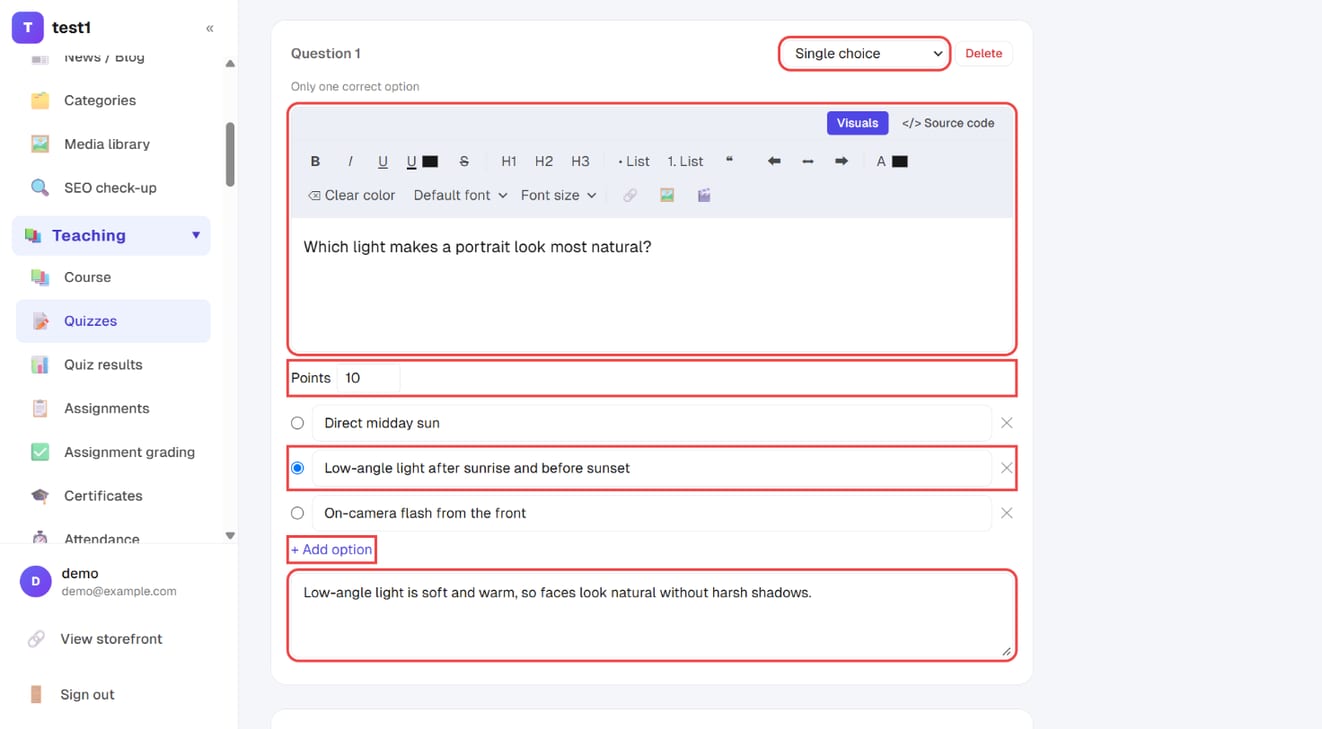
For each question, choose its type at the top right (single choice, multiple select, true/false, matching, ordering), then write the question, set the points, enter the options and mark the correct one. Use "+ Add option" for more options; the box at the bottom is the explanation students see after answering.
Step 4: Add more questions, then save
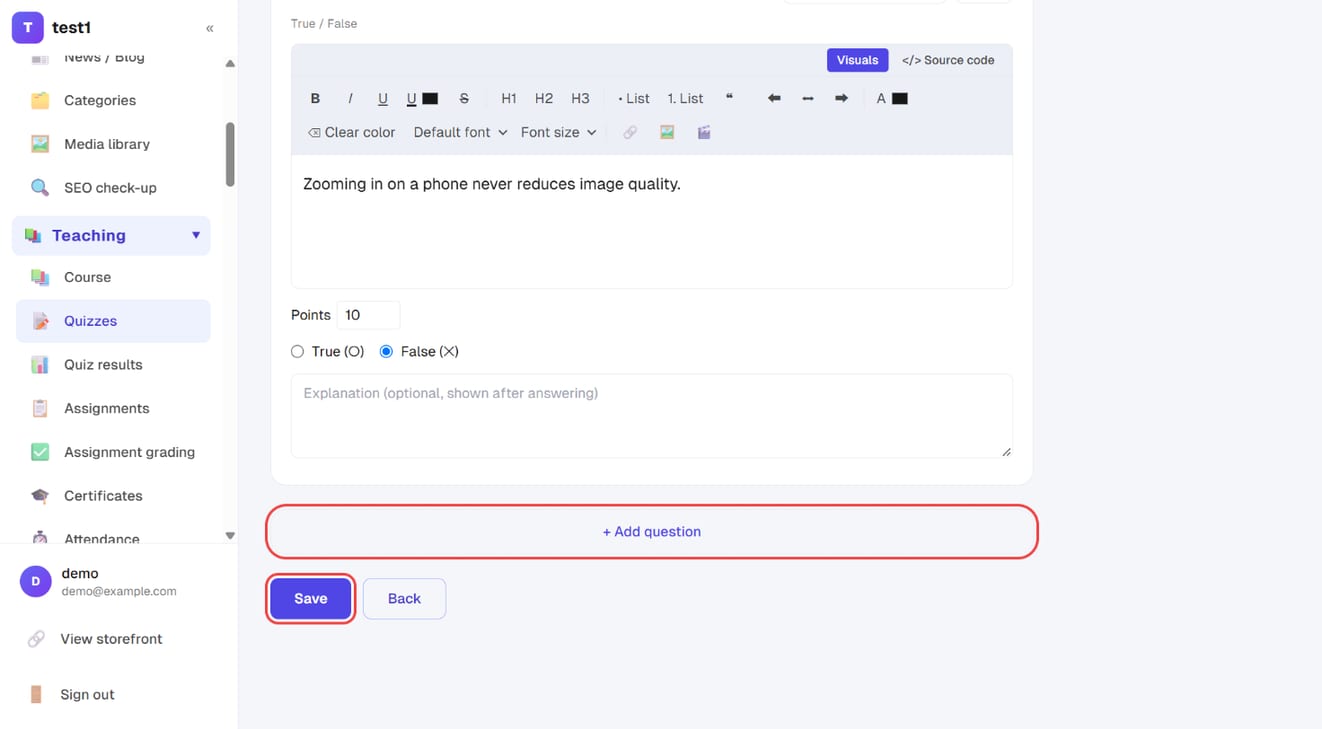
At the bottom of the page, click "+ Add question" for the next one. When you're done, click "Save".
Quizzes
Question types
| Type | Grading |
|---|---|
| Single choice | Automatic |
| Multiple choice | Automatic (all correct answers required) |
| True / false | Automatic |
| Matching | Automatic (partial credit) |
| Ordering | Automatic (shuffled for the student) |
Every question type is graded automatically — you never have to mark a paper by hand.
There is deliberately no fill-in-the-blank or essay type: those answers have no single correct form (synonyms and extra words are still right), so exact matching marks correct answers wrong and leaves you patching accepted answers one by one. Use single choice or true/false to test the same understanding.
Questions are rich text: the question box is a what-you-see-is-what-you-get editor, so you can drop in images, video, bold text and lists. "Look at this photo and answer" style questions work fine.
Each question has its own point value and explanation. Explanations appear when answers are revealed.
Quiz settings
- Pass mark: what percentage counts as a pass
- Time limit: leave empty for no limit
- Maximum attempts: 0 means unlimited
- Shuffle questions / shuffle options: makes it harder to copy answers
- When to reveal answers: after submitting / after passing / never
Create an assignment, step by step
Step 1: Create a new assignment
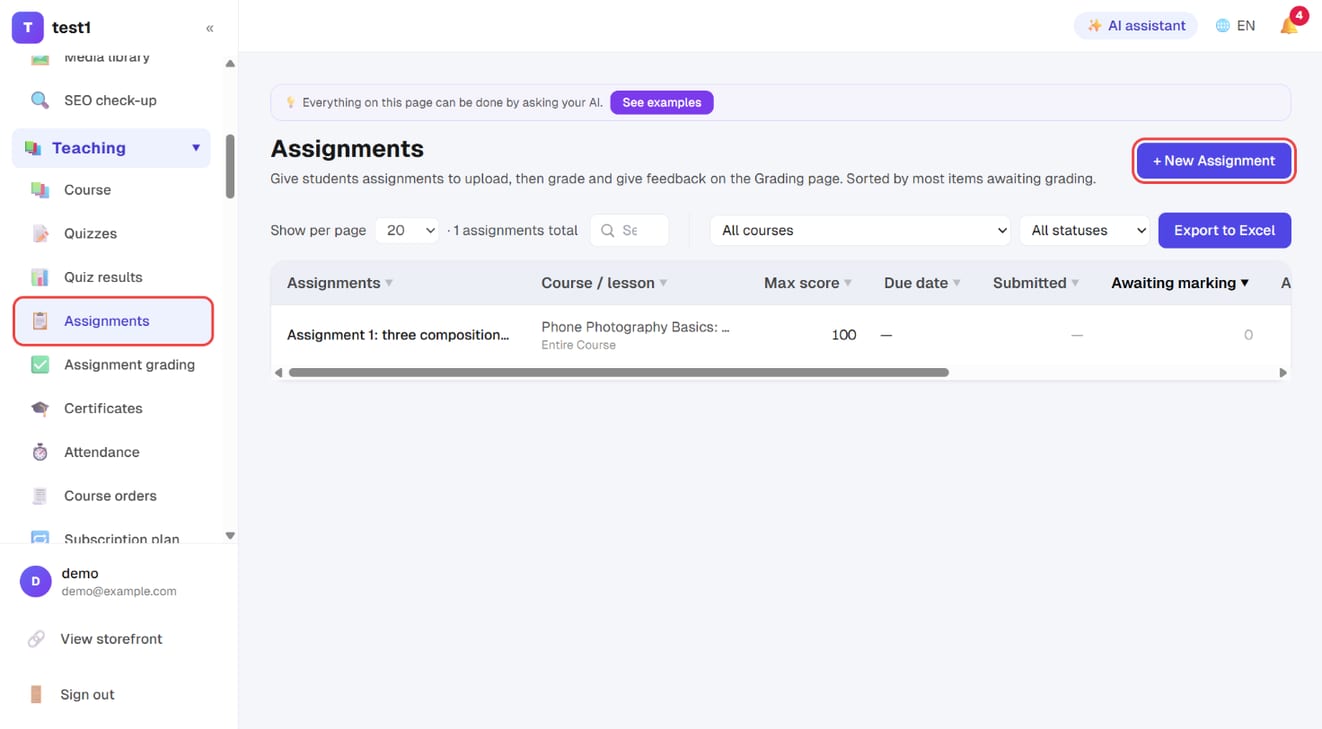
In the left menu, click "Teaching → Assignments", then "+ New Assignment" at the top right.
Step 2: Course, lesson, title and description
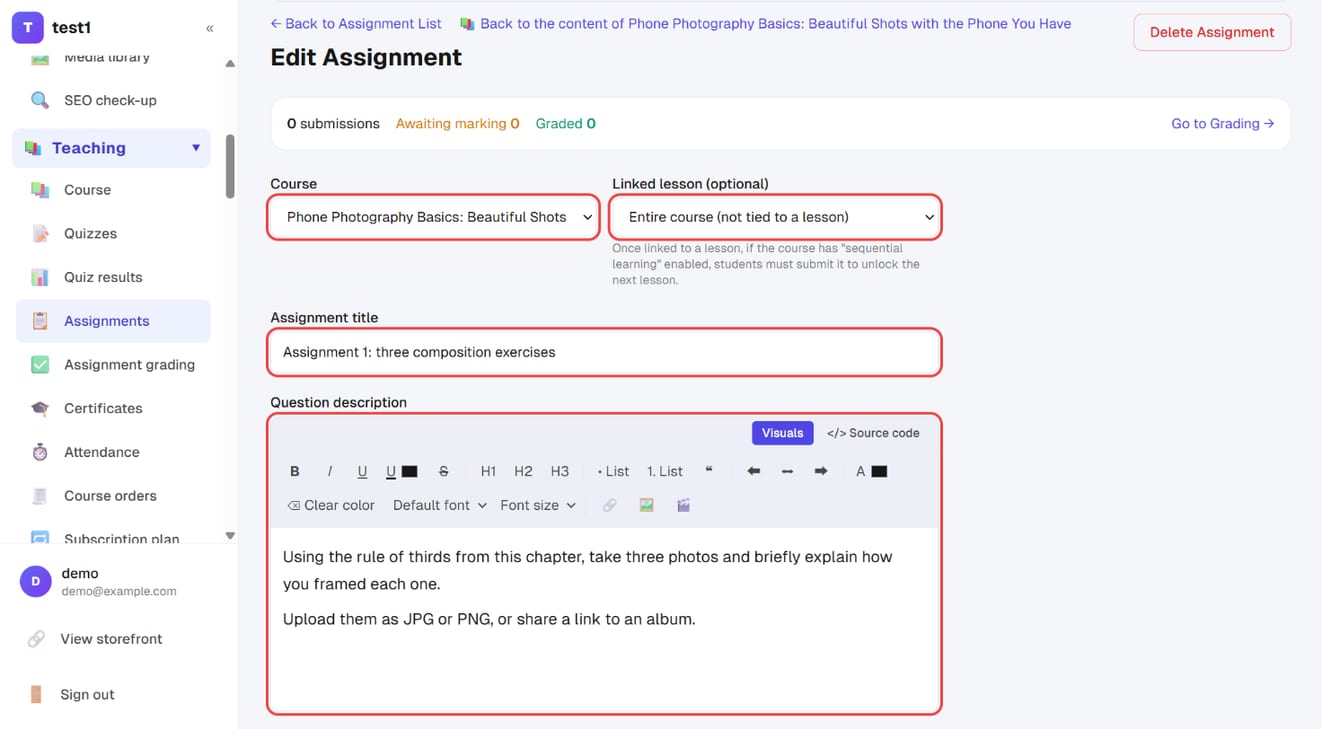
Pick the course and, optionally, the linked lesson, then fill in the assignment title and question description. The description uses the same editor as lessons, so you can add images, lists and links.
Step 3: Submission method, score and deadline, then publish and save
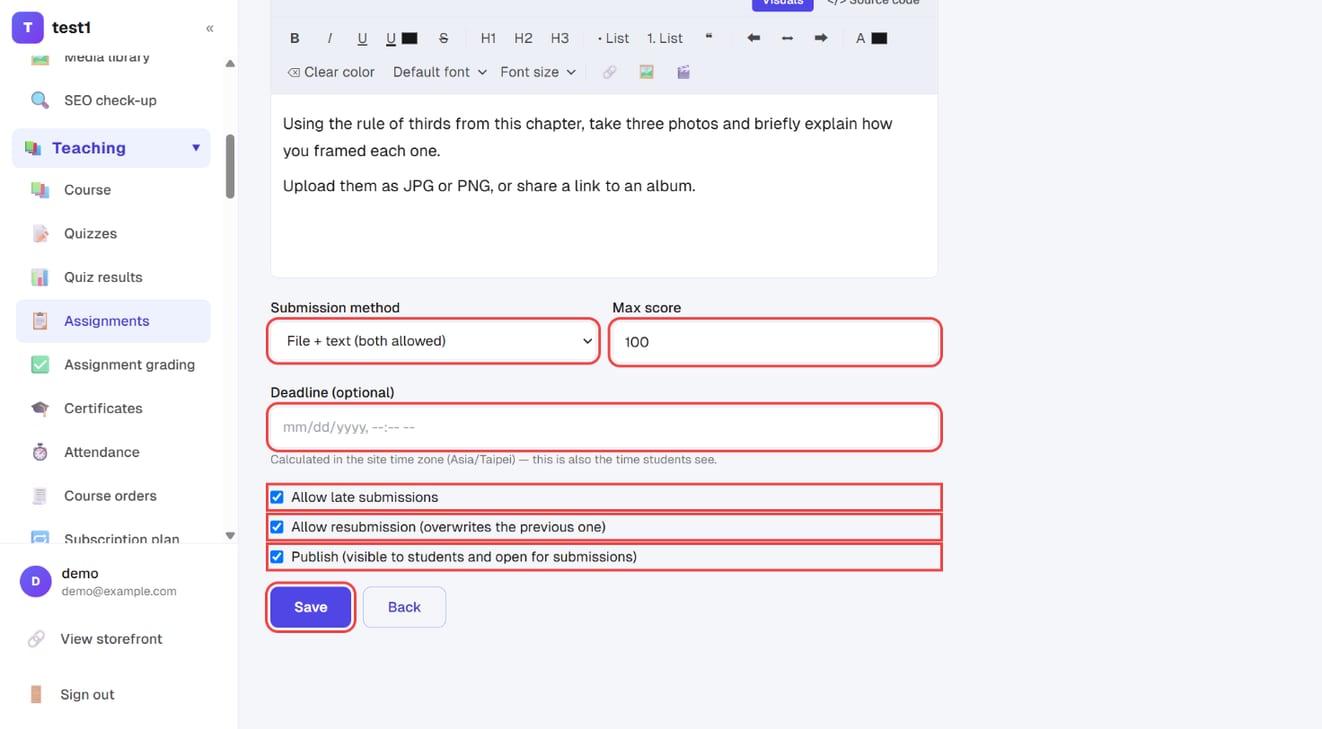
- Submission method: text, file, link, or file + text
- Max score and Deadline (optional)
- Allow late submissions, Allow resubmission
- Tick "Publish (visible to students and open for submissions)" and click "Save"
Grade assignments, step by step
Step 1: Open the submission and grade it
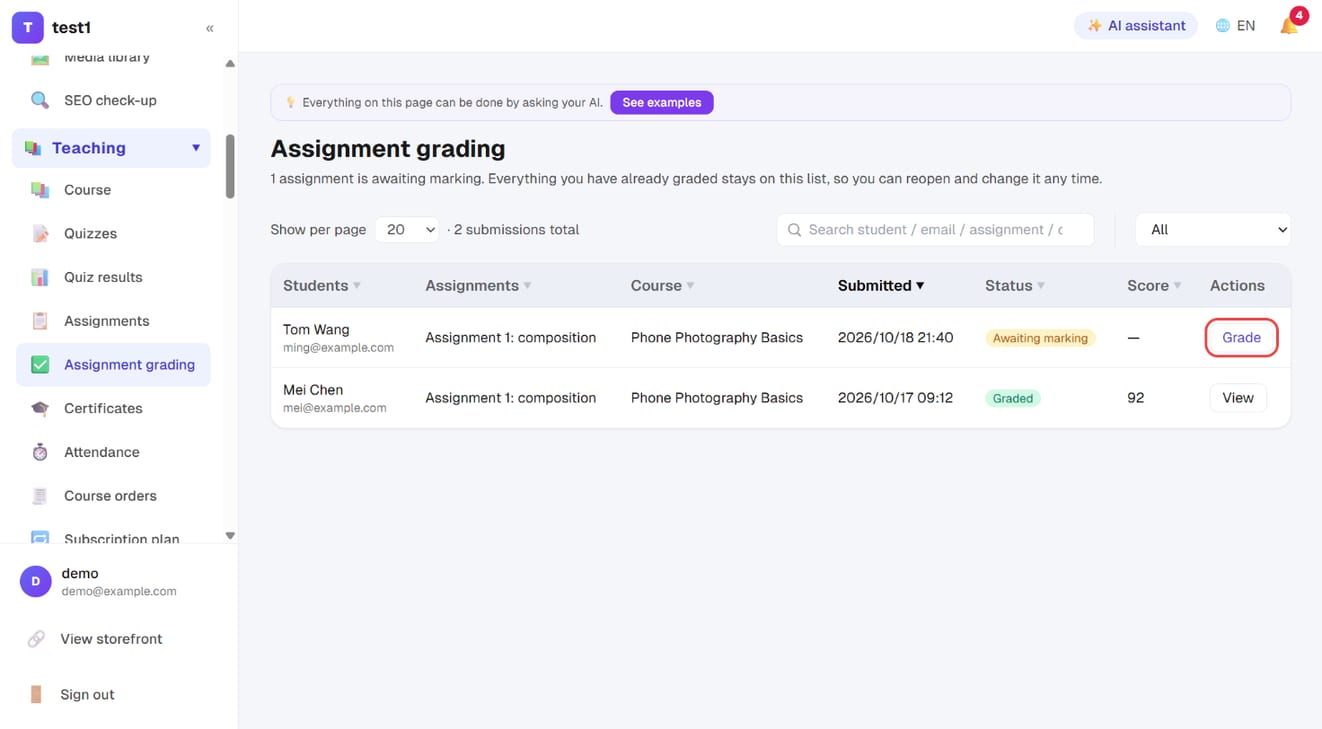
In the left menu, click "Teaching → Assignment grading" and click "Grade" on a row that's awaiting marking. Read the submission, give a score and feedback — the student sees both as soon as you save.
Step 2: Check every quiz result at once
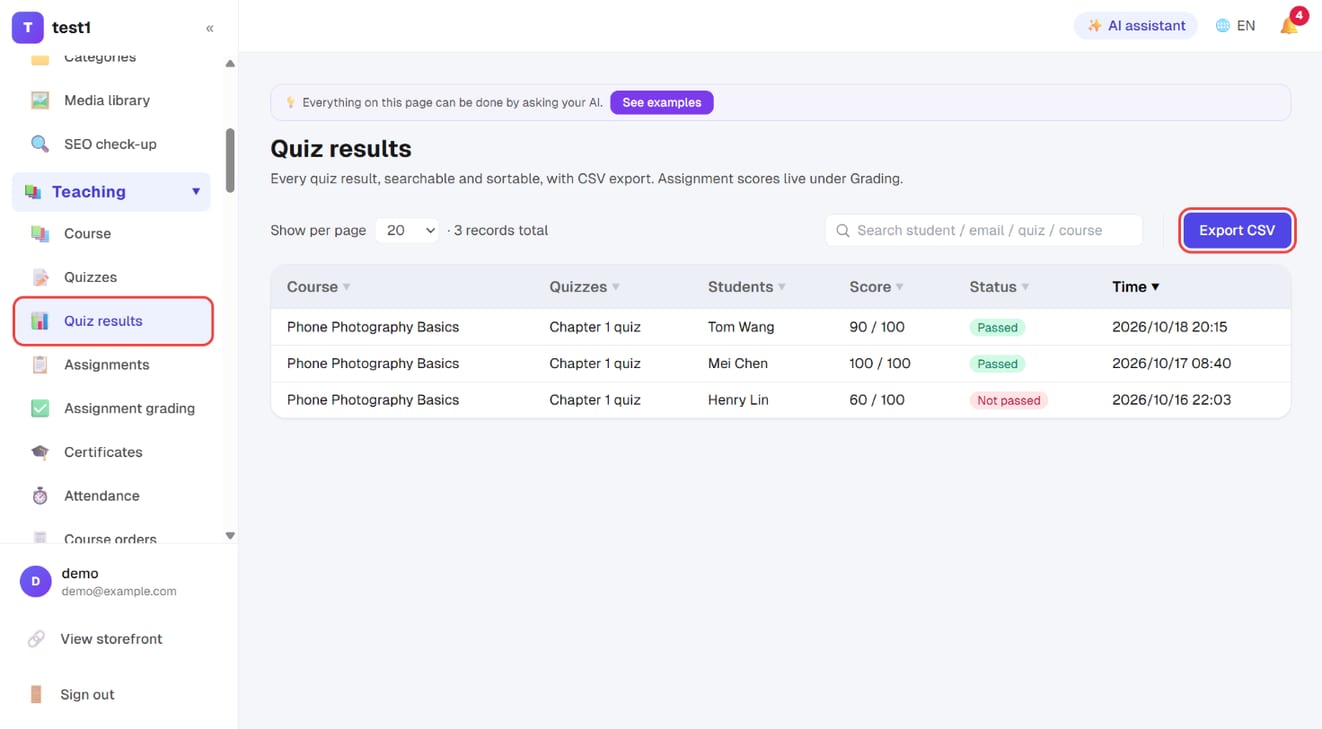
Quizzes are graded automatically. "Teaching → Quiz results" lists every attempt, searchable and sortable; "Export CSV" at the top right downloads it.
Assignments
Submission types
- Text only
- File upload only
- URL only (a link to their work, or cloud storage)
- Mixed (accepts all of the above)
Other settings
- Points and due date
- Allow late submissions: turn it off and the deadline is hard
- Allow resubmission: lets students replace what they submitted before
- Reference files: attach templates or source material for students to download
Assignments start as drafts — publish it before students can see it.
Grading
Teaching → Assignment grading is the page you'll open daily. It has two sections:
- Assignments waiting to be graded
- Already graded
Quizzes never land here — they are graded automatically and the scores go straight to the gradebook.
Open an item to see what was submitted, give a score, and write feedback. Once you're done, the student sees the score and your comments.
Teaching → Quiz results shows every quiz attempt at once, with CSV export.
FAQ
A student says they can't see the quiz or assignment. Check three things in order: (1) is it published, (2) is it bound to a lesson the student hasn't reached yet, (3) is the student actually enrolled in that course.
Can I stop students moving on until they pass a quiz? Not currently — quizzes and lesson unlocking are separate, so a quiz won't block course progress.
Can I put images in a question? Yes. The question box is a rich-text editor — images, video, bold text and lists all work.
Do I have to grade quizzes myself? No. Every question type is graded automatically (the manually-graded essay type has been retired).
If I edit a question, do existing scores change? No. Submitted attempts keep the result they were scored with at the time.