
The dashboard AI assistant
The "✨ AI assistant" at the top right of your dashboard: ask it to pull numbers, draft pages and edit content without leaving the site. On every plan, billed to your own AI key.
Every page of your dashboard has an "✨ AI assistant" button at the top right. Click it and a chat column opens on the right: describe what you want, and it uses your dashboard's own features to do it — pull numbers, draft pages, edit content — without you ever leaving the site.
Available on every plan (unlike AI Runs Your Site (MCP), which is advanced-plan only).
Start using the AI assistant, step by step
Step 1: Add an AI key
In the left menu, click "Settings → AI writing key":
- Which AI provider to use: choose Anthropic (Claude) or OpenAI (ChatGPT)
- API Key: paste the key you created on that provider's API platform
- Click "Save settings", then "Test key" to confirm the key works and the account has credit
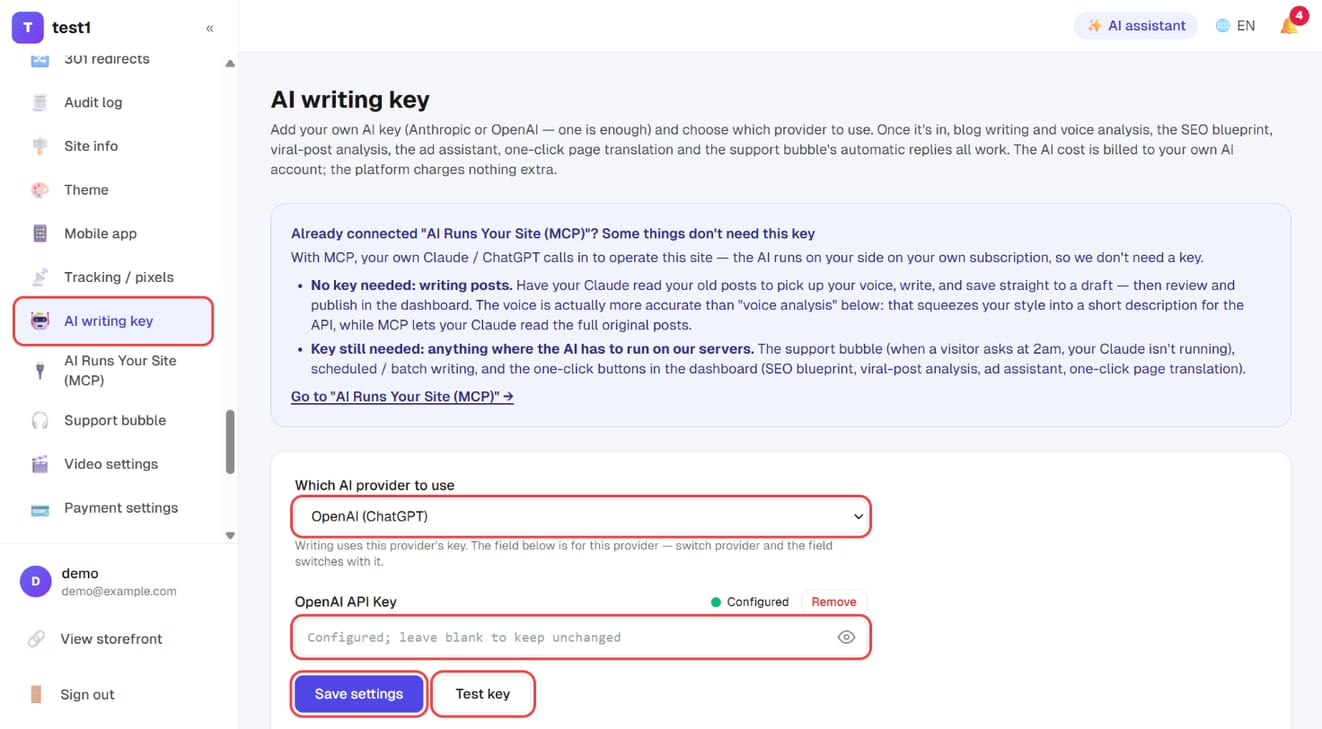
One provider is enough to start; add both and you can switch between them in the panel. Step-by-step instructions for getting a key are further down the same page.
Step 2: Open the AI assistant and say what you want
Click "✨ AI assistant" at the top right of any dashboard page. A chat column opens on the right:
- Use: which provider to use for this conversation
- Model: each provider offers "most capable / balanced / lowest cost", or type a model name yourself
- Type your request in the box at the bottom and press Enter to send (Shift+Enter for a new line)
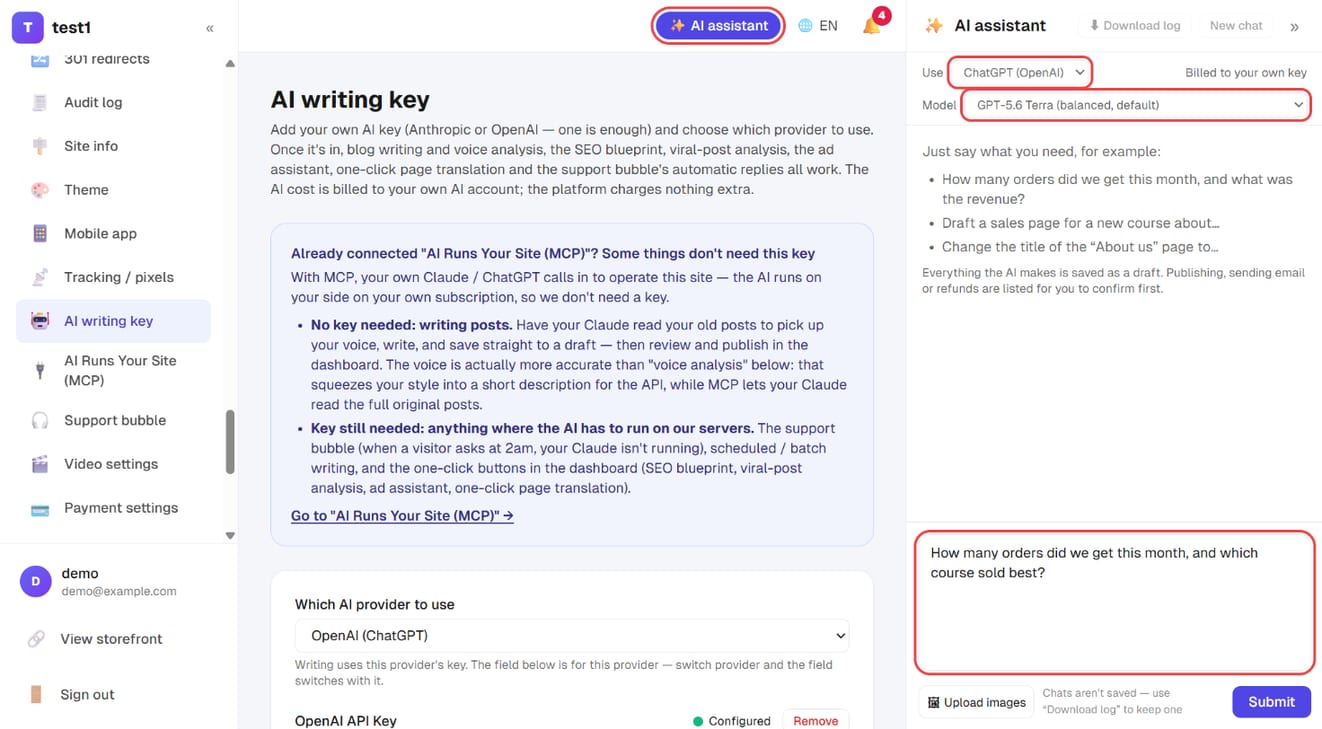
The provider and model lock once the conversation starts — to change them, click "New chat" first.
Step 3: Upload images, download the log, start a new chat
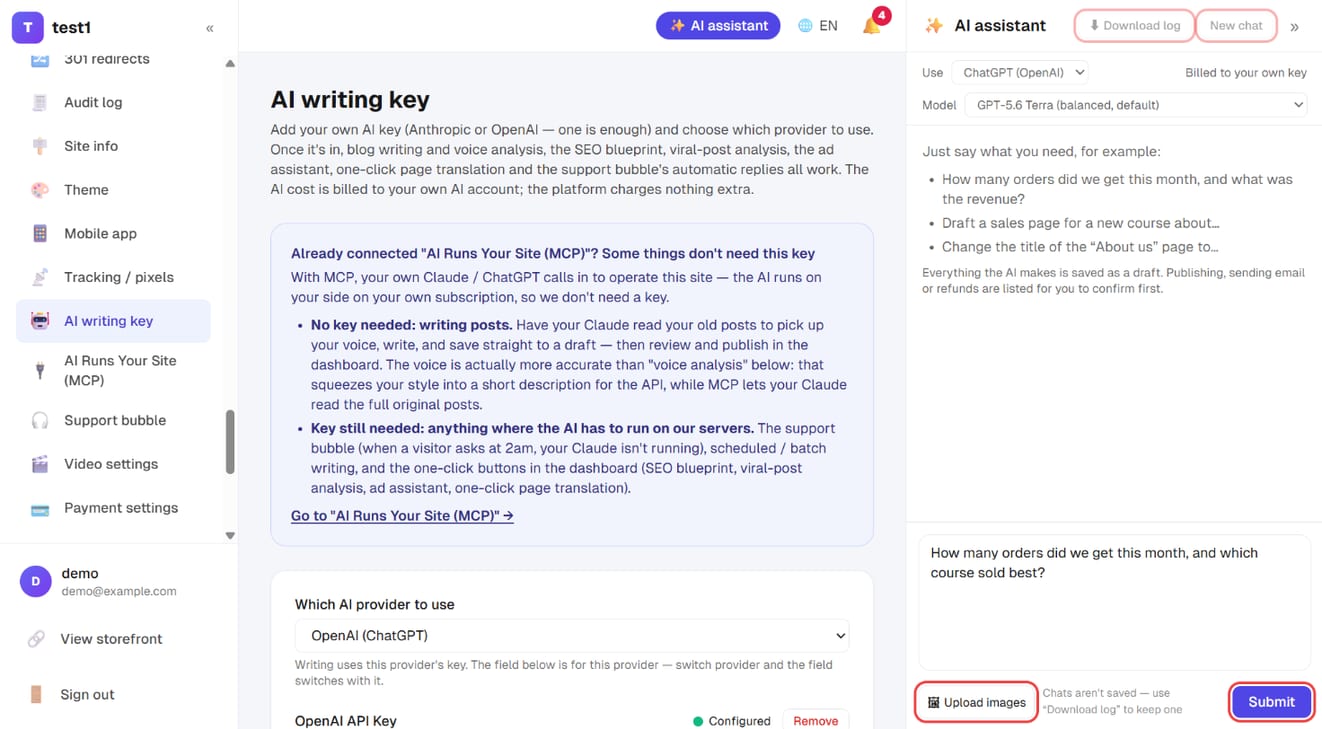
The chat column has a few buttons you'll use often:
- Upload images: pick several at once (up to 6 per message), paste a screenshot with Ctrl+V, or drag files in. Images go straight into your media library and the AI can see them — "make a page in the style of this image" or "use this as the product's main photo" both work
- Submit: send the message
- Download log: save the conversation as a text file (questions, answers, actions taken and tokens used)
- New chat: start over — also how you switch provider or model
How billing works
- The AI cost is charged to your own AI account. We neither collect it nor cover it, and there is no credit system
- The panel shows live how many tokens this conversation has used, with a link straight to the provider's own usage page
- We deliberately don't convert it to dollars — providers change prices whenever they like, and a figure we calculate would only give you false confidence. Check the amount on the provider's page
Note: a Claude Pro or ChatGPT Plus subscription doesn't work here — those are for the providers' own chat sites. What's needed here is an API key, topped up separately on their developer platform and billed by usage. That settings page walks you through which kind to create.
You can pick the model: each provider offers "most capable / balanced / cheapest", and you can also type a model name yourself so you don't have to wait for us when a new one ships. It locks once a conversation starts — to change provider or model, start a new conversation.
How this differs from MCP
The two can do exactly the same things (same tools, same safety rules). The difference is whose machine the AI runs on and whose bill it lands on:
| Dashboard AI assistant (this page) | AI Runs Your Site (MCP) | |
|---|---|---|
| Where you chat | Right here, in the dashboard | Your own claude.ai / ChatGPT |
| What it needs | Your own API key | Your own Claude / ChatGPT subscription |
| Plan | Every plan | Advanced only |
| Who can use it | Site administrators | Site administrators |
| Cost | Usage, billed to your API credit | Included in your AI subscription |
Which one? If you already pay for Claude or ChatGPT and live in those apps, MCP is better value — you've already paid. If you don't, or you'd rather not bounce between two sites, use the dashboard assistant: it sits next to the page you're on.
You can use both at once. Just don't edit the same page from both at the same time, because the later save overwrites the earlier one. Connecting MCP does not remove the need for the key: MCP is your AI calling in, the key is our server calling out — opposite directions, not substitutes. Besides this assistant, the key also powers automatic support replies, the SEO blueprint, the viral-post analysis, the ad assistant and one-click page translation — because at 2am, when a visitor asks a question, your Claude isn't running.
What to ask it
Just type what you want; there are no commands to learn:
- "How many orders this month, and what's the revenue? Which course sold best?"
- "Draft a sales page for a new course on public speaking, using my site's accent colour."
- "Change the heading on the About page to…"
- "Create a 10%-off coupon, code SPRING10, limited to 50 uses."
- "Give Wang Xiaoming access to the Advanced class."
When it's done it tells you what it did and where to find it, with clickable links into the dashboard.
It can't touch features your plan doesn't include. On the website-only plan, for instance, there are no course tools in its hands at all — it will tell you the feature isn't available rather than improvising.
You always press the last button
- Everything it writes is a draft: pages, courses, products and articles are saved unpublished; email sequences are saved paused
- Irreversible actions can only be proposed: publishing, sending a newsletter, refunding, deleting a course, activating a funnel, replying to a support message. The AI posts a "needs your confirmation" card in the chat; nothing happens until you press Confirm, and Cancel makes it go away
- Permissions follow your account: the AI can never reach further than you can in the dashboard
- You can stop it any time: press Stop and it finishes the current step and halts; work already done is kept
- One request runs at most 25 steps, then it stops and reports where it got to. Say "continue" to carry on
- To switch it off entirely, pause AI operation under Settings → AI Runs Your Site; that stops this assistant too
Attaching images
Next to the text box there's an "🖼 Upload image" button — you can select several at once (up to 6 per message). Pasting a screenshot with Ctrl+V and dragging files into the panel both work too.
Uploaded images go straight into your media library (compressed to a web-friendly format automatically), so even if you never send that message the image is already saved for later. The AI can see the picture and also gets its address on your site — which is why "build a page in the style of this image" or "use this as the product photo" actually work.
Conversations are not saved
That's on purpose: the conversation lives only in this browser tab and nothing is stored on the site. Close the panel, start a new conversation or close the tab, and it's gone.
To keep it, press "⬇ Download" in the panel header: you get a text file with your questions, the AI's answers, the actions it took and the token usage. A reminder appears before closing so you can save it first.
Moving around doesn't lose it: the panel belongs to the whole dashboard, so you can click through pages and the conversation stays put.
FAQ
Does this cost extra on top of my plan? No. We charge nothing for AI use and cover nothing — you pay your own AI account for what you use. The panel's token count and the provider's usage page tell you how much.
Can my instructors use it? No. The assistant is for site administrators only; the instructor dashboard and the student area don't have the button. See Team & permissions.
Could it publish something without asking me? No. Everything that reaches the outside world — publishing, sending, refunding, deleting — can only be proposed, and you press Confirm in the chat. Everything else it writes is a draft.
Can I pick the conversation up again tomorrow? No, conversations aren't saved. Download the record first, then paste the important parts back in tomorrow.
Are uploaded images public? They go into your own media library, exactly like uploading through the dashboard. Nothing appears on your public site by itself.
The answers are poor, or it says it lacks permission. First check whether your plan includes that feature — it will say so. Then try the "most capable" model; the difference is usually large, and so is the price. For big requests, break them into smaller ones.