
What's new & feedback add-on
A US$5/month add-on: a "What's new" tab on your site, a week-by-week changelog and a feedback board — so students can see you keep improving and that you listen.
Marketing → What's new & feedback. Show students at a glance that your site keeps getting better — and give them a place to tell you what courses or features they want next.
A US$5/month (US$50/year) add-on with unlimited updates and feedback posts. No plan includes it, and every plan can buy it. Subscribe at the bottom of the Dashboard page (or in your account center); the charge is prorated onto your current bill. Without it, the menu item doesn't appear and your site shows no "What's new" tab. You can cancel any time. The tab and both pages disappear immediately, but your changelog and students' feedback are kept and come back if you subscribe again.
What visitors see
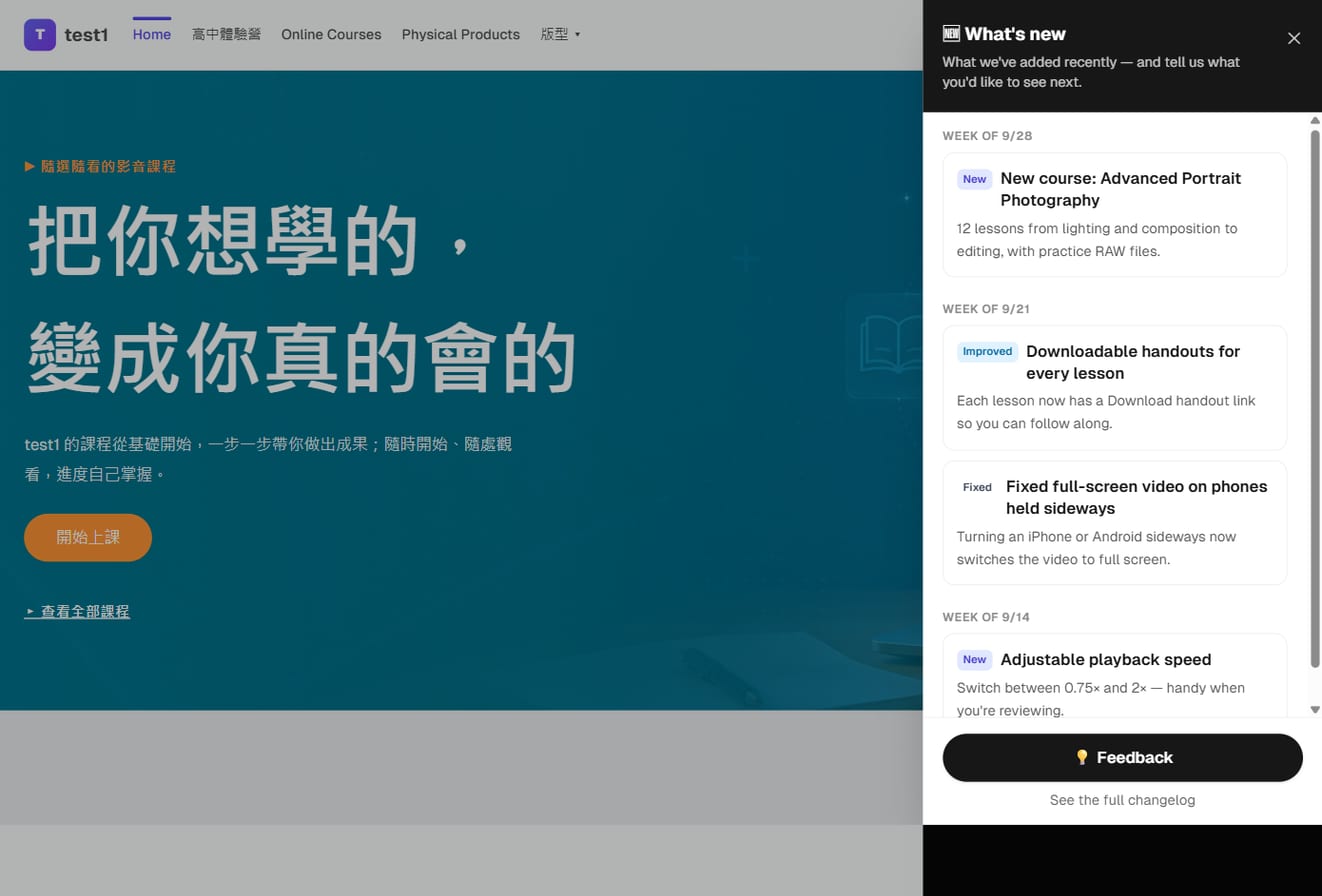
- A "What's new" tab on the side of your site, on every page except funnels (so it never distracts from a sale). It slides out from the right and lists your updates week by week; a small dot lights up when there's something new.
- The
/updateschangelog page: the full history, paged week by week. - The
/updates/feedbackboard: students suggest ideas, upvote each other's, and see your replies and progress.
Adding a changelog entry
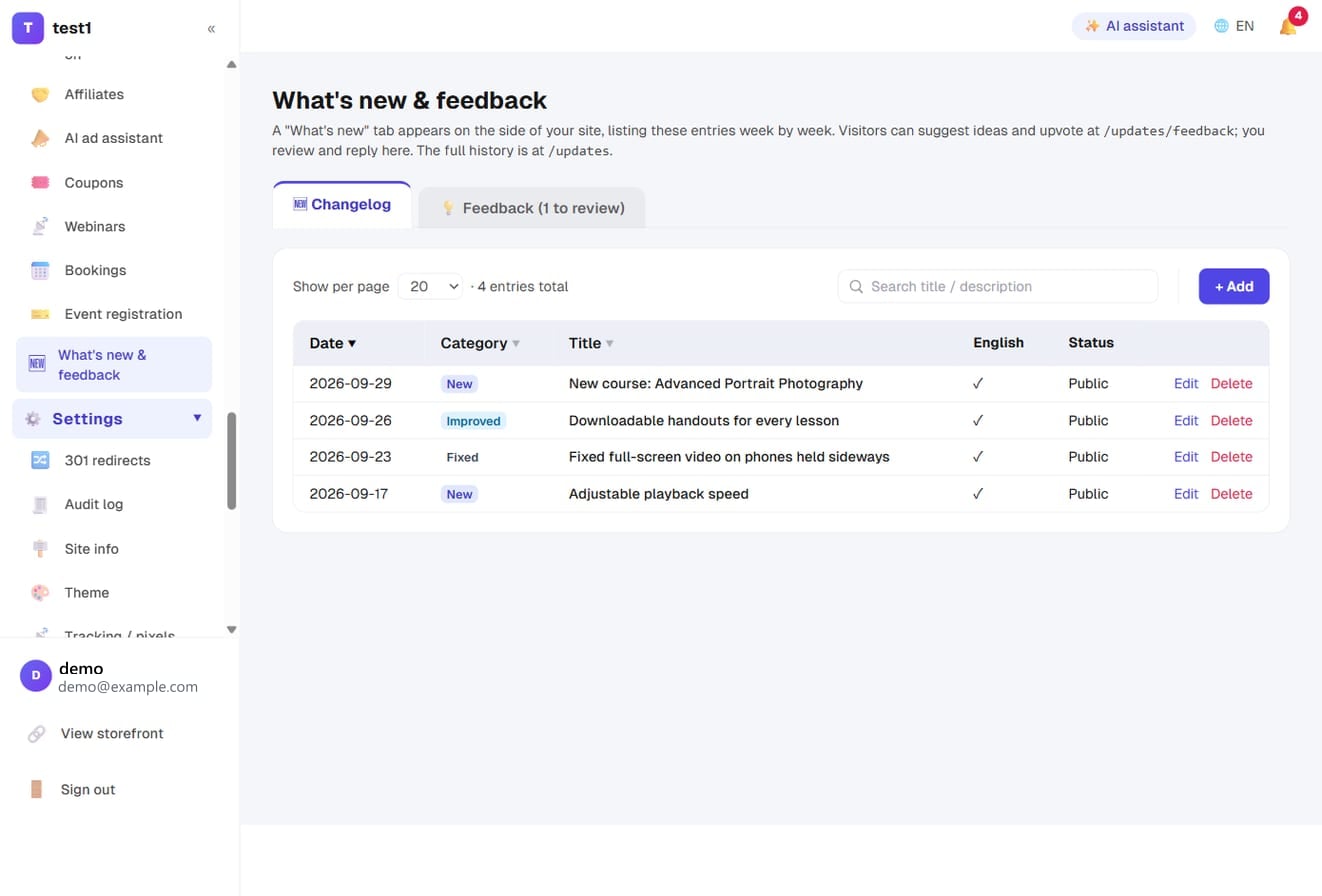
Click + Add and fill in:
| Field | What to enter |
|---|---|
| Title | One line on what's new, e.g. "New course: Advanced Portrait Photography" |
| Description | Optional, a sentence or two |
| English title / English description | Optional. Your English site shows these; if left blank it shows the original |
| Date | Your site groups entries by week using this date. Defaults to today |
| Category | New / Improved / Fixed, shown as colored labels |
| "Learn more" link | Optional, e.g. the new course's address /courses/... |
Leave everything else blank. You don't write a Simplified Chinese version: it's generated from Traditional Chinese when you save, with mainland wording. Untick "Show on the website" to keep an entry as a draft only you can see.
How often? Whenever you launch a course, add lessons or improve something for students. One or two a week is enough to make your site feel alive.
Reviewing and replying to feedback
Suggestions aren't published automatically. They wait under Awaiting review (the tab shows how many). This keeps out ads, spam and personal details students paste by accident.
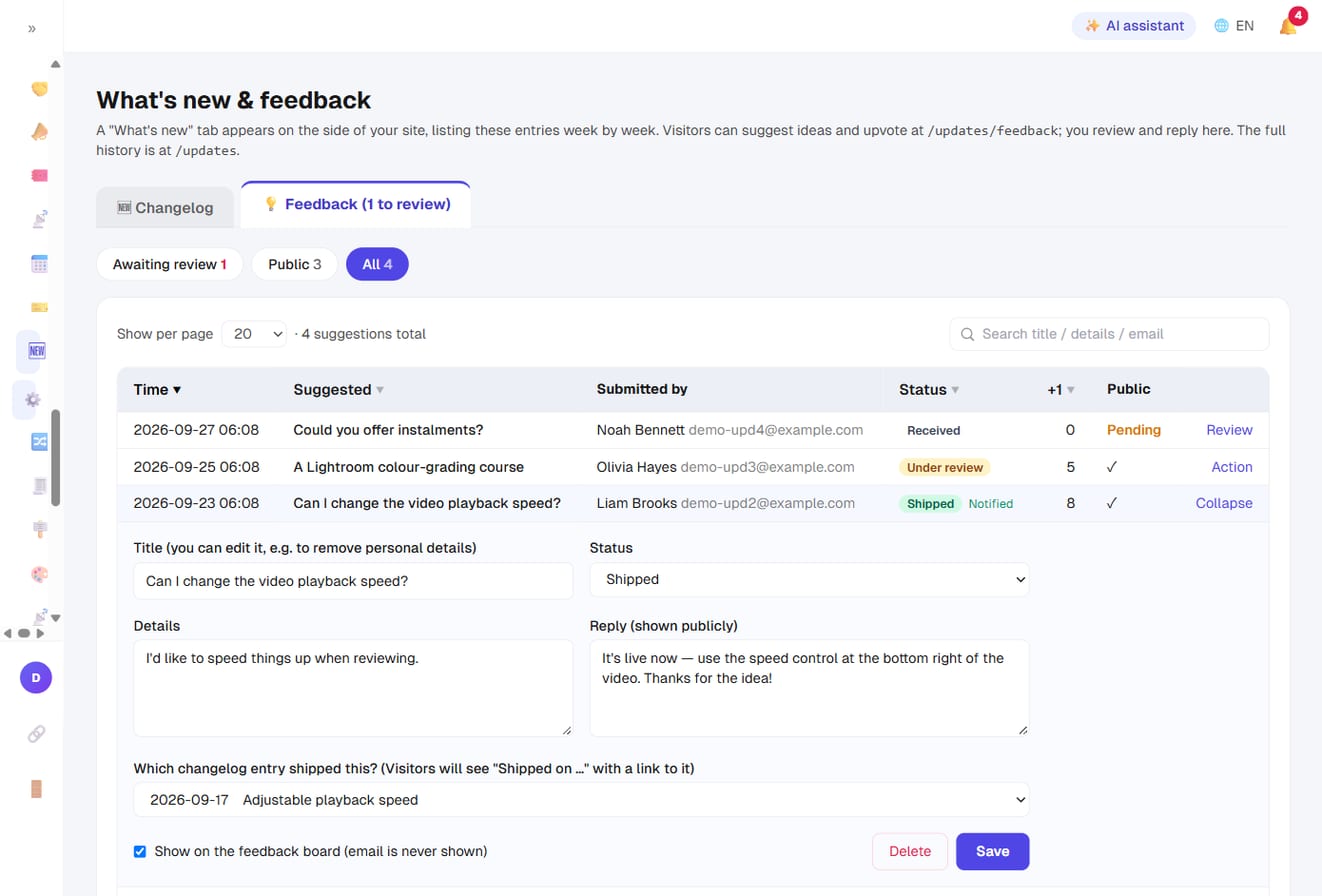
Click Review or Action to open a suggestion, then:
- Edit the title and details, e.g. remove a phone number or name before publishing
- Pick a status: Received / Under review / Planned / Shipped / Not planned. Visitors see a matching colored label
- Write a reply. It appears publicly under the suggestion, headed "Reply from your site name"
- Click Save and publish to put it on the board, or Delete for spam
Students' email addresses are never shown publicly. Only you can see them in the dashboard.
Tell the person when it ships
When you set the status to Shipped, you can choose which changelog entry shipped it. Visitors then see "Shipped on …" under the suggestion, linking to that entry.
If the student ticked "Email me when this ships", saving automatically sends a one-time "Your idea just shipped" email. It goes out through your site's own email settings (see Email Delivery Setup), so it comes from you, not the platform.
Let your AI write changelog entries
If you've connected your AI (MCP), just say "I added an Advanced Photography course this week — draft a changelog entry, in English too."
- Your AI can read the changelog and feedback (without students' emails) and create and edit drafts.
- Publishing always needs your OK: the AI can only send a publish proposal, which goes live after you confirm it under AI connection (MCP) → Awaiting confirmation. If the AI edits a published entry, it goes back to draft until you confirm again.
- Replying to feedback and changing its status are deliberately not available to AI: replies are public, and marking something Shipped emails the student. You make those calls.
See AI Runs Your Site (MCP) to connect.