
LINE message sequences
Schedule LINE messages like an email sequence, and broadcast to all your LINE friends from your dashboard — with this month's remaining quota at a glance.
Email & newsletters → LINE sequences. It works like an email sequence: after someone adds your LINE Official Account as a friend, the messages you've scheduled go out automatically on day 0, day 1, day 3… at the times you choose, so you don't have to send them by hand.
- Each message can have text (up to 5,000 characters), an image and one button (linking to a course or sign-up page)
- If a friend blocks your account or replies "stop", sending stops automatically
- Each message shows how many people received it and how many clicked the button
Included in the Advanced plan. You'll find it under "Email & newsletters → LINE sequences" in the left menu. It's separate from email sequences: LINE messages need to be short, so they should be written separately from your emails anyway.
Before you start: LINE counts every push message
Sequence messages are LINE "push" messages. Each friend who receives one message uses 1 message from your LINE Official Account's quota (text, image and button in the same message count as 1; test sends count too). Your free monthly quota depends on your LINE Official Account plan — check it in the LINE Official Account Manager.
When the quota runs out, sending pauses automatically and a red notice appears in your dashboard. When the quota resets, sending picks up from where it stopped. LINE won't charge you for extra messages.
Set it up, step by step
Step 1: Connect your LINE Official Account
Click the "🔗 LINE connection" tab and follow the "Setup steps (about 10 minutes)" on the right:
- Turn on the Messaging API — sign in to the LINE Official Account Manager (manager.line.biz) → "Settings" at the top right → "Messaging API" on the left → "Enable Messaging API"
- Get your two keys — in LINE Developers (developers.line.biz), open your Official Account's channel:
- "Basic settings" → Channel secret → paste it on the left
- Bottom of the "Messaging API" page → Channel access token (long-lived) → click "Issue" → paste it on the left
- Set the webhook (same "Messaging API" page) — paste the "Webhook URL" from the left (click "Copy") → "Update", then turn Use webhook on
- Response settings (Official Account Manager → "Settings" → "Response settings") — turn Chat on and turn Auto-response messages off (otherwise friends who reply "stop" also get a canned message)
Click "Save" on the left. The connection is tested automatically; when the status shows "Connected", you're done. Leave the other fields blank.
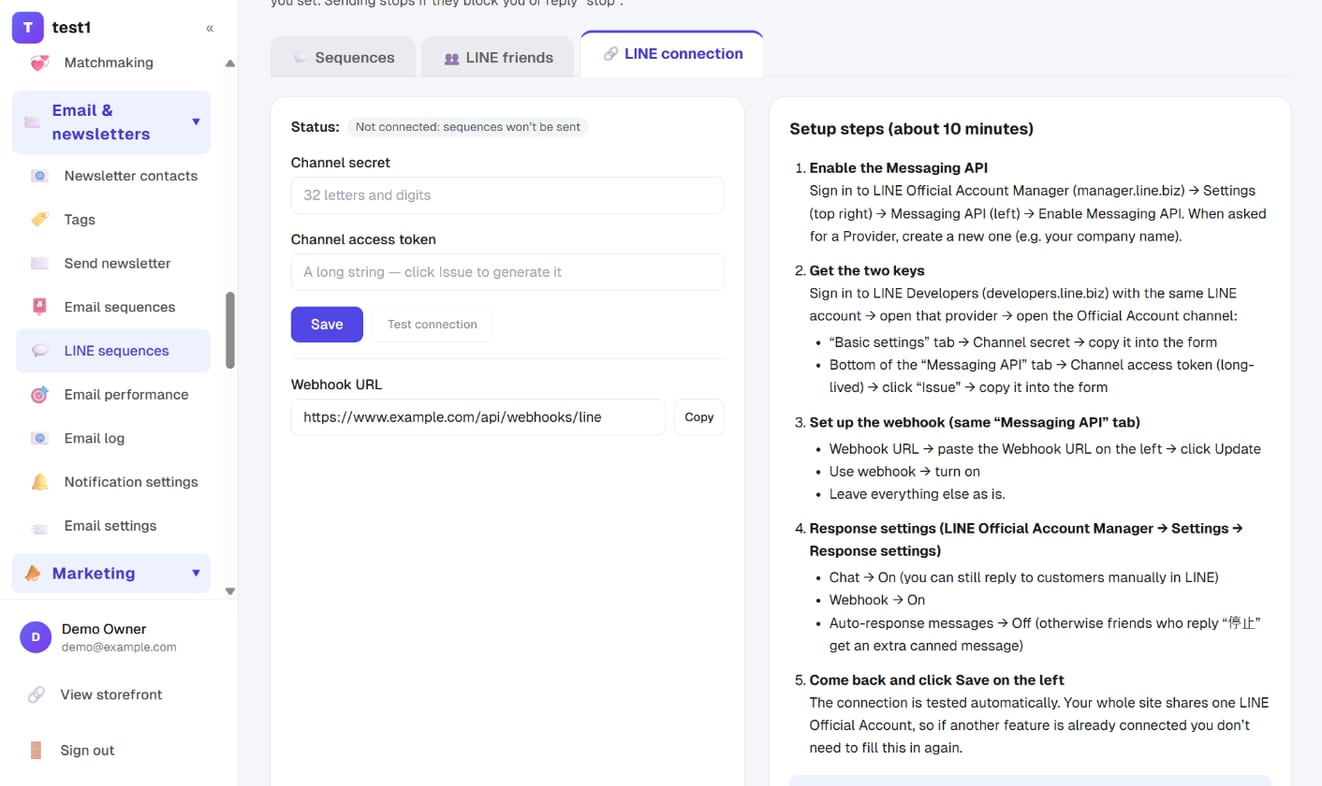
Your whole site shares one LINE connection. If you've already connected LINE for another feature, you don't need to do it again.
Step 2: Create a sequence
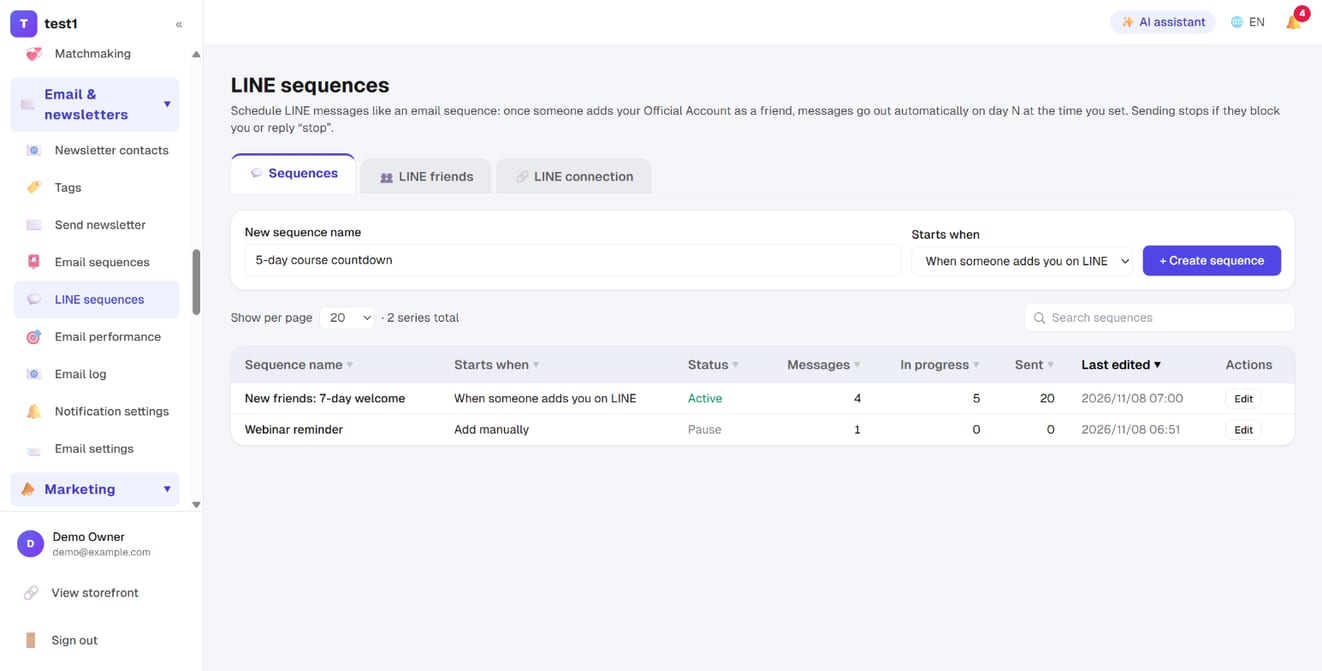
Go back to the "💬 Sequences" tab. At the top:
- Sequence name — e.g. "New friends: 7-day welcome"
- Starts when:
- When someone adds you on LINE — starts automatically for anyone who adds your account (after the sequence is turned on)
- When a friend sends a keyword — starts when a friend sends one of your keywords on LINE, and tags them (see "Sort friends by keyword" below)
- Add manually — never starts by itself; click "Add all current friends" on the sequence page
- Click "+ Create sequence"
Step 3: Schedule each message
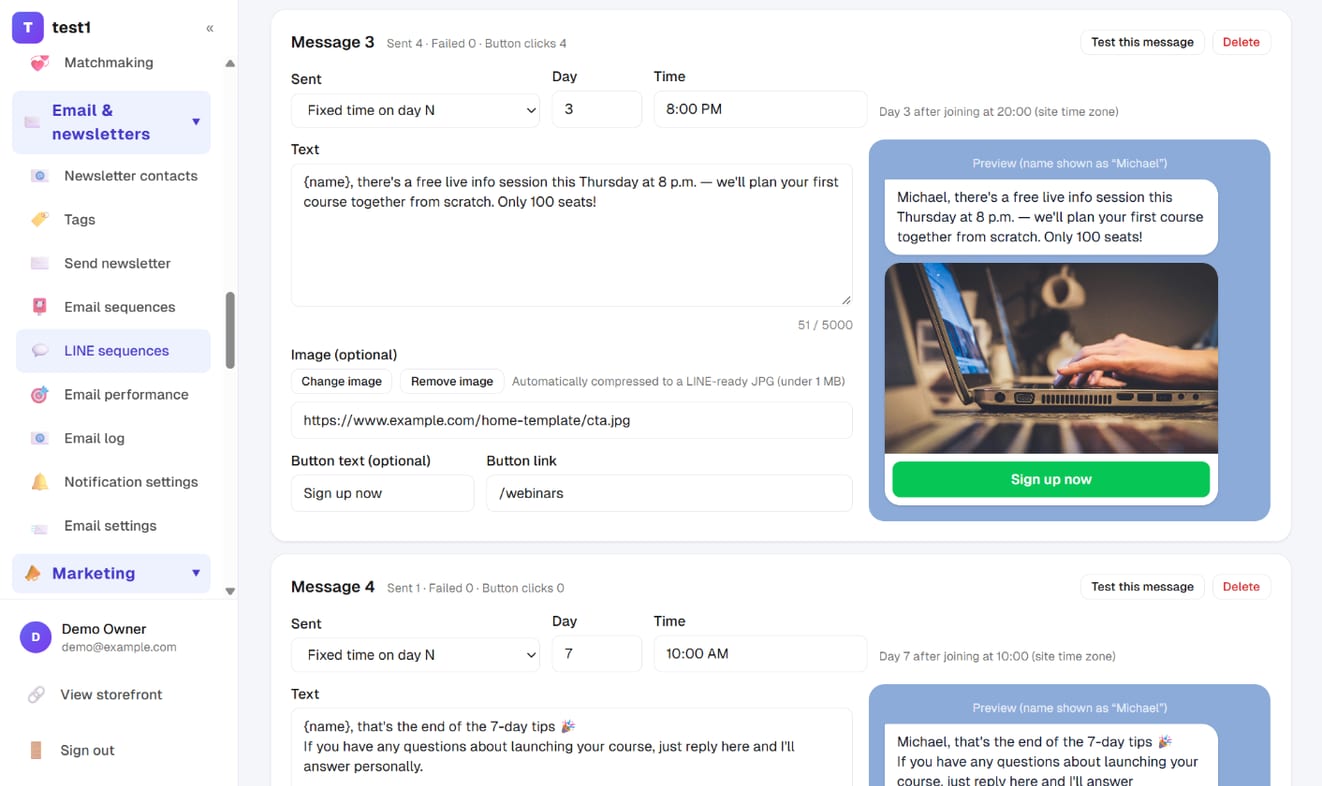
Open the sequence and click "+ Add message". For each message, set:
- When it's sent, one of:
- Fixed time on day N — e.g. "Day 1, 10:00" = 10 a.m. the day after they joined. For day 0, choose "Sent right after joining" to send it the moment they add you
- N days after joining (same time) — if that lands between 10 p.m. and 8 a.m., it waits until 9 a.m.
- Text — type
{name}to insert the friend's LINE display name (if it isn't available, the Chinese word for "friend" is used) - Image (optional) — click "Upload image" to pick a photo from your computer or phone; it's automatically compressed to a LINE-ready JPG (under 1 MB). You can also paste an image URL (JPG or PNG, starting with
https) - Button text + button link (optional, fill in both) — e.g. "Sign up now" linking to
/pricing
A phone preview is shown on the right. Messages are ordered automatically by day and time.
Step 4: Send a test, then turn it on
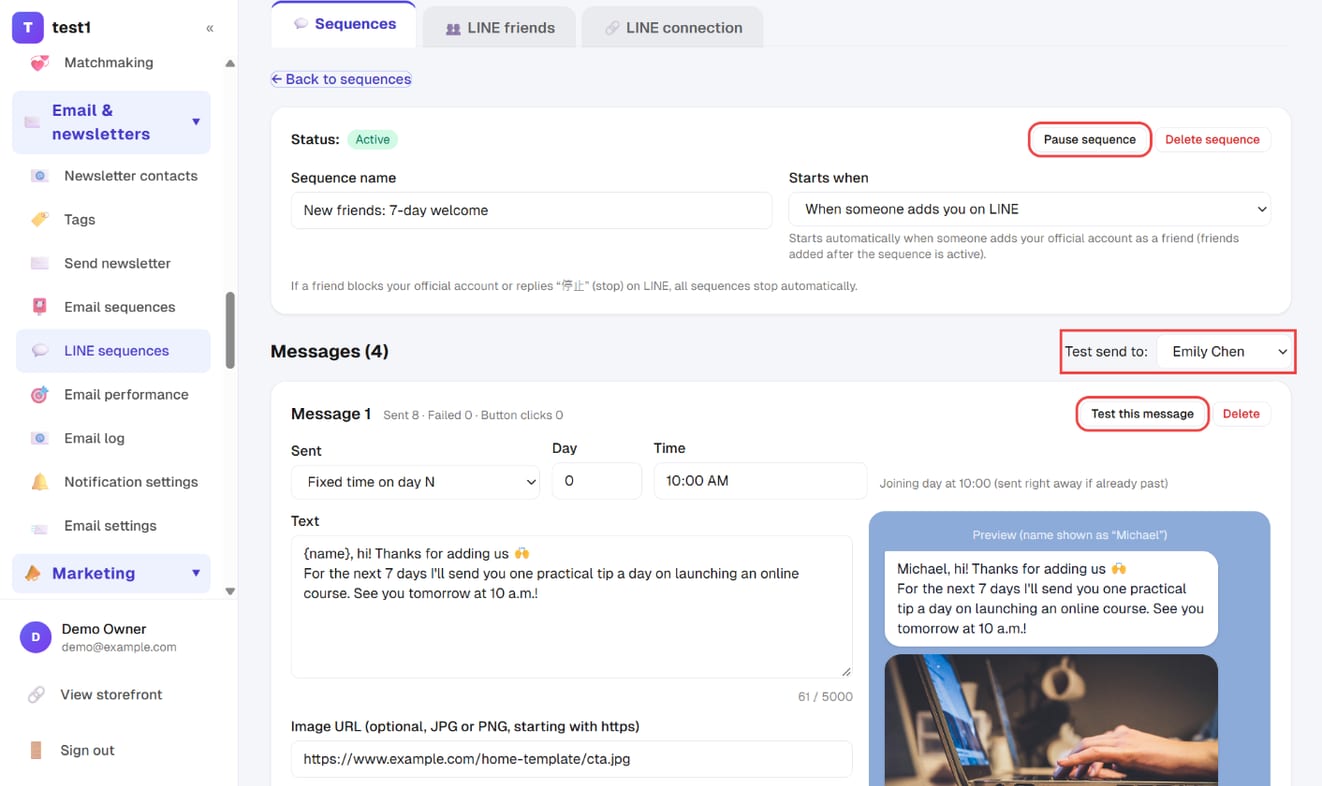
- Choose yourself in "Test send to:" at the top right of the messages (add your Official Account as a friend from your own LINE first, so you show up in the list), then click "Test this message" on a message. Check how it looks on your phone
- When you're happy with it, click "Save and activate". Once the status is "Active", friends who match the start condition start joining
- To stop and edit, click "Pause sequence". Nothing is sent while it's paused; it continues when you turn it back on
Step 5: See who's in the sequence and how it's doing
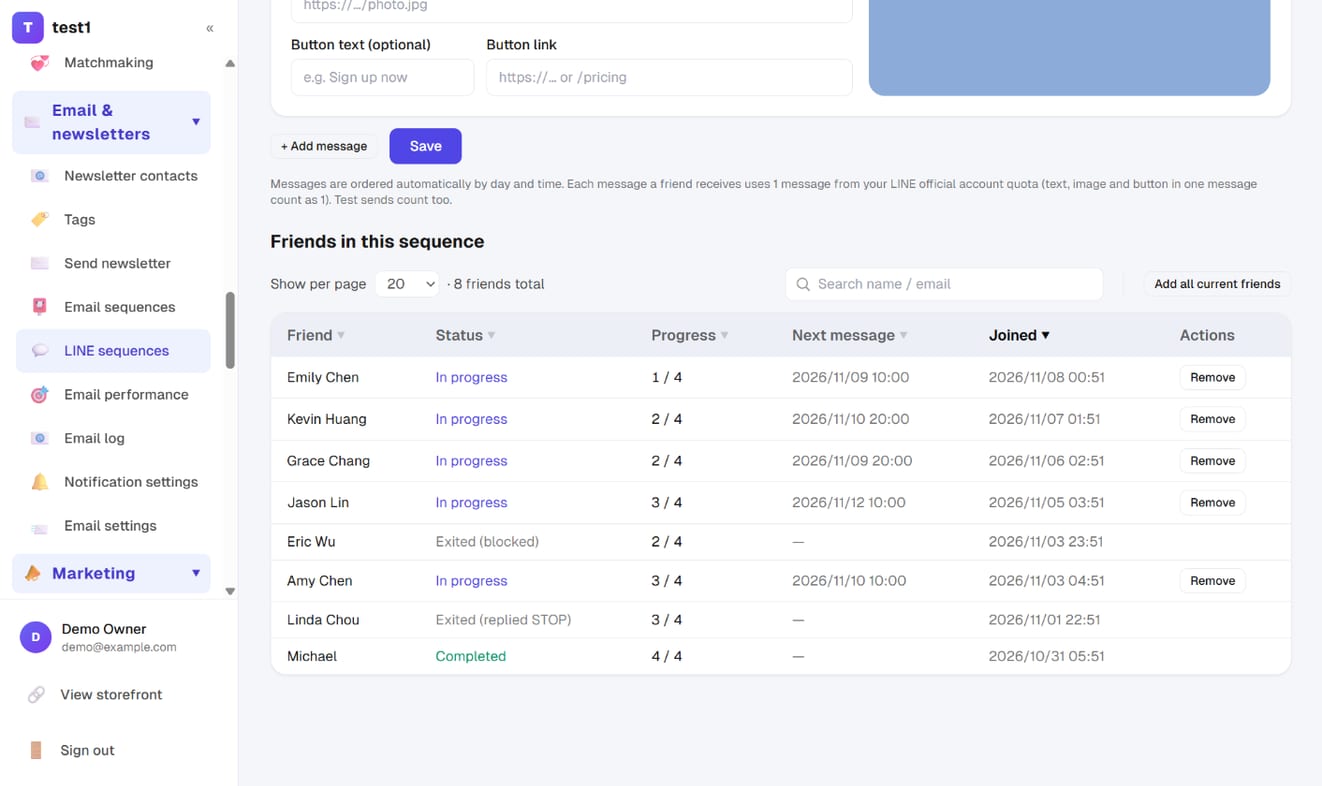
At the bottom of the sequence page, "Friends in this sequence" shows when each person joined, which message they're on, when the next one goes out, and their status (in progress / completed / exited). To take someone out early, click "Remove".
Next to each message's title you'll see sent · failed · button clicks, so you can see at a glance which message gets the most clicks.
Step 6: Your LINE friends
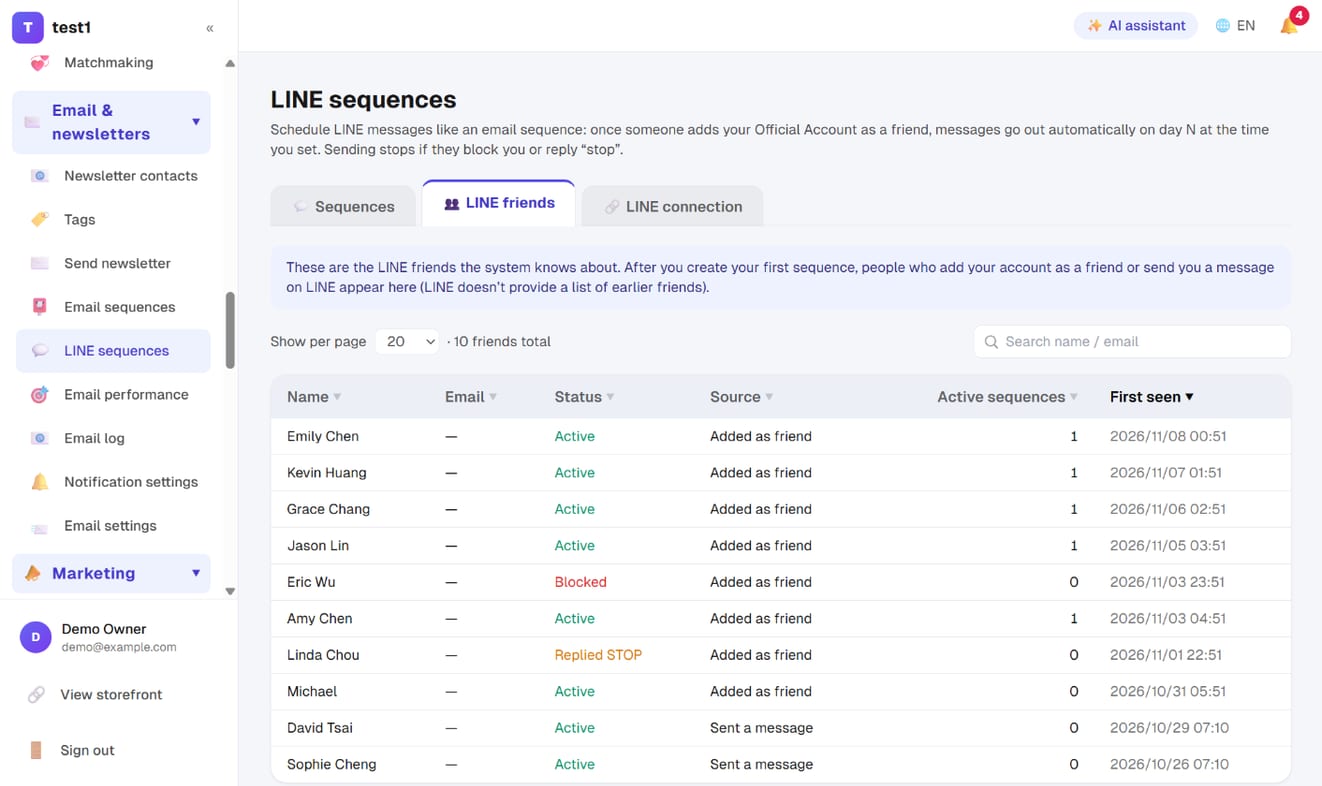
The "👥 LINE friends" tab lists the friends the system knows: name (their LINE display name), source (added as friend / sent a message), active sequences, first seen, and status (active / blocked / replied STOP).
Sort friends by keyword: different tags, different sequences
LINE Official Account Manager's greeting messages only send one set, at the moment someone adds you. Here friends choose their own category: your ad or post says "Reply 'investing' for the investing guide, reply 'fitness' for the workout plan", and whichever word a friend sends, they get that tag and enter that category's sequence.
- Create one sequence per category and set "Starts when" to "When a friend sends a keyword"
- Keywords — e.g. "investing, free guide". A friend's whole message must equal one of them (case and spaces ignored); merely mentioning it in a chat doesn't count
- Tag to add — leave blank to use the first keyword
- Instant reply (optional) — sent the moment a friend sends the keyword, as a reply, so it doesn't use your message quota. The sequence's first message goes out on your schedule ("Sent right after joining" means within 10 minutes)
- Add your messages and click "Save and activate"
- Works for earlier friends too: sending a keyword sorts them any time, not just when they add you
- A friend can have several tags and be in several sequences; sending the same keyword twice doesn't start it over
- The "👥 LINE friends" tab shows everyone's tags
- Follow up by category later: under "Friends in this sequence" on any sequence page, choose "Tagged 'investing'" and click "Add these friends" to add only that group
- Broadcasts can target a category too: choose "Known friends" and enter the tag
- Stop tags also check LINE friend tags, e.g. tag someone "Purchased" and they stop getting this sequence
- If someone who replied "stop" later sends a keyword themselves, it counts as opting back in — they're reactivated and added
Broadcast: message your LINE friends from your dashboard
The "📣 Broadcast" tab replaces broadcasting from LINE Official Account Manager: write a message, then send it now or schedule it — no need to sign in to LINE Official Account Manager.
See how many messages you have left this month
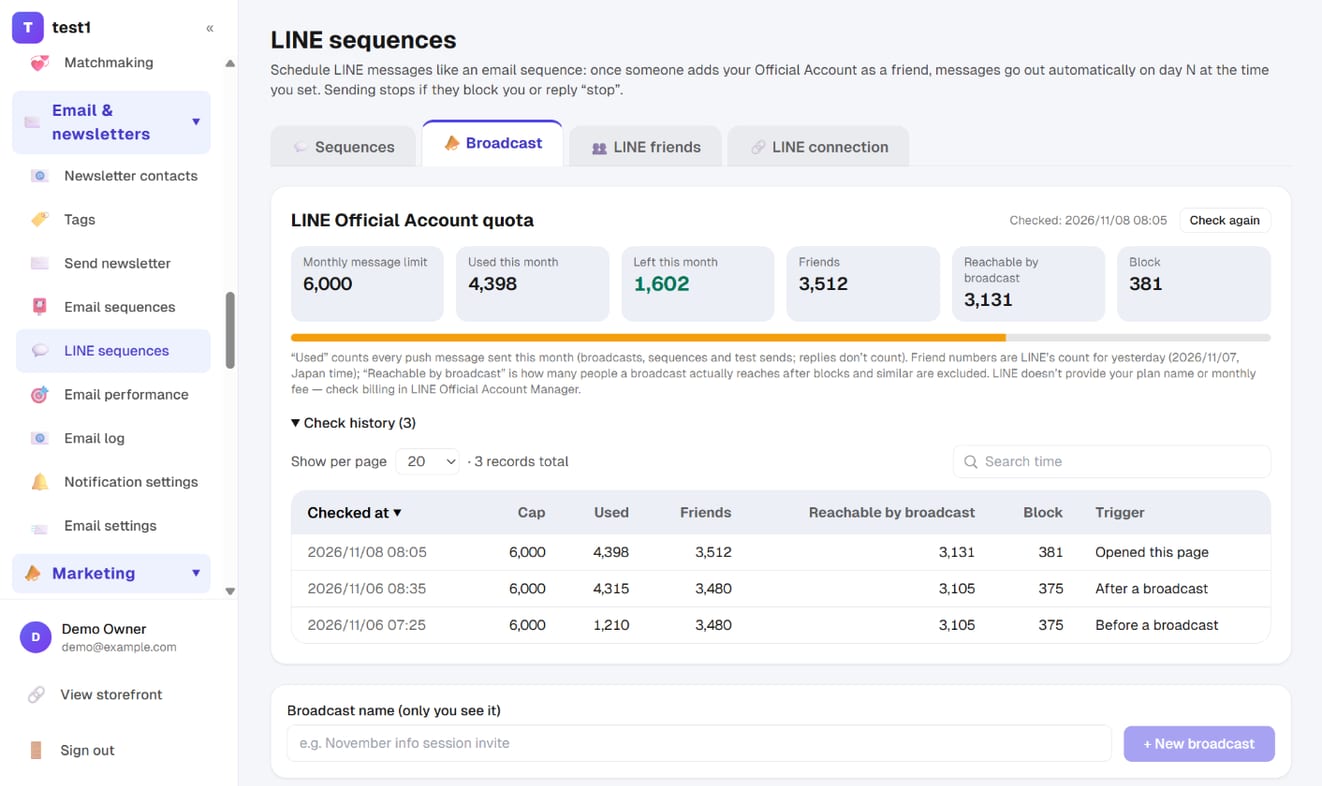
"LINE Official Account quota" at the top asks LINE directly:
- Monthly message limit, Used this month and Left this month (the bar turns red when you're nearly out)
- Friends, Reachable by broadcast (how many people a broadcast actually reaches after blocks) and Block — LINE's count for yesterday
- Click "Check again" to refresh. Open "Check history" to see every reading (one is also recorded before and after each broadcast)
LINE only provides the limit and usage — not your plan name or monthly fee. Check billing in LINE Official Account Manager.
Create a broadcast
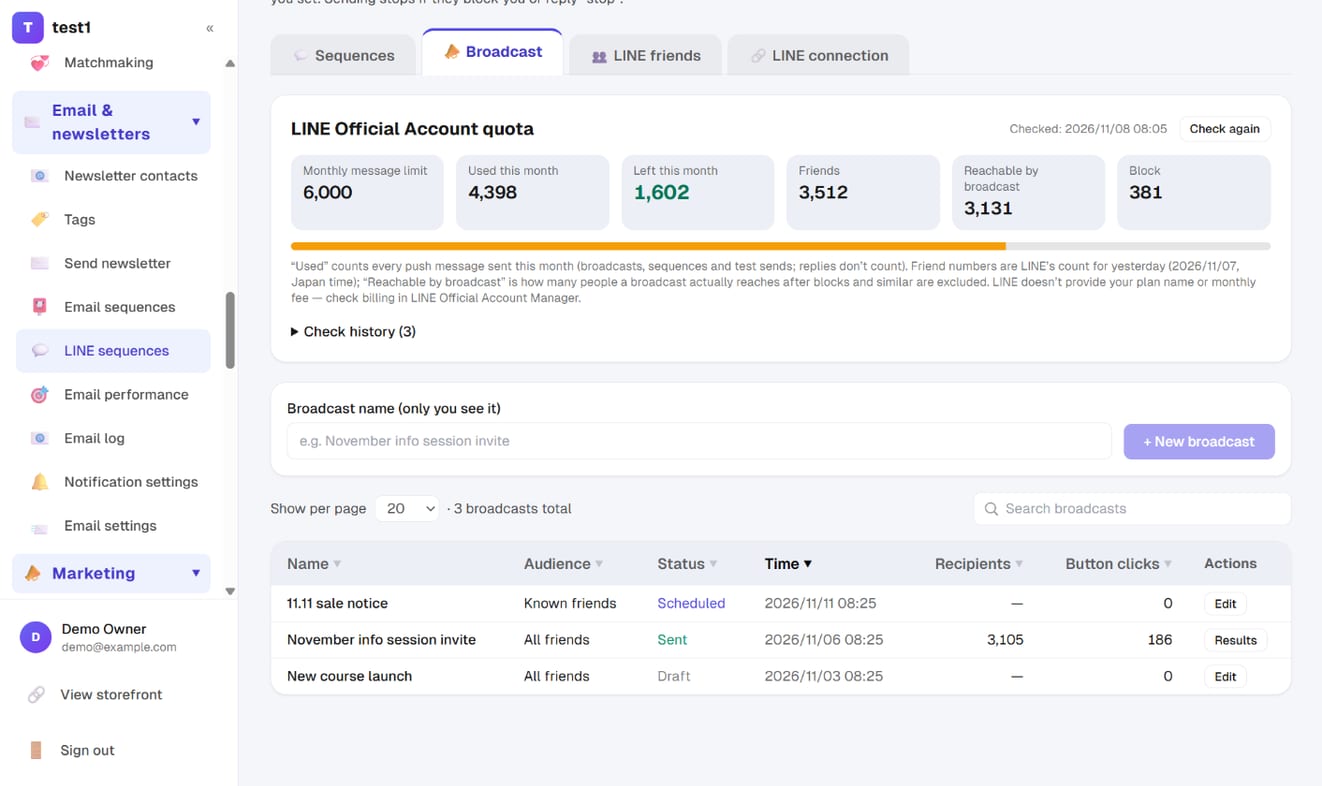
Enter a "Broadcast name" (only you see it) and click "+ New broadcast". The list shows each broadcast's audience, status (draft / scheduled / sent / failed), recipients and button clicks.
Choose who, write it, send it
- Send to:
- All friends — everyone who has added your Official Account, including earlier friends the system doesn't know (same as broadcasting from LINE Official Account Manager)
- Known friends — only active people on your "LINE friends" list; you can also filter by email list tags (only works for friends with an email)
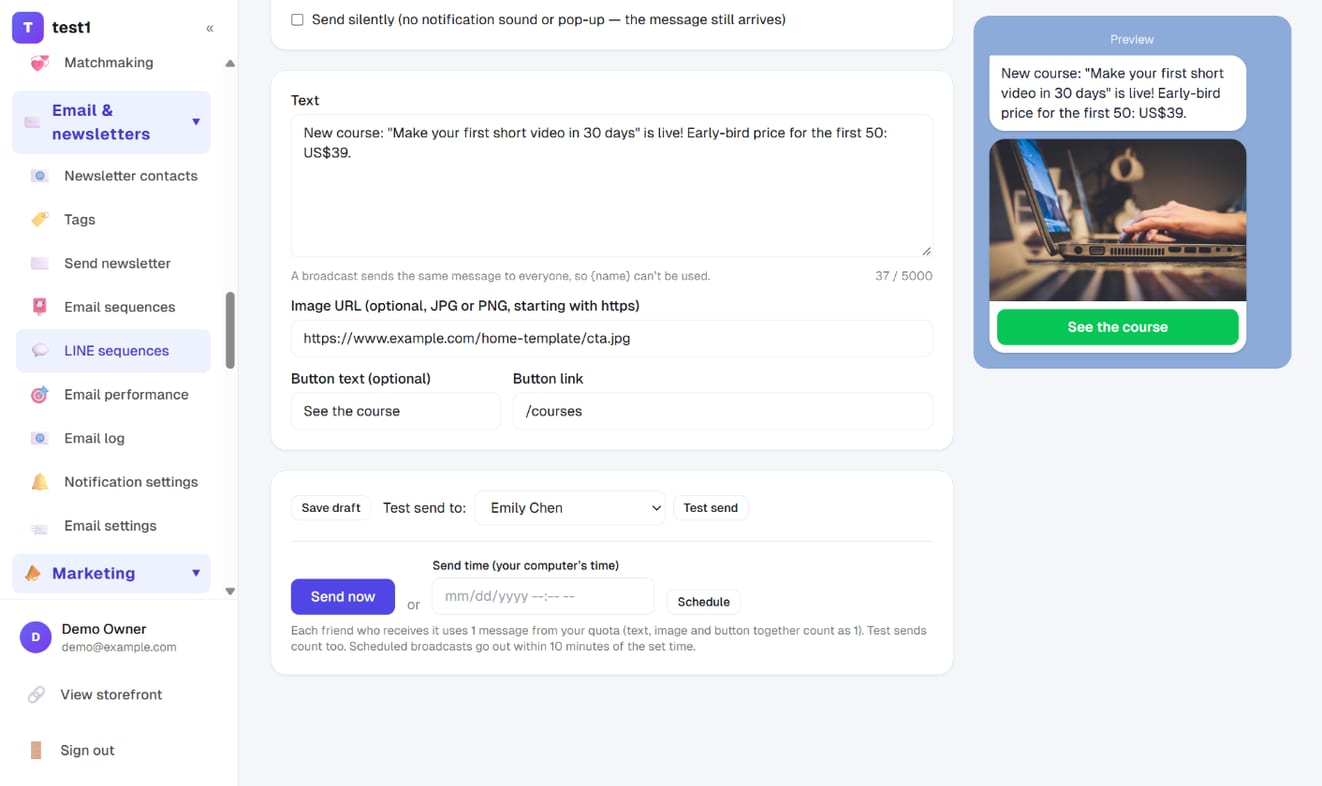
- Content — text, an image (upload it, or paste a JPG/PNG URL) and a button, just like a sequence message, with a phone preview on the right.
{name}can't be used: LINE sends one identical message to all your friends and doesn't swap in each person's name - Send silently (optional) — no notification sound or pop-up
- "Test send" it to yourself first, then click "Send now", or pick a time and click "Schedule" (it goes out within 10 minutes of that time)
"Send now" asks you to confirm first, showing the expected recipients, how many messages it uses, and how many you have left this month. If the expected recipients exceed what's left, it won't send — raise your limit or buy more messages in LINE Official Account Manager first.
See the results
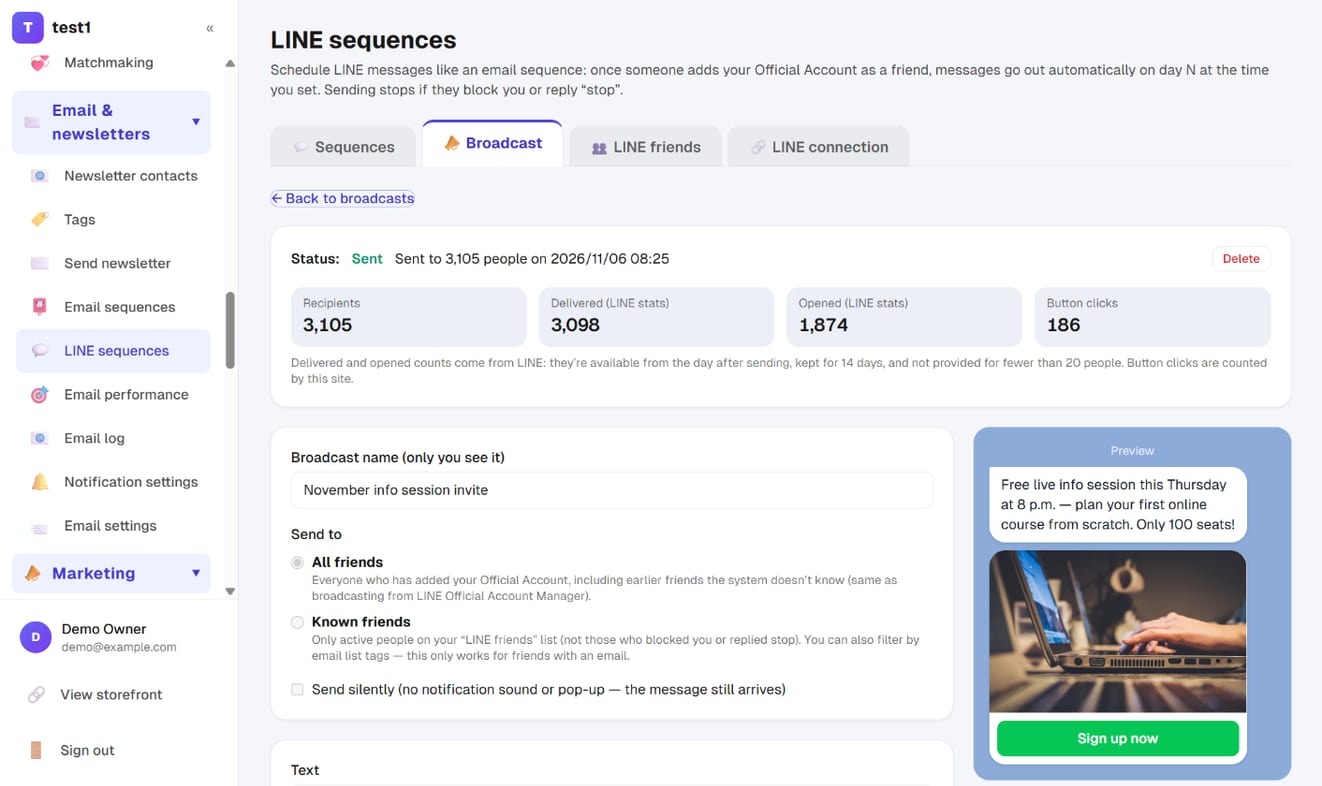
A sent broadcast shows Recipients, Delivered and Opened (from LINE: available from the day after sending, kept for 14 days, not provided for fewer than 20 people), and Button clicks (counted by this site). LINE doesn't provide delivered/opened stats for broadcasts to known friends.
Nothing is sent twice: if the connection drops and it's retried, LINE recognizes it as the same request. Large sends go out 500 people at a time, and if one batch fails, sending again continues from the next batch.
Let friends leave their email on LINE
LINE doesn't share your friends' email addresses. With this turned on, when a friend sends their email address on LINE, a confirmation email goes out automatically. Once they click the link, that LINE friend is linked to the email and added to your email list.
- Go to "Link friends' email addresses" at the bottom of the "🔗 LINE connection" tab and tick "Turn on"
- Keywords (optional) — e.g. "free guide". When a friend sends one of these, they get a reply asking for their email. Pair it with a rich menu button in LINE Official Account Manager that sends that text
- Tag added on your email list — "LINE" by default; use it to filter broadcasts to known friends or as a sequence stop tag
- LINE message sent after they confirm — deliver what you promised, e.g. a handout download link (you can add a button)
- Click "Save"
Getting friends to leave their email: give them a reason ("Reply with your email and we'll send you the guide"), say exactly what to do ("Just send your email address here"), and mention they'll get a confirmation email. It works well in the first sequence message people get when they add you, or as a broadcast to all friends.
Why the confirmation email: anyone can type someone else's email address on LINE. Clicking the link sent to that inbox proves it's really theirs. Each friend gets at most 1 confirmation email per minute and 5 per 24 hours, and links are valid for 48 hours.
When sending stops automatically
- The friend blocks your account — all sequences stop right away and don't start over if they unblock you
- The friend replies "stop" (or "unsubscribe") — all sequences stop, and they get a short confirmation
- You click "Remove" on the sequence page, or pause or delete the sequence
People who have left a sequence don't restart it by adding you as a friend again, so nobody gets the same messages twice.
FAQ
Will people who added me before get the messages? Not through sequences. LINE doesn't share the list of people who added you in the past, so the system only knows friends who add you after you create your first sequence, or who message you later; once they appear under "LINE friends", you can use an "Add manually" sequence and click "Add all current friends". To message every friend at once (including earlier ones), use "📣 Broadcast → All friends".
When exactly are messages sent? Due messages are checked every 10 minutes, so a message set for 10:00 goes out between 10:00 and 10:10, in your site's time zone.
If I edit a message, do people already in the sequence get the new version? Yes. Any message not yet sent goes out in its latest version. Messages already sent aren't sent again.
Why doesn't my image show up?
LINE only supports JPG and PNG. "Upload image" is the safest way: whatever the original format, it's converted to JPG and compressed to under 1 MB (convert iPhone HEIC photos to JPG first). If you paste a URL yourself, WebP, GIF and SVG are rejected, and the URL must open directly and start with https.
Does the system reply to other messages friends send? No. Apart from "stop" and similar words, it never replies, so you can answer people yourself in the LINE Official Account Manager.