
Online contract e-signature (sign before checkout)
Require buyers of higher-priced courses or products to read and hand-sign a contract before checkout. A4 layout, printable or saved as PDF, with your company seals placed where you want.
For higher-priced courses or products, both sides are better off with a written contract. With this feature on, buyers who click Buy first see the contract, enter their name and sign by hand (finger on a phone, mouse on a computer). They can only check out after signing. Signed contracts can be printed or saved as PDF, and a copy is emailed to the buyer automatically.
Online contracts are part of the Advanced plan.
Set it up step by step
Step 1: Write a contract template
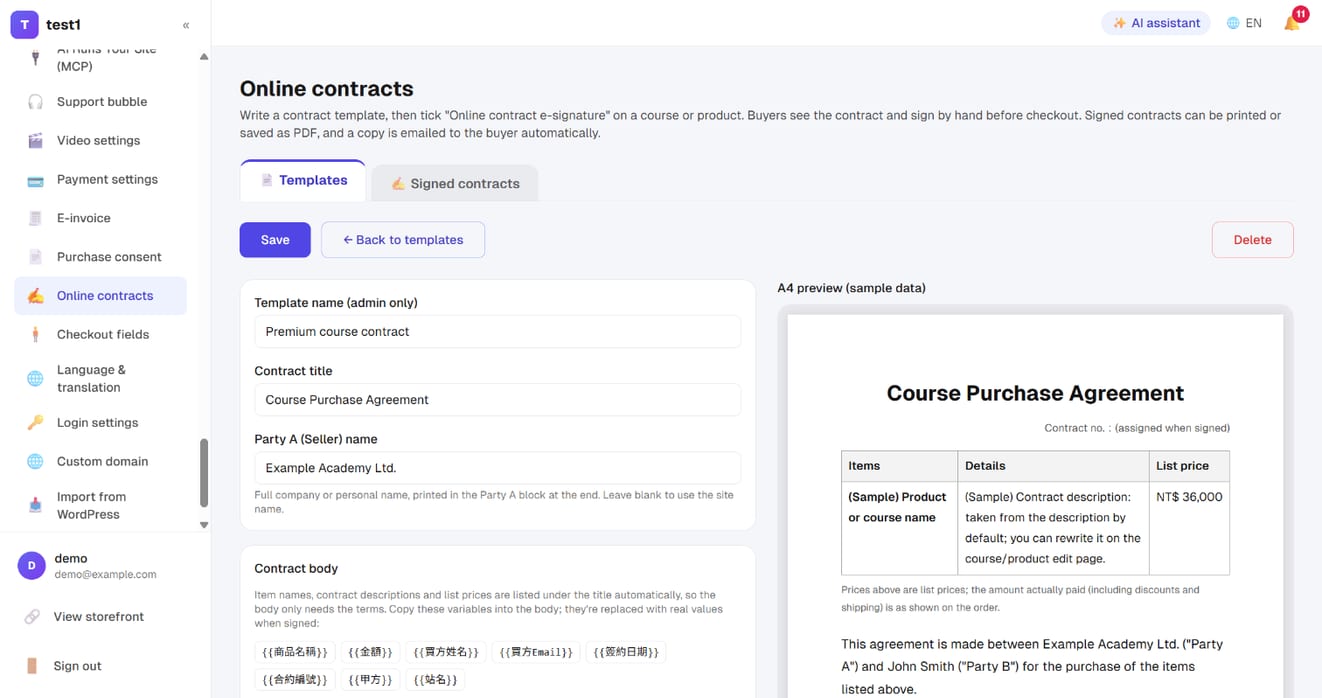
In the left menu go to Settings → Online contracts and click + New template. The body starts with general terms you can edit:
- Template name: admin only (e.g. "Premium course contract")
- Contract title: printed at the top
- Party A (Seller) name: your full company or personal name, printed in the Party A block at the end. Leave blank to use the site name
- Contract body: just the terms. Item names, contract descriptions and list prices are listed under the title automatically
You can use these variables in the body. They're replaced when the buyer signs:
| Variable | Replaced with |
|---|---|
{{商品名稱}} |
Names of the items being signed for |
{{金額}} |
List price total |
{{買方姓名}}, {{買方Email}} |
Buyer's name and email |
{{簽約日期}}, {{合約編號}} |
Date signed, contract number |
{{甲方}}, {{站名}} |
Party A name, site name |
The A4 preview on the right shows what buyers will see, using sample data.
Step 2: Add company seals or a handwritten signature
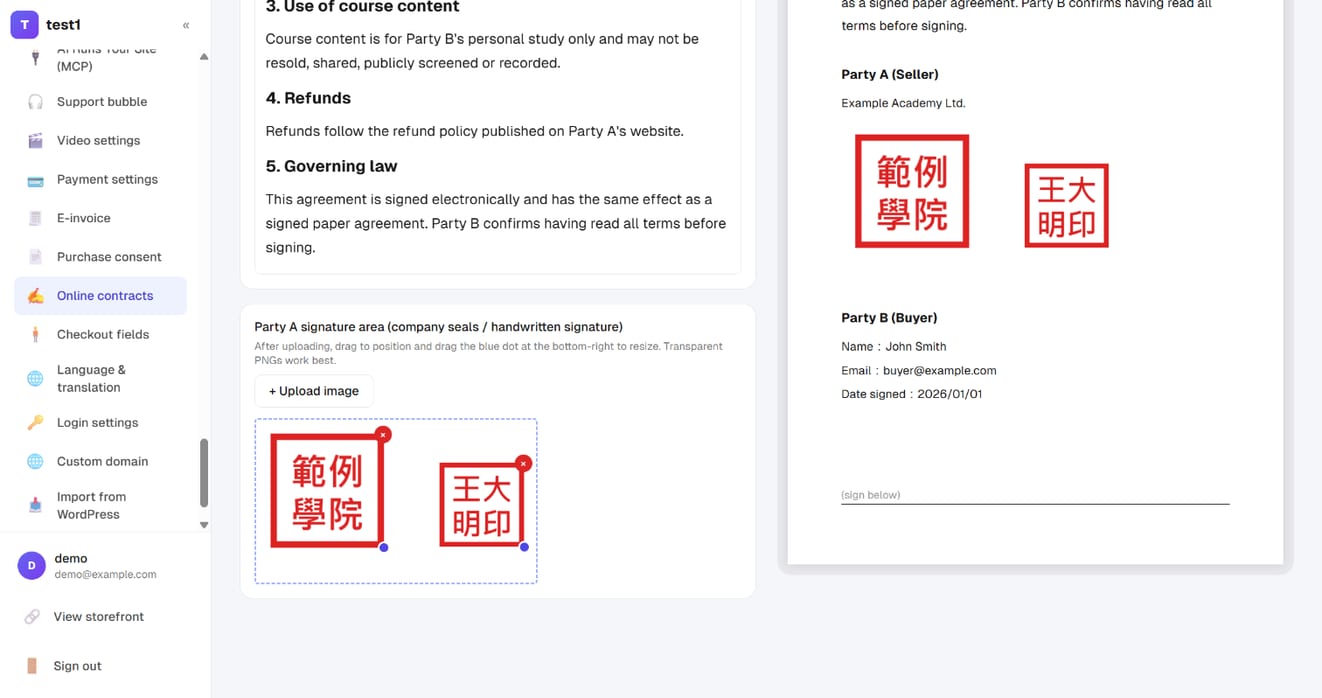
In Party A signature area, click + Upload image (up to 6). Then:
- Drag an image to position it
- Drag the blue dot at its bottom-right corner to resize (or click it and use the width slider)
- Click × to remove it
This box is the stamp area in the Party A block at the end of the contract. Positions are stored in millimetres, so the screen matches the printout. Transparent PNGs look best.
Click Save.
Why only the signature box and not anywhere in the body? Editing a few words changes where pages break, so a seal placed in the body would end up on top of other text. The signature box always follows the end of the contract, like stamping the last page of a paper contract.
Step 3: Turn it on for a course or product
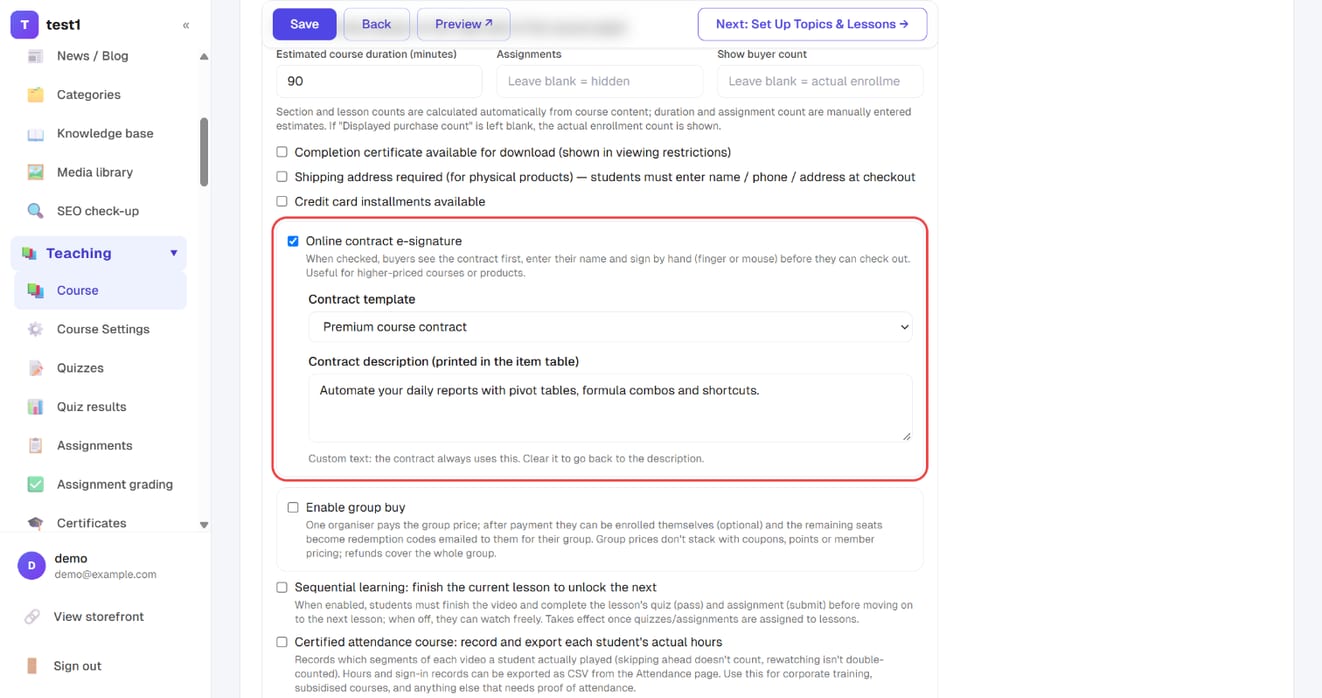
On the course's Course settings or the product edit page, under "Allow credit card installments", tick Online contract e-signature:
- Contract template: which template this item uses
- Contract description: leave blank to use the first 120 characters of the description (the grey text is what will print). If the description is long, rewrite it in a sentence or two. Once rewritten, your text is always used
Click Save.
What buyers see
- They click Buy now, or Checkout from the cart → the contract page appears first
- They read it, enter name and email, sign by hand, tick "I have read and agree" → Sign contract
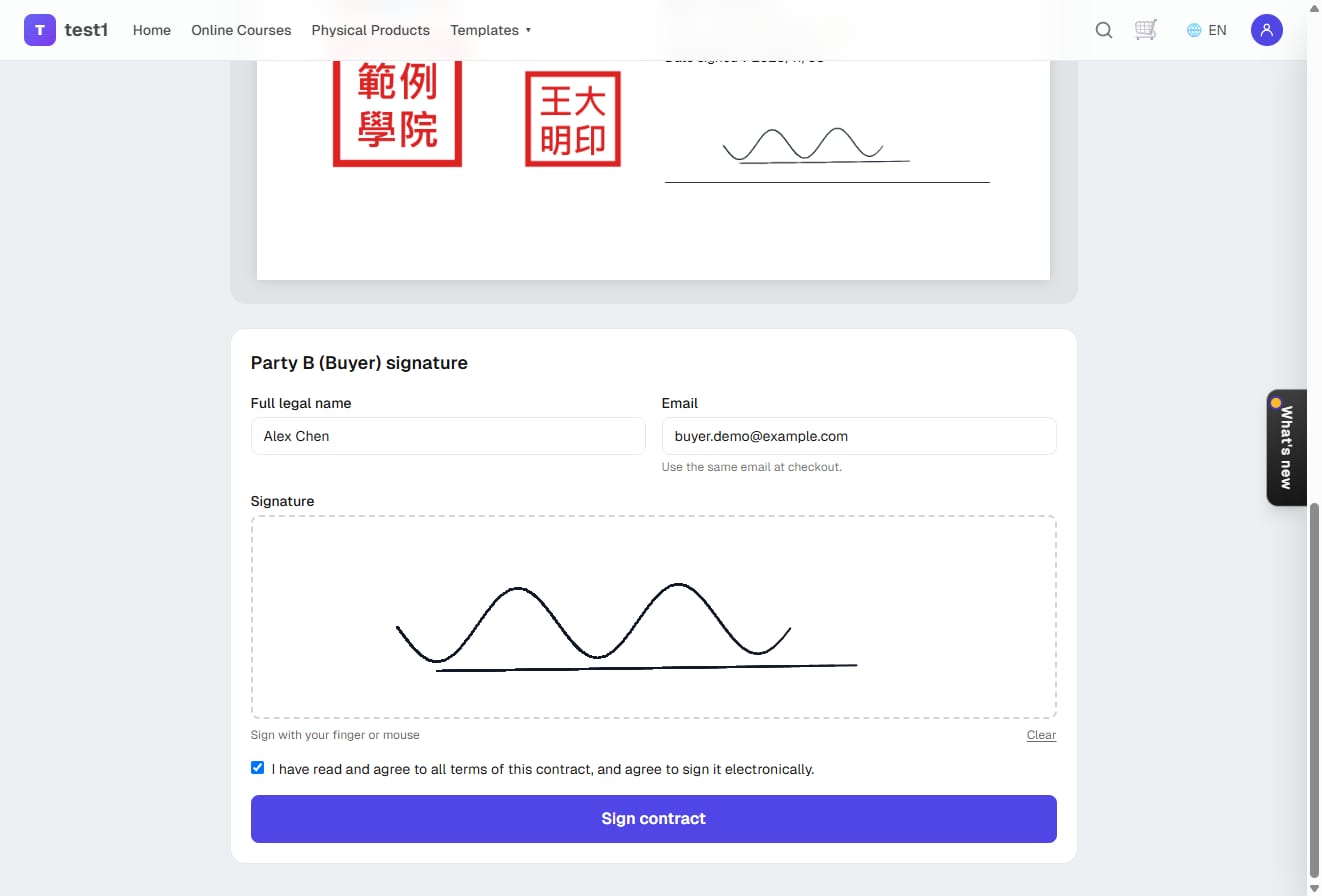
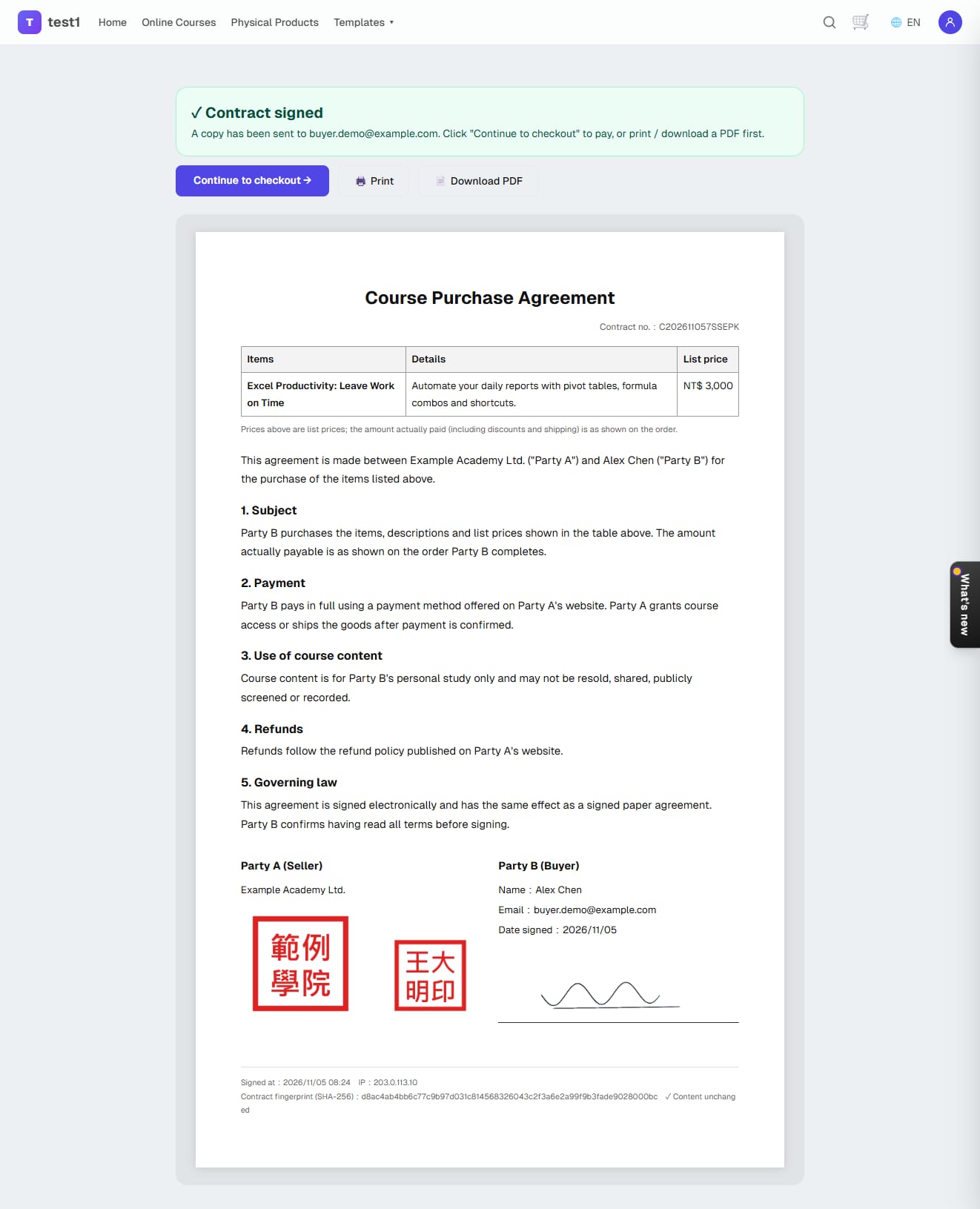
- The signed page offers Print, Download PDF and Continue to checkout
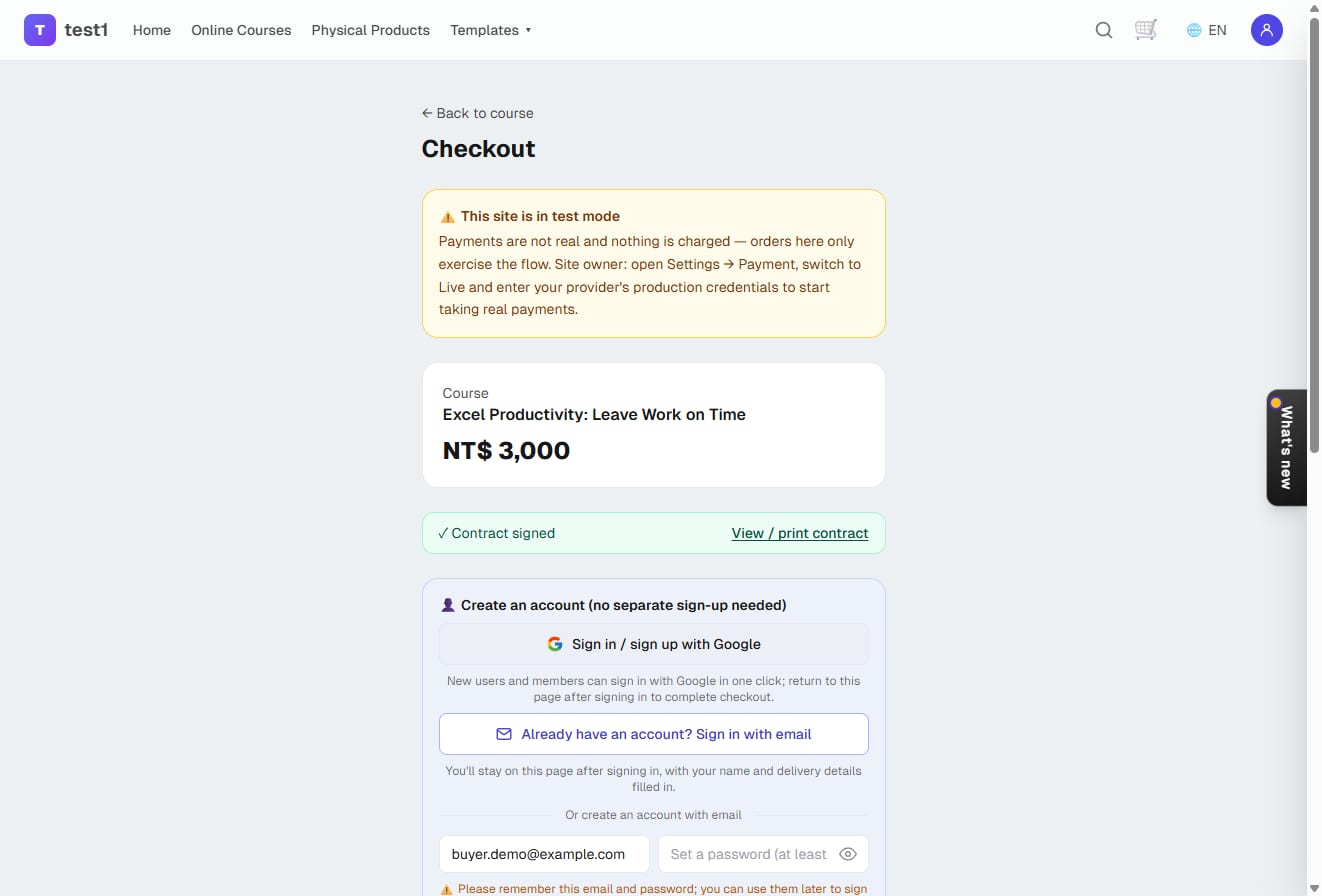
- Back at checkout, a "Contract signed" notice appears and the account email is filled in with the one they signed with. A copy of the contract has already been emailed to them
Rules:
- Several items needing a contract in one cart are signed once (one contract per template, the signature appears on each)
- Amounts on the contract are list prices, with a note that the amount actually paid is as shown on the order — signing happens before coupons and member prices are applied
- The checkout email must match the signer's email
- Within 7 days, if the items and template haven't changed, coming back to check out doesn't require signing again. Adding another contract item to the cart, or editing the template, requires a new signature
- If you've set a "high-value signature" threshold under purchase consent, orders that already have a signed contract aren't asked to sign twice
- Courses that need a contract can't be bought with one-click upsell, and add-on courses that need a contract aren't offered on single-course checkout (buy them through the cart)
Find them in the dashboard
- Online contracts → Signed contracts lists every signature, searchable and sortable. "Not checked out" means signed but no order yet
- Order detail pages show an Online contract box with a link to view or print it
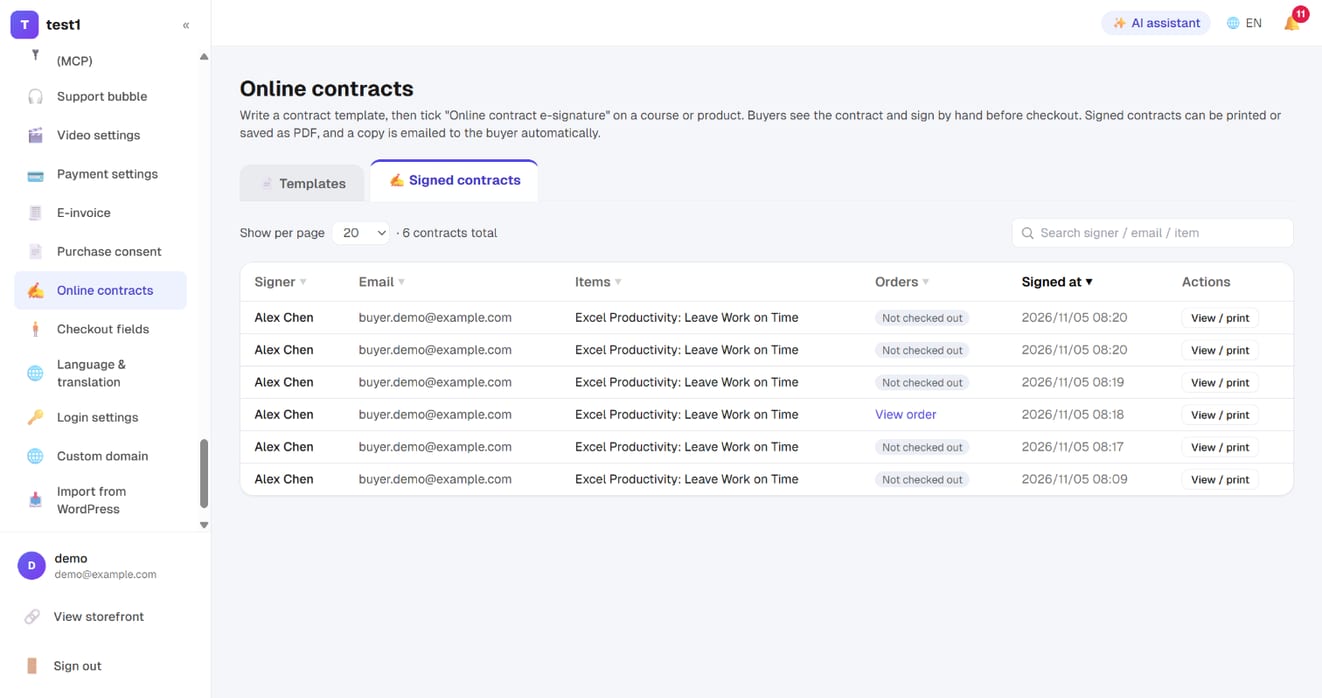
Each contract stores the full content at signing, the signature, time, IP and a SHA-256 fingerprint. Later template edits don't change signed contracts, and the contract page shows "Content unchanged".
Contract pages contain signatures and personal data. Only the signer and site admins can open them; knowing the URL isn't enough.