
Add-ons (bought-together prices for courses and products)
List a few courses or products under a course or product with a special price when bought together. Buyers tick them on the course page, at checkout or on the product page and pay once; add-on courses unlock automatically and add-on products ship as usual.
Add-ons let a buyer grab extra items at a special price together with a course or a product — for example "this photography course + the printed composition cards for NT$ 350 instead of NT$ 600". Everything is paid in one checkout.
An add-on can be another course or a specific product option from your shop. Courses and products each have their own add-on list.
Set up add-ons on a course
Step 1: Open the course's Add-ons section
Go to Teaching → Course, click Edit on the course, and scroll to the bottom. The Add-ons section sits just above "Publish now".
Step 2: Search for a course or product
Type a name in the search box. The dropdown lists matching courses and products. Each product option is listed separately. Click one to add it.
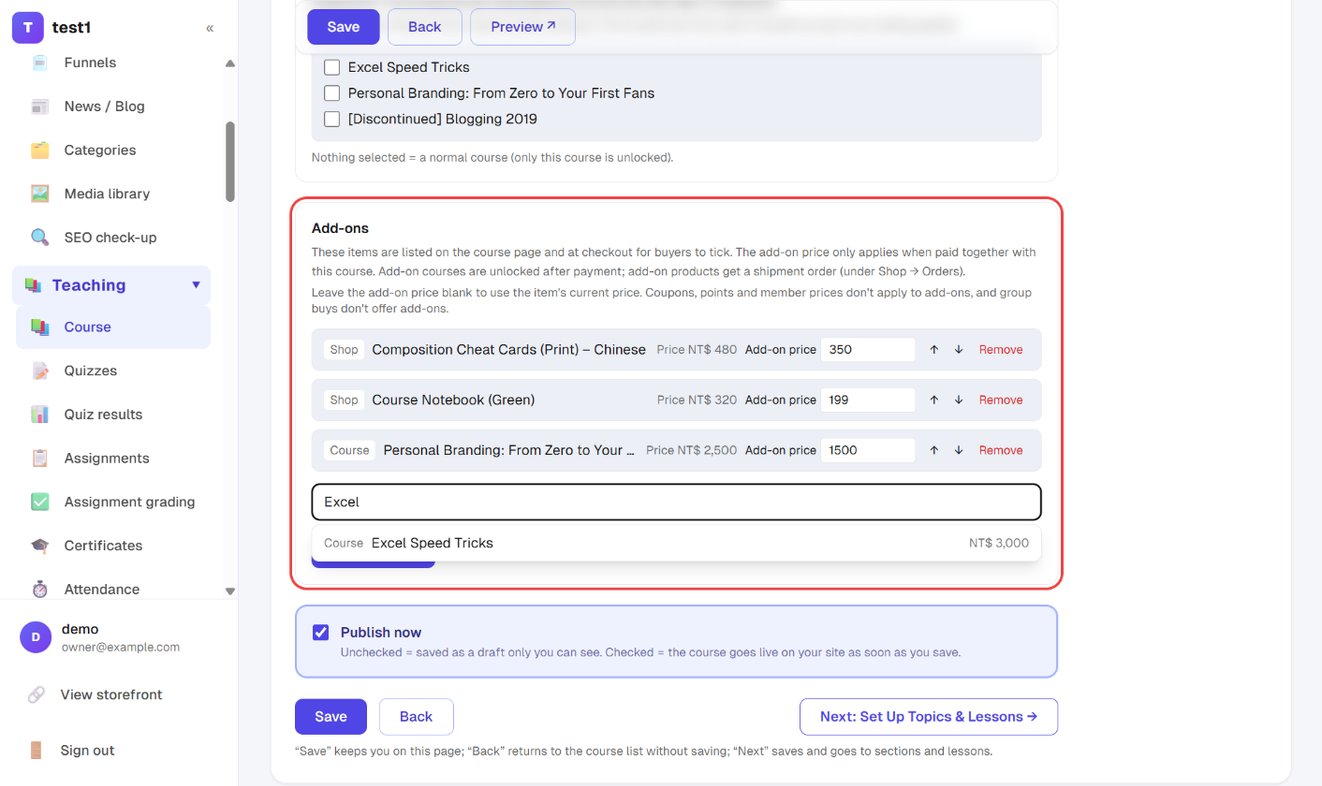
Step 3: Set prices and order, then save
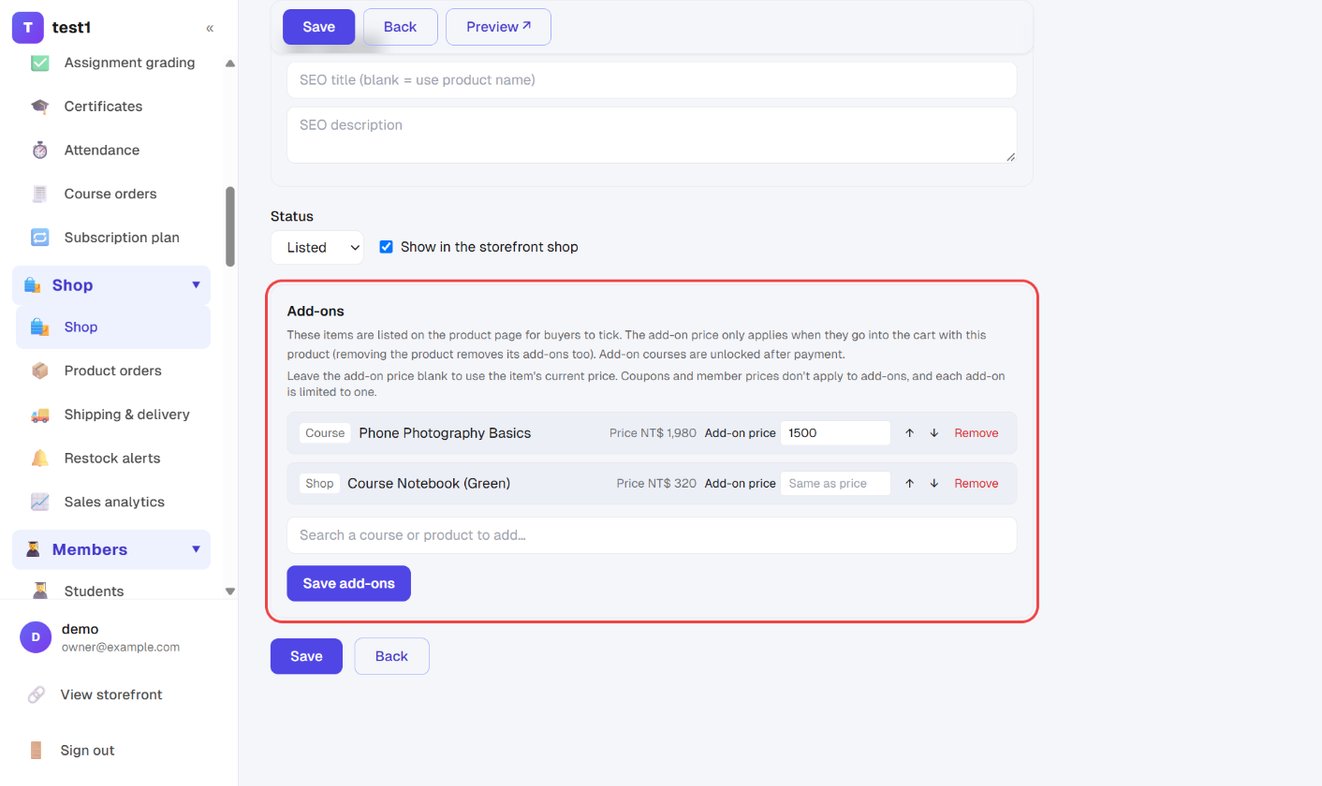
- Add-on price: the price when bought together. Leave it blank to use the item's current price.
- ↑ ↓: change the order shown on the storefront.
- Remove: take the item off the list.
You can add up to 12 items. Click Save add-ons. This section saves on its own, so you don't need the course's main Save button.
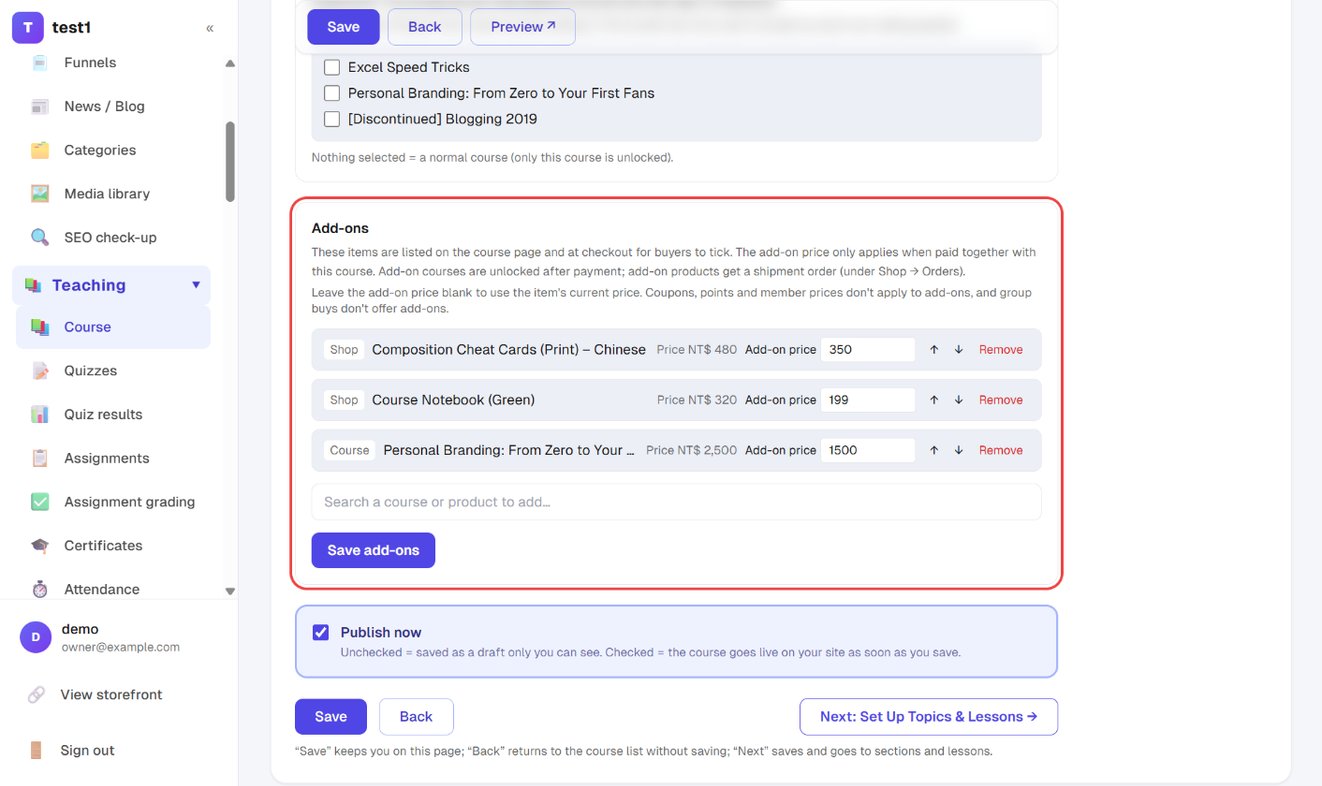
Only site owners and admins can change add-ons. Instructors can see them but can't edit them.
What buyers see
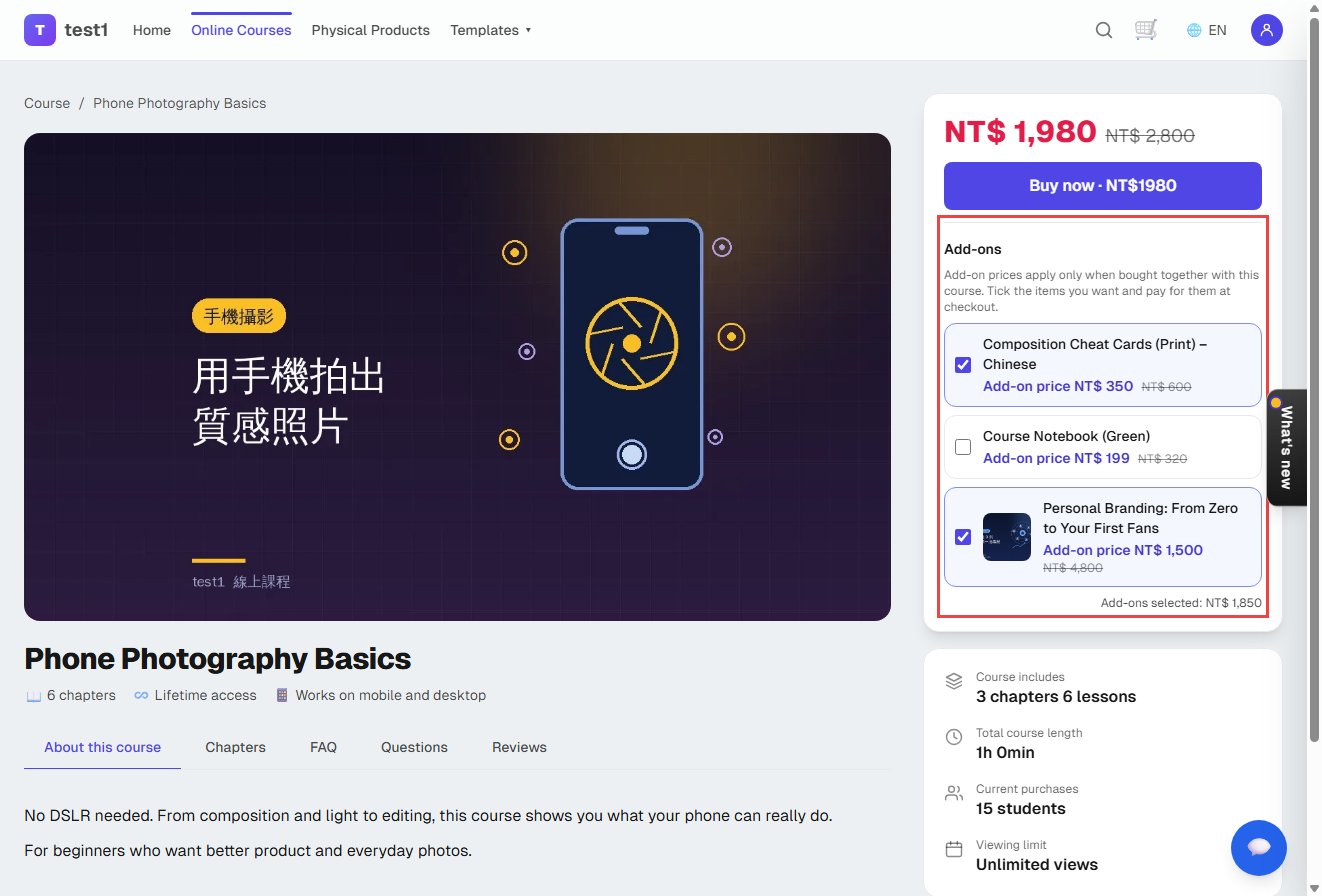
Step 4: Tick add-ons on the course page
An Add-ons list appears under the buy button, with the add-on price and the regular price crossed out. The selected total is shown at the bottom.
Step 5: Carry on at checkout and pay once
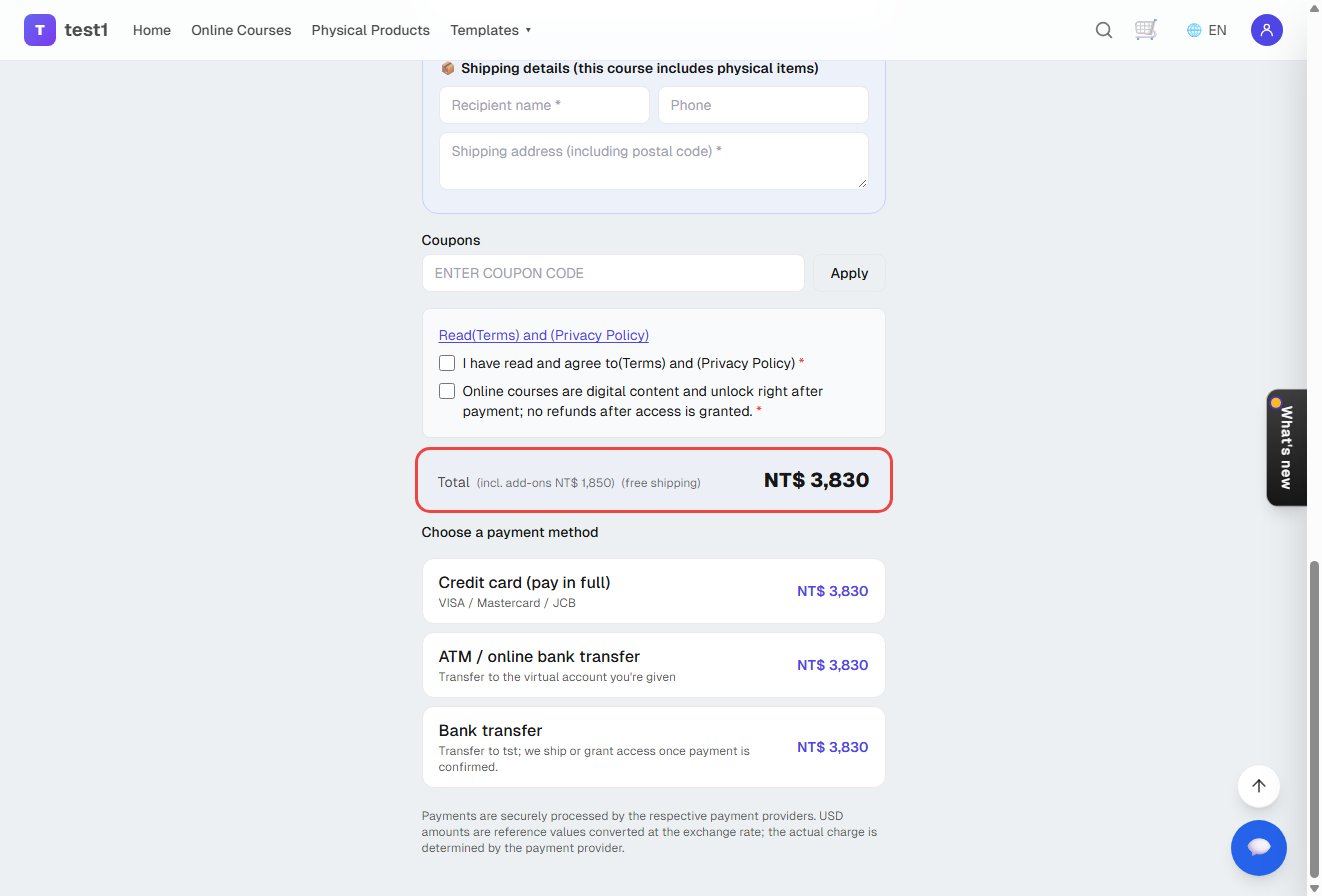
The items ticked on the course page are carried over to checkout, where the buyer can still change them. When a physical product is added, checkout also asks for a delivery method and shipping details.
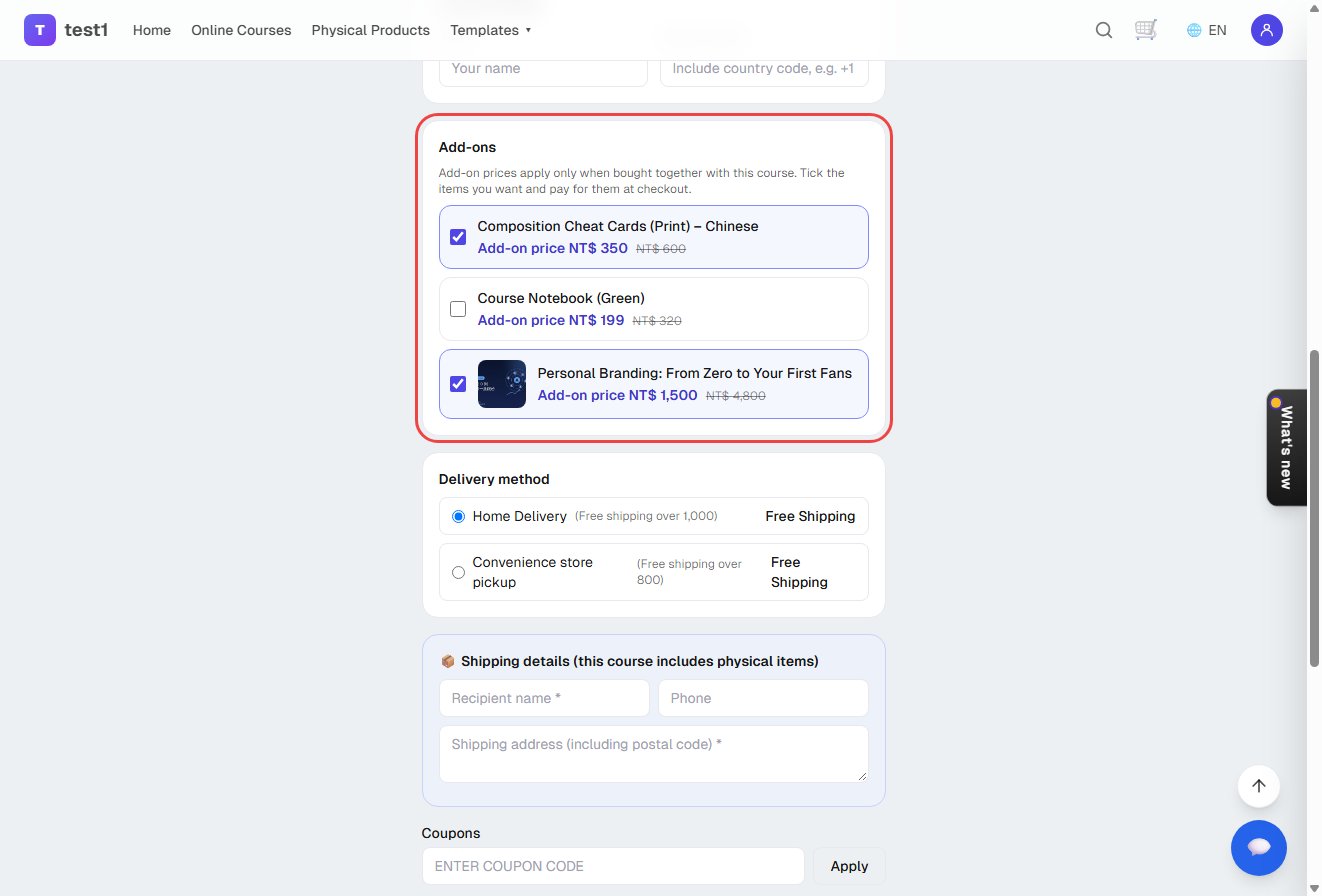
The total shows "(incl. add-ons NT$ …)", and every payment option already includes the add-ons.
Add-ons on shop products
Step 6: Set them up on the product
Go to Shop → Shop, click Edit on the product. The same Add-ons section is at the bottom and works exactly like the course one.
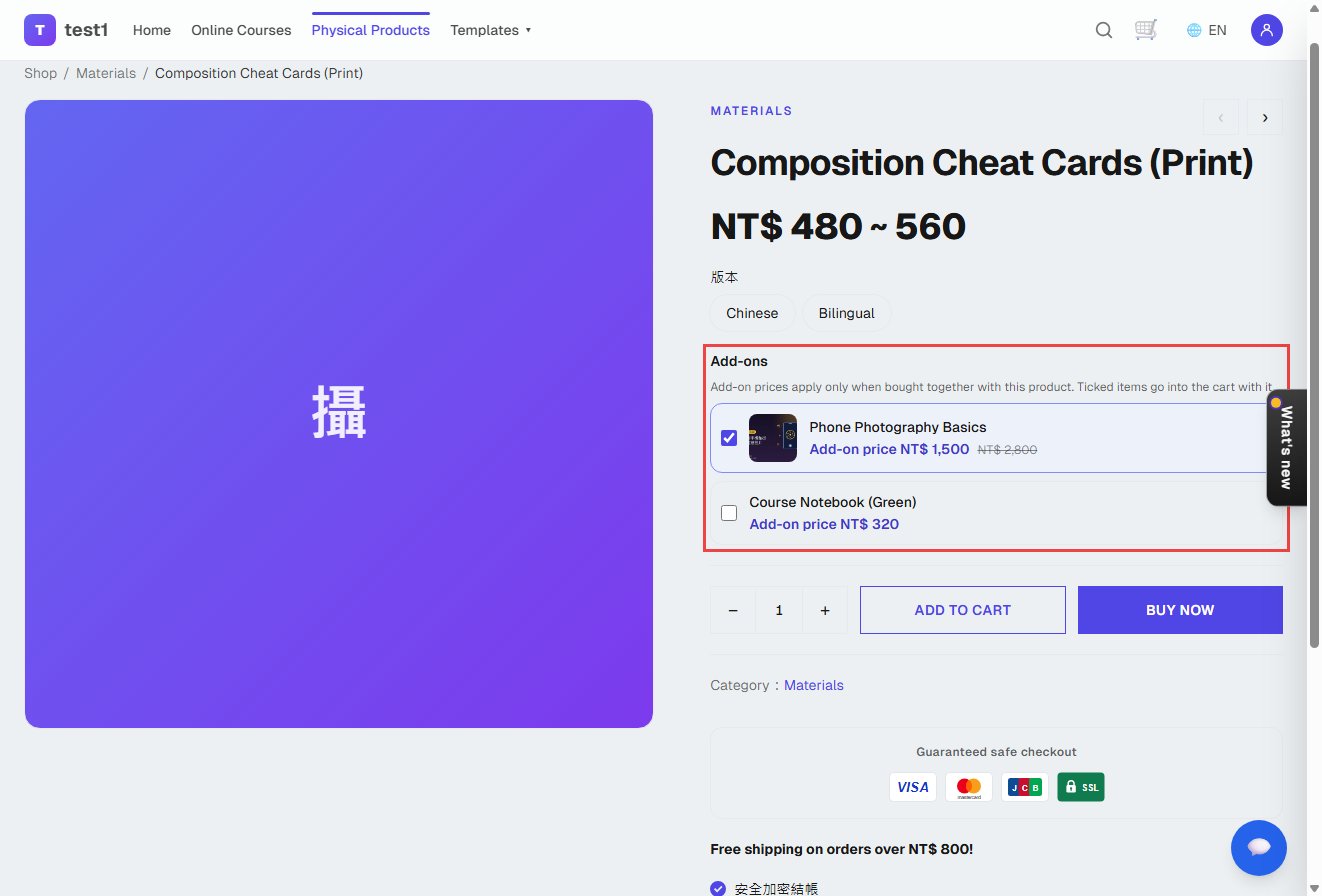
Step 7: Tick add-ons on the product page
The add-ons list appears under the product options. Ticked items go into the cart together with the product when the buyer clicks Add to cart.
Step 8: Add-ons are labelled in the cart
Add-on lines are labelled Add-ons, use the add-on price, and are fixed at a quantity of 1.
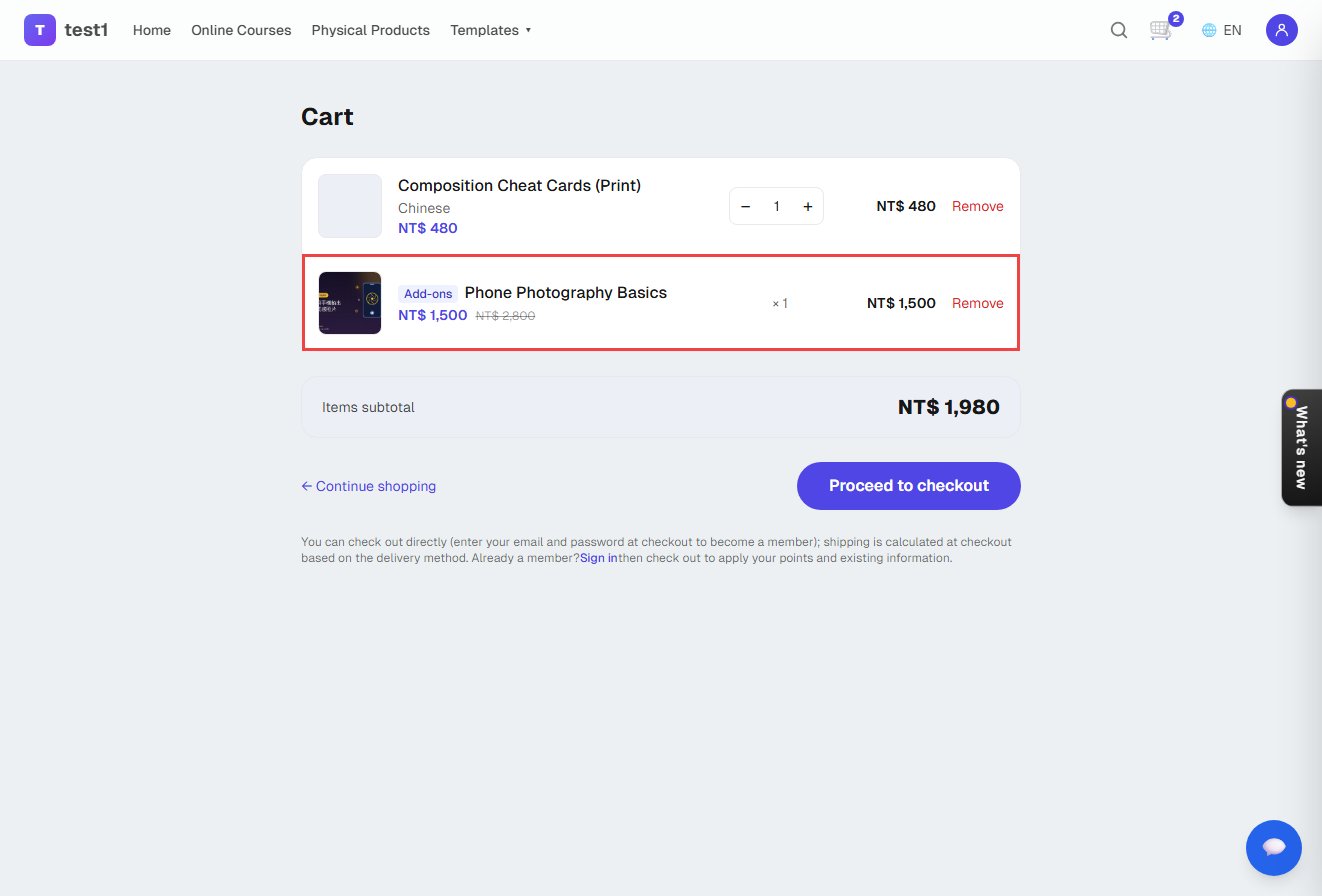
- Removing the main product from the cart removes its add-ons too, because the add-on price only applies when they're bought together.
- If the buyer already owns an add-on course, checkout asks them to remove it first so nobody pays twice.
After payment
- Add-on courses unlock right away, using each course's own access period.
- Add-on products reduce stock and ship as usual. Products added on a course page get a shipment order under Shop → Orders, and the course order page links to it.
Rules worth knowing
- Coupons, points and member prices apply to the main item only. The add-on price is already the deal.
- Group buys and subscription courses don't offer add-ons.
- Items that are unpublished, out of stock or closed for sale disappear from the list automatically.
- Refunds are made on the main order and cover the whole order. Add-on courses unlocked by that order are taken back (a course the buyer bought separately is not touched).
- Instructor commission is calculated on the course price only.